Flylib.com

Books Software


Recipe 11.5. Prompting for Printed Page Settings


Recipe 11.5. Prompting for Printed Page Settings

Problem

You want the user to indicate some basic paper- related settings for a printed document.

Solution

Use the PageSetupDialog class to prompt the user for these basic settings. The following code displays the Page Setup dialog for a basic print document:

Dim pageSetup As New PageSetupDialog
	pageSetup.Document = New Printing.PrintDocument
	pageSetup. 
ShowDialog()

Discussion

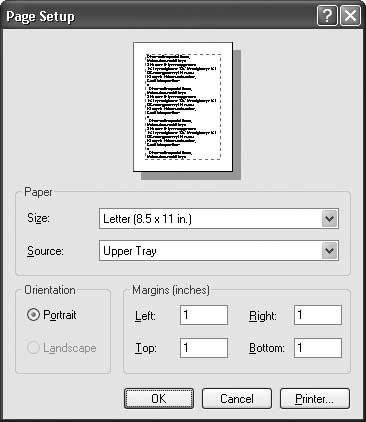
The PageSetupDialog 's ShowDialog() method presents the user with the basic Page Setup dialog shown in Figure 11-3. Its initial settings are based on the default printer, or the printer you have specified as the active printer.

The PageSetupDialog class encapsulates a complete form that lets the user set the page size , margins, source, and orientation for an upcoming print job. Normally, you prompt for these settings for a specific document by setting the Document property to a valid PrintDocument object. However, you can also call this form generically by setting its PrinterSettings and PageSettings properties to valid PrinterSettings and PageSettings objects, and setting the printer name to your intended target (if different from the default):

Figure 11-3. The Page Setup dialog
Dim pageSetup As New Forms.PageSetupDialog
	pageSetup.PageSettings = New Printing.PageSettings
	pageSetup. 
PrinterSettings = New Printing.PrinterSettings

	pageSetup.PrinterSettings.PrinterName = "\MySystem\MyPrinter"
	pageSetup.ShowDialog()

Once set, you can assign these PrinterSettings and PageSettings objects to the matching properties in your PrintDocument object:

' ----- Assumes a Printing.PrintDocument object named
	'       targetDocument.
	targetDocument.PrinterSettings = pageSetup.PrinterSettings
	targetDocument.DefaultPageSettings = pageSetup.PageSettings

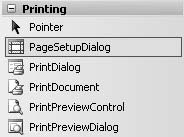
The PageSetupDialog class also comes in a Windows Formsbased control variation (see Figure 11-4). You can add this control and a related PrintDocument control to your form and display the page settings that way, but it works just the same. You assign the PrintDocument control to the PageSetupDialog 's Document property, and then call the PageSetupDialog 's ShowDialog() method. It's the exact same code that appears in this recipe's solution; only the declarations of the PageSetupDialog and PrintDocument objects have moved from your source code to the form's surface.

Figure 11-4. The control version of the PageSetupDialog class


Recipe 11.6. Drawing Text and Graphics to a Printer

Problem

You're ready to print. How do you do it?

Solution

Sample code folder: Chapter 11\TextAndGraphics

Respond to the various events of the PrintDocument object, especially the PrintPage event.

Discussion

The following code sends a two-page document to the default printer when the Button1 button is clicked. Each page includes some simple text and graphics:

Imports System.Drawing.Printing

	Public Class Form1
	   Private WithEvents SampleDoc As Printing.PrintDocument
	   Private PageNumber As Integer

	   Private Sub Button1_Click( _
	         ByVal sender As System.Object, _
	         ByVal e As System.EventArgs) Handles Button1.Click
	      SampleDoc = New Printing.PrintDocument
	      SampleDoc.Print()
	   End Sub

	   Private Sub SampleDoc_BeginPrint(ByVal sender As Object, _
	         ByVal e As System.Drawing.Printing.PrintEventArgs) _
	         Handles SampleDoc.BeginPrint
	      ' ----- Start the page counting.
	      PageNumber = 0
	   End Sub

	   Private Sub SampleDoc_PrintPage(ByVal sender As Object, _
	         ByVal e As Printing.PrintPageEventArgs) _
	          
Handles SampleDoc.PrintPage
	      ' ----- Keep track of the current page.
	      PageNumber += 1
	      If (PageNumber >= 2) Then e.HasMorePages = False Else _
	         e.HasMorePages = True

	      ' ----- Let's use inches, a nice easy measurement system.
	      e.Graphics.PageUnit = GraphicsUnit.Inch

	      ' ----- Print some text and rectangles.
	      e.Graphics.DrawString("This is page " & PageNumber & _
	         ".", New Font("Ariel", 48, FontStyle.Regular), _
	         Brushes.Black, 2, 2)
	      e.Graphics.DrawRectangle(New Pen(Color.Blue, 0.005), _
	         3.0!, 3.0!, 3.0!, 0.5!)
	      e.Graphics.DrawRectangle(New Pen(Color.Red, 0.005), _
	         3.25!, 3.25!, 3.0!, 0.5!)
	   End Sub
	End Class

This sample prints two pages similar to the pages in Figure 11-5.

Figure 11-5. Output from the PrintPage event

Make sure that you include the WithEvents keyword in your PrintDocument variable's declaration, or you won't be able to attach an event handler with the Handles keyword.

All printing for a document occurs in the PrintDocument object's PrintPage event. This event includes an e.Graphics property that exposes a full GDI+ graphics drawing surface for a single document page. Use any of the GDI+ drawing methods (such as DrawString(), FillPie() , or DrawImage()) or display transformation features (such as translateTransform()) that you need to organize and print your page.

It's up to you to determine which pages should be included in the print document, and even which page numbers to use. The PrintDocument object does not know which pages should be included, so you need to do those calculations yourself, as was done in this recipe with the PageNumber class member. The PrintDocument. PrinterSettings object's PrintRange, FromPage , and ToPage properties indicate the user -selected pages to include in the output.

Printing will continue until you tell it to stop. The PrintPage event's e.HasMorePages property controls everything. Set it to true if there are more pages to print after the current page or to False when you are printing the last page.

Besides the PrintPage event, the PrintDocument object includes a few other useful events:


BeginPrint

This event fires before the first triggering of the PrintPage event. You can initialize any settings that apply to the entire print process here.


EndPrint

This closing event gives you a chance to free any resources you acquired during the print process. This event always occurs, even if the user aborted the printing early or if an error occurred.


QueryPageSettings

This event allows you to modify the page settings on a page-by-page basis. For instance, you could have all even pages appear in Portrait orientation while all odd pages print using Landscape orientation.

See Also

Chapter 9 includes examples of GDI+ features you can use on the graphics surface.