1.3.
|
1.4. Panels
A Flash
panel
is like a toolbar on steroids: bigger and loaded down with more options, but built for the same reasonto let you keep the stuff you work with the most visible right there in front of you, where it's easy for you to find and use. Furthermore, unlike
Flash offers you a ton of panels, each of which appears initially in one of two flavors:
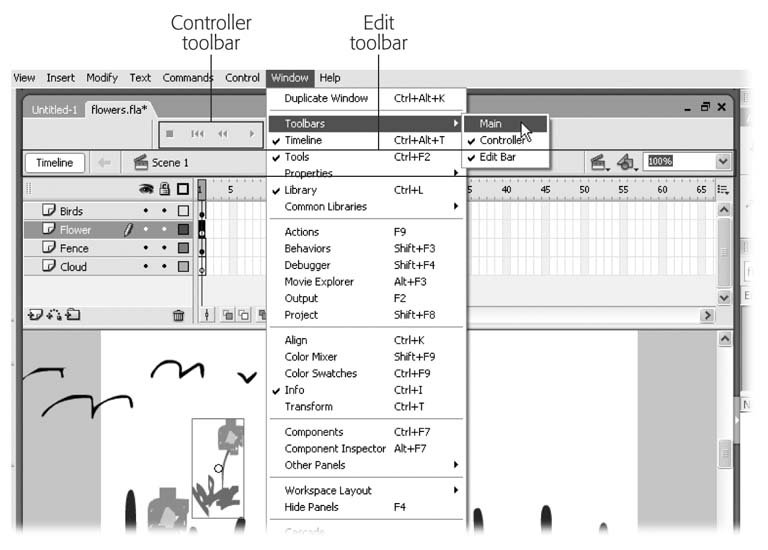
You can have as few or as many panels showing at a time as you like. The Window menu lists all of Flash's panels, and you show and hide them by selecting to turn their checkmark on and offexactly as with toolbars, as shown in Figure 1-5.
Besides keyboard shortcuts, there's only one way to display a panelfrom the Window menubut you have plenty of options for getting them out of your way. For example, you can click the X in the upper-right corner of a floating panel, as shown in Figure 1-6. For docked panels, you can
collapse
(shrink) them by clicking the down arrow in the
Tip: To hide all the panels you've displayed in one fell swoop, select Window
Hide Panels or press the F4 key. You can also click the arrows just
1.4.1. Tools Panel
All animations start with a single drawing. And to draw something in Flash, you need drawing tools: pens, pencils, brushes, colors,
Figure 1-6. Panels like the ones shown here
|
|
UP TO SPEED
The Options Menu |
|
In the upper-right corner of every expanded panel, you see a menu icon. When you click this icon, an options menu appears. The options menu is different for each panel. Here, for example, you see commands that let you edit how the Colors panel displays color choices. But a handful of options are common to all panels:
Group panel with
. Displays a panel as a tab in
another
panel, which is a great way to save space on a crowded screen. Just like a tabbed Web browser, you can keep
Close panel . Closes the panel (or tab) you're working with.
Rename panel group
. Lets you rename the panel (not the tab) you're working with; for example, to a shorter name. (Flash doesn't let you
Maximize panel group . If the panel you're working with is docked, Flash redisplays the panel along the full length of your screen. Turning off the checkbox next to Maximize panel group minimizes the panel. Close panel group . Closes the panel (not the tab) you're working with.
|
The Tools section displays the tools you need to create and modify a Flash drawing. For example, you might use the Pen tool to start a sketch, the Eyedropper to apply color, and the Eraser to clean up mistakes.
At times, you'll find yourself drawing a picture so
When you're creating in Flash, you're drawing one of two things, a stroke , which is a plain line or outline, or a fill , which is the area within an outline. Before you click one of the drawing icons to begin drawing (or afterwards, to change existing colors, as discussed in Chapter 2) you can use these tools to choose a color from the color palette, and Flash applies that color to the Stage as you draw.
Which icons appear in the Options section at any given time depends on which tool you've selected. For example, when you select the Zoom tool from the View section of the Tools panel, the Options section displays an Enlarge icon and a Reduce icon that you can use to change the way the Zoom tool works (Figure 1-8).
Not everyone is blessed with perfect eyesight and hearing. To make sure vision-and hearing-impaired folks can enjoy the animations you create using Flash, you need to think about accessibility : the special techniques you can use to deliver your message via alternate means.
The Accessibility panel provides tools to help you in creating a design that provides at least some information to those whose vision or hearing is impaired. For example, using the Accessibility panel, you can give
To display the Accessibility panel, select Window
Other Panels
Accessibility (or press Alt+F2).
ActionScript
is a serious developer-level scripting language that lets you add interactivity to your animations by tying a graphic element (say, a button) to a specific action (say, opening up a specific Web page). In fact, that's how ActionScript got its name: it lets you tie an
action
to an object or element you
|
UP TO SPEED
Why Accessibility Matters |
|
The
As you can imagine, a Flash animationwhich often includes audio in addition to video and still imagesisn't going to be
Thanks to U.S. legislation referred to as
Section 508
, local, state and federal Web sites
For more information on accessibility, check out these Web sites:
|
The Actions panel lets you mix and match snippets of ActionScript code to build what's called an ActionScript
script
, which you can then attach to one of the objects in your drawing (or one of the
Sometimes dragging stuff around the stage and eyeballing it works just fine; other times, you want to position your graphic elements with pinpoint precision. Using the Align panel, you can align graphic elements based on their edges (top, bottom, right, left) or by their centers. And you can base this alignment on the objects
To display the Align panel, select Window
Align or press Ctrl+K (Windows) or -K (Mac).
Flash comes with several common, pre-ActionScripted snippets of code called behaviors that you can add to your animations. You'll find a behavior for most of the really basic things you want to do with ActionScript, such as triggering a sound file or jumping to a specific section of an animation.
All you have to do to use a behavior is display the Behaviors Panel (Window
Behavior) shown in Figure 1-10 and then click the Add Behavior icon to display a list of available behaviors. When you do, Flash pops up a helpful window (or two) to step you through the process of customizing the behavior.
For example, if you want to trigger a sound file, you need to add the Play Sound behavior, tie it to an eventsuch as a button clicking or a frame appearingand then customize your newly added behavior by telling Flash which sound file you want it to play when the event occurs.
A good painter can create custom colors by mixing and matching a bunch of other colors. In Flash, you can do that, too, through the Color Mixer panel. And, if you like, you can save your custom color as a reusable color swatch in the Color Swatches tab. That way, when you get the urge to draw another puce-colored
Behavior. When you do, the Behaviors panel appears with a list of object-specific events (such as click) for you to choose from. Click Add Behavior to display a list of behaviors.
The three Common Libraries panelsButtons, Classes, and Learning Interactionsdisplay prebuilt clips (in other words, self-contained,
Buttons . Here you'll find a wealth of cool-looking customizable push buttons, each as different from a dull gray HTML button as you can get.
Classes . Useful only to heavy-duty ActionScript programmers, these compiled clipsDataBindingClasses, UtilsClasses, and WebServiceClasseslet you transfer information between your animation and server-side programs at runtime.
Flash Help and searching All Books for the specific class youre interested in.
Learning Interactions
. In this panel, you find customizable
A Flash
component
is a reusable, self-contained, customizable, interactive graphic that you can add to your animation. Technically, you (or
Component Inspector (or pressing Alt+F7).
|
UP TO SPEED
Deciphering Components |
|
Components aren't unique to Flash. Most programming languages provide a way to create components, which are nothing more than reusable hunks of code known in the trade as black boxes . What that means is that you don't have to know how the component code works behind the scenes in order to use it. All you have to do is put stuff in (change a couple of settings) and take stuff out (watch the component do its thing).
In days gone by, software pundits
Well, the world is still waiting. But if you look hard enough, you might be able to find useful third-party Flash components (some of them gratis) on the Web. Chapter 12 gives you some ideas for where to start looking. |
Flash keeps track of every little thing you do to a file, starting with the last time you opened (or created) it: every shape you draw, every file you import, every color you change. This behind-the-scenes trackingwhich you can view using the History panel shown in Figure 1-11comes in handy when you want to revert to an earlier version of an animation. For example, one in which the cartoon rabbits you drew actually look like rabbits instead of overfed mice. To display the History panel, click Window
Other Panels
History (or press Ctrl+F10).
Preferences. In the Preferences window that appears, select the General category. Then, in the Undo field, Specify Document-level Undo and type in the number of levels (changes) you want Flash to track. You can specify any number you like from 2 to 9,999.
The more complicated your Flash creations become, the more likely it is that at some point you'll want to know specific details about the objects on your Stage: details like the RGB values of one of the colors you used, the
To display the Info panel, first head to the Stage and click an object to select it; then choose Window
Info or press Ctrl+I (Windows) or -I (Mac). As shown in Figure 1-12, the Info panel only displays information about the object you currently have selected.
The Library panel (Figure 1-13) is similar to the Common Libraries panel described on Section 1.4.7: both display reusable components you can add to your Flash animations. The difference between the two is that while the Common Libraries panel displays components you can add to
any
Flash file, the Library panel displays objects you can add only to the file you currently have open. To show the Library panel, click Window
Library or press Ctrl+L (Windows) or -L (Mac).
Another difference between the Library panel and the Common Libraries panel is that the Library panel doesn't come preloaded with helpful buttons and such. You have to add your own reusable objects to the Library panel (which you see how to do in Chapter 7).
Let's say, for example, that you create a picture-perfect bubble, or sun, or snowflake in one frame of your animation. (You learn more about frames on Section 1.4.16.) Now, if you want that bubble, sun, or
After you finish creating a Flash animation (which you see how to do in Chapter 3), you can find and edit specific animation details quickly and easily by using the Movie Explorer panel, shown in Figure 1-14. To display the Movie Explorer panel, select Window
Movie Explorer (or press Alt+F3).
If you're familiar with the Explorer tool in Windows, you may recognize the Movie Explorer Panel. Much as the Windows Explorer shows you a collapsible outline of all the folders and files on your computer, the Movie Explorer panel shows you all the components of your animation, organized by scene: the video clips, the sound files, the text, the images, and so on. (For more about scenes, check out the box on Section 1.4.15.)
In addition to seeing an at-a-glance outline of your entire animation, you can use the Movie Explorer panel's Show icons to tell Flash which specific elements of your movie you want to view (just the buttons, say, or only the images, frames, and
When Flash has something to tell you about your animation, it uses the Output panel. To view the Output panel, select Window
Output or press F2. For example, when you
export
your Flash animation (Chapter 14) or when you add
Publish Settings. Then, in the Publish Settings window that appears, click the Flash tab; finally, turn on the checkbox next to Generate Size Report. The next time you export your animation, Flash adds a file size report to the comments its displays in the Output panel. (You want to keep on top of file size if you plan to include your Flash animation in a Web page, because the larger the file size, the more likely folks will have problems viewing it over the Web.)
The Properties panel (also known as the Property Inspector) appears automatically beneath the Stage when you open a new document. If you don't see the Properties panel, you can display it by selecting Window
Properties
Properties or by typing Ctrl+F3.
As you can see in Figure 1-15, the Property Inspector displays specific information about whatever object you currently have selected on the Stage. These details can be helpful if, for example, you're planning to incorporate your finished work into a Web page and need to know the dimensions of a particular drawing. In addition to just viewing the properties of a selected object, you can also edit those properties using the Property Inspector, as you'll learn in the "Test Drive" section of this chapter.
|
UP TO SPEED
Anatomy of a Scene |
|
A scene is a collection of one or more frames tied to its very own Timeline. Most of the time, you'll create animations consisting of just one scene; but if it makes sense to you organization-wise, you can choose to break your animation up into several scenesfor example, you might create an intro scene, a main scene, and a credits scene.
The benefit of breaking an animation up into a bunch of scenes is that it helps you reuse stuff. For example, say you use Flash to create 30-second Web advertisements for the company you work for. If every single ad you create needs to contain the same few seconds of animation at the beginning (a welcome message from your CEO) and the same few seconds at the end (a heartfelt "and that's why you should buy from our company"
|
You'll notice two additional panel tabs in Figure 1-15: Filters and Parameters. The Filters panel tab lets you add special effect filters to text, movie clips, and buttons (Chapter 7); the Parameters panel tab lets you customize component parameters (Chapter 12).
You can create an animation in Flash that comprises just one scene, but you can choose to break your animations up into multiple scenes, too, if you like. (See the box on Section 1.4.15 for the skinny on scenes and why you might want to organize your animation into multiple scenes.)
To add a scene to your animation (or to rename or delete an existing scene), you use the Scene panel, which you display by choosing Window
Other Panels
Scene. Figure 1-16 shows you what the Scene panel looks like.
Transform is a $64 word meaning "to mess with." When you have an existing object that you want to mess with selected on your Stageto scale horizontally or vertically, to rotate, to compress, to distort (pull out of shape like a wad of taffy), or to skew (slant horizontally or vertically)you want, in animation terms, to transform that object. You can learn how to do all these transformations in Chapter 5 (Section 5.1).