Flylib.com

Books Software


Using Online Services (Windows Only)


Using Online Services (Windows Only)

Online services enable you to share pictures and projects, order projects, and print pictures at professional photo-finishing labs. These services, offered by various service providers, are available for Adobe Reader Windows users. As of Adobe Reader 7, the services are not available to Macintosh users.

To use the online services for Picture Tasks:

1.

Open a file supporting Picture Tasks in Adobe Reader.

2.

From the Picture Tasks pull-down menu, select one of the four options for online services: Share Prints Online, Share Project Online, Order Prints Online , and Order Project Online .

3.

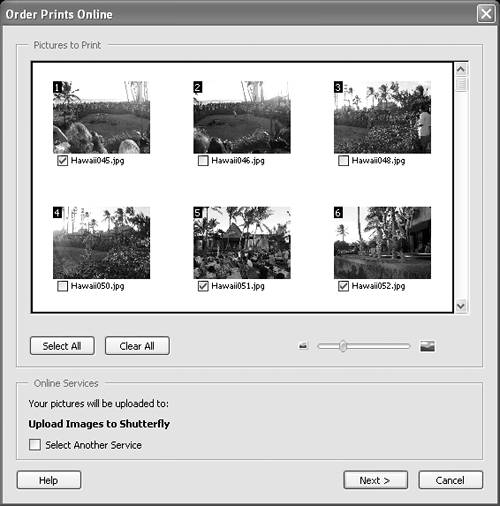
If you select either Share Pictures Online or Order Pictures Online , a dialog opensthe Order Prints Online dialog in Figure 9.19 where you can select the pictures in the current open document that you want to either share or print online.

Figure 9.19. Selecting Share or Order Prints Online opens a dialog where you select pictures.


4.

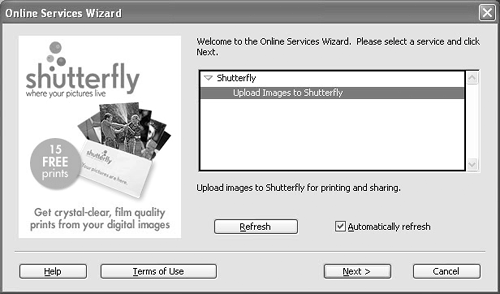
Select the pictures you want to share or print, and either click Next or choose the other option either for ordering prints or projects online. The Online Services Wizard dialog opens ( Figure 9.20 ).

Figure 9.20. The Online Services Wizard dialog boxwhere you order online servicesopens.


5.

You will first need to set up an account with an online service provider. If you have ordered services from a provider, the provider is listed in the dialog. To find more information for setting up accounts and ordering services, click the Help button.

6.

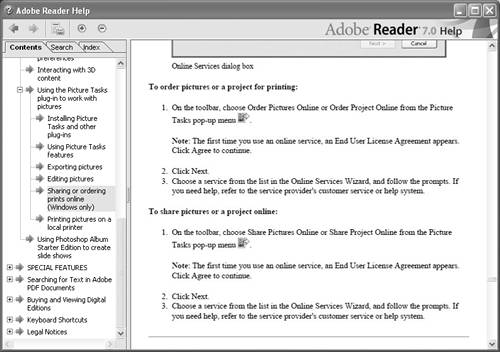
The Adobe Reader Help document opens, and the page related to online services opens in the Adobe Reader Help window. Browse the Help document ( Figure 9.21 ) to learn how to log on to a service and how to order services.

Figure 9.21. The Help document opens, offering information about ordering online services.


7.

If you open the Online Services Wizard and a service provider you want to use appears in the dialog, click the Next button. You are then prompted to review the license agreement and set up an account. Follow the directions in the Online Services Wizard dialog to place an order.


Getting Help with Picture Tasks

Help is available for all Picture Tasks features. If you want to use a Picture Task command and you're still unclear about how to produce the results you want, the Adobe Reader Help document is a mouse click away.

To open the Picture Tasks help information in the Help document:

1.

Open a file supporting Picture Tasks. Note that you can't access the Picture Tasks command if you don't have a file open that supports Picture Tasks.

2.

From the Picture Tasks pull-down menu, select How To…Picture Tasks .

3.

The How To pane opens ( Figure 9.22 ) listing the same commands found in the Picture Tasks pull-down menu. Click one of the items, and the result is the same as using the pull-down menu commands from the Picture Tasks tool. Scroll to the bottom of the How To window to access the link to the Help document.

Figure 9.22. Scroll the How To window to show the link to the Help document at the bottom of the window.


4.

Click Picture Tasks Help, and the Adobe Reader Help document opens to the Picture Tasks help page.


Chapter 10. Saving PDFs

One of the most common questions asked by Adobe Reader users is, why can't I save the edits I make on PDF files using Adobe Reader? Actually, you can save files, but only in limited circumstances.

Adobe Reader 7 offers you two ways of saving files. You normally can't edit PDFs, and therefore can't save the files. You can, however, save a copy of a PDF document for the purpose of duplicating the file and saving the PDF from within a Web browser.

The second way of saving a PDF is when the document has been enabled with usage rights for Adobe Reader users. In this case, you can edit and then save the file in Adobe Reader, just as you would expect to save a document in Adobe Acrobat.