|
Adobe Reader 7 Revealed. Working Effectively with Acrobat PDF Files Authors: Padova T Published year: 2005 Pages: 49-50/168 |
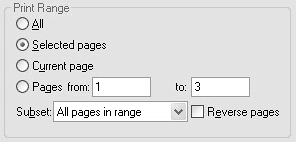
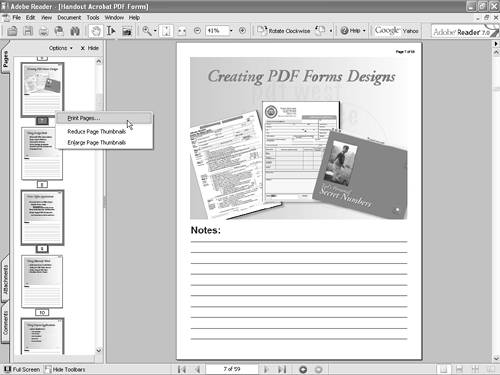
Printing Selected PagesYou can use the Print dialog to select a range of pages to print. The range specified in the Print dialog needs to be a contiguous range, such as pages 27 through 33. If you want to print several pages in a noncontiguous order such as page 12, 18, 22, 45, 57, and so on, you must first select the pages using the Pages tab before opening the Print dialog. To print a group of selected pages:
|
Printing as an ImageAt times, you'll find some PDF documents either difficult or impossible to print. There are a number of reasons why a PDF document can't be printedthe most common being problems with type fonts. A corrupt font, a font not embedded in a PDF, too many fonts in the document that overload a printer's memory, and similar types of font problems can prevent you from printing the file to your desktop printer. To help overcome printing problems you can choose to print the file as an image, which converts all the illustrated vector artwork and type fonts to raster images, which are less-complex files to print. When you print a file as an image, however, the document integrity suffers and may result in a bitmapped appearance with visible jagged edges on the type. Use this option only as a last alternative when the file fails to print using the other print options.
To print PDF files as image files:
|
|
Adobe Reader 7 Revealed. Working Effectively with Acrobat PDF Files Authors: Padova T Published year: 2005 Pages: 49-50/168 |