| Keyframes allow you to vary effect settings over time, essentially animating the effect. The result is a true quantum leap in creative potential. When I was first learning about keyframes, it took a while for the concept to sink in, so I'll start with a simple application where I'll use keyframes to transition in the application of an effect. Specifically, I'll apply a soften filter to the beginning of a clip and then gradually remove the filter so the video comes into focus. This example will involve three keyframes, one at the start of the video, one at the point where the video becomes clear, and one at the very end. Then we'll go full bore with a "keep the spotlight on the dancing ballerina" example, which will involve setting about a dozen keyframes. Though it's pretty cheesy, after both examples, you should be in great shape to keyframe your effects with aplomb. Note that not all effects can be keyframed; in particular, you can't apply keyframes to Studio's Speed effect. To transition in a fade effect with keyframes 1. | Place the target clip on the Timeline and select the clip with your pointer.
| 2. | At the upper left of the Movie window, click the Open/Close Video Toolbox icon (Figure 9.3).
| 3. | On the left side of the toolbox, click the Add an Effect to a Video Clip icon.
| 4. | Click the target effect category (Figure 9.12).
Figure 9.12. Let's work with the Soften effect. 
| 5. | Click OK.
Studio applies the special effect and opens the Special Effects window (Figure 9.13).
Figure 9.13. Here are my configuration options, and the Use keyframes checkbox. 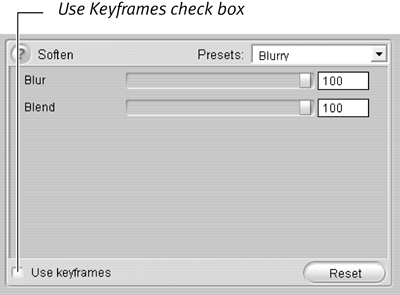
| 6. | Adjust the settings to the desired starting value.
When you insert keyframes, Studio inserts the current settings as values for the first and last keyframes. Though you can change the values later, it's easier if you simply adjust them before you insert the keyframes.
I'm happy with the 100/100 values in the Blur and Blend controls in the Soften effect, so I'll start with those.
See the sidebar "Studio's Static and Keyframed Presets," later in this chapter, for a discussion of Studio's effect presets.
| 7. | On the bottom of the Special Effects window, click the Use Keyframes checkbox.
Studio opens the keyframes interface and adds two keyframes, one at the start of the clip and the other at the end (Figure 9.14).
Figure 9.14. Here are your keyframe controls. 
| 8. | Grab the Timeline scrubber and move it to the desired end point for the effect (Figure 9.15).
Figure 9.15. Now drag the Timeline scrubber to where you want the Soften effect to disappear. 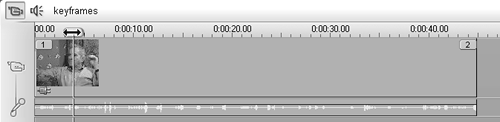
Here I'm moving about 2 seconds in, where I want the video to return to 100 percent clarity. Said another way, I want the Soften effect to stop as of this position.
| 9. | In the Effect Control window, click Add to add a keyframe (Figure 9.16).
Figure 9.16. Click Add to add a keyframe. 
Studio adds a keyframe at that position (Figure 9.17). This becomes keyframe 2, while the keyframe at the end of the clip becomes keyframe 3.
Figure 9.17. There's new keyframe number 2, right under the Timeline scrubber. 
Note that when Studio adds a keyframe, it inserts the values from the immediately preceding keyframe.
| 10. | In the Effect Control window, drag the Blur and Blend sliders all the way to the left (Figure 9.18).
Figure 9.18. Now zero out the effect controls to eliminate the effect. Note the number 2 in the keyframe number box. That tells us which keyframe we're working on. 
This brings the strength of the effect to zero, ending the transition from soft at the start of the video to completely clear. That's half the job; now, because Studio inserts both original keyframes (1 and 2) with the then current values, I have to zero out the values of keyframe 3 to eliminate the Soften effect throughout the clip.
| 11. | In the bottom of the Special Effects window, click the Move to Next Keyframe button (Figure 9.19).
Figure 9.19. Move to the next keyframe by clicking this button. 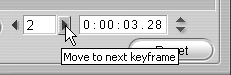
Studio moves to the third keyframe.
| 12. | In the Effect Control window, drag the Blur and Blend sliders all the way to the left (Figure 9.20).
Figure 9.20. Now zero out the controls on keyframe 3. 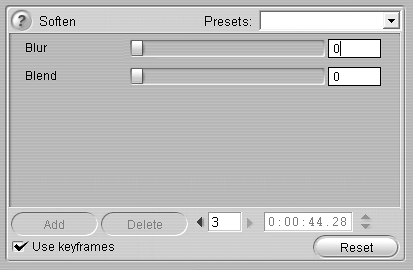
|
 Tip Tip
With shorter clips, you may find it easier simply to move the second keyframe to the desired end point of the effect, rather than inserting a new keyframe and zeroing out the values of keyframes 2 and 3. See the task "To Move Keyframes," later in this chapter.
To apply multiple keyframes to customize an effect 1. | Place the target clip on the Timeline and select the clip with your pointer.
| 2. | At the upper left of the Movie window, click the Open/Close Video Toolbox icon (Figure 9.3).
| 3. | On the left side of the toolbox, click the Add an Effect to a Video Clip icon.
| 4. | Click the target effect category (Figure 9.21).
Figure 9.21. Let's follow the ballerina with a spotlight, a more complex exercise. 
| 5. | Click OK.
Studio applies the special effect and opens the Special Effects window (Figure 9.21).
| 6. | Adjust the settings to the desired starting value (Figure 9.22).
Figure 9.22. First I configure the effect to the desired settings. 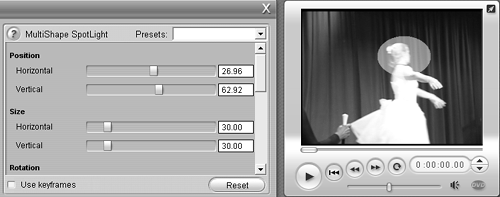
| 7. | On the bottom of the Special Effects window, click the Use Keyframes checkbox.
Studio opens the keyframes interface and adds two keyframes, one at the start of the clip and the other at the end.
| 8. | Grab the Timeline scrubber and move it to the next desired keyframe point.
Here I'm chasing my ballerina wife around the stage with a spotlight, so I'll keep sliding the scrubber over until she moves out of the light (Figure 9.23).
Figure 9.23. Oops, she's getting away. Time for a new keyframe. 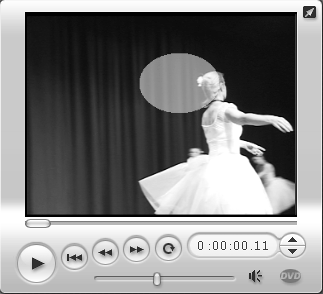
| 9. | In the Effect Control window, click Add to add a keyframe (Figure 9.16).
Studio adds a keyframe at that position (Figure 9.24). This becomes keyframe 2, while the keyframe at the end of the clip becomes keyframe 3.
Figure 9.24. Here's the new keyframe; now I have to adjust the controls. 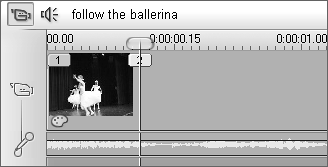
| 10. | In the Effect Control window, adjust the controls to the new position (Figure 9.25).
Figure 9.25. Back on track. Now on to the next keyframe. 
| 11. | Repeat as necessary throughout the clip, adding keyframes and adjusting the settings of the final keyframe to the desired setting (Figure 9.26).
Figure 9.26. Yikes! Following a ballerina around takes a lot of hard work (but you probably already knew that). 
|
Tip When applying multiple keyframes, you'll get the best result if you trim your clip to the desired start and end points before you start keyframing. If you trim after, Studio may adjust keyframe positioning to new frames, which is seldom the desired result.
To move keyframes 1. | Click the Move to Previous Keyframe or Move to Next Keyframe button to arrive at the target keyframe.
Here I'm on keyframe 11, which as we can see in the keyframe counter is at precisely 30 seconds (Figure 9.27).
Figure 9.27. Use these buttons to navigate to different keyframes. 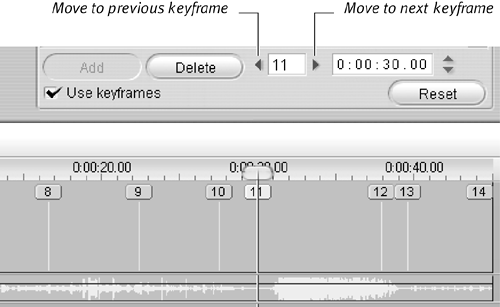
| 2. | Do one of the following:
- Adjust position by clicking the Increase by One Frame and Decrease by One Frame icons to the right of the keyframe counter (Figure 9.28).
Figure 9.28. Change keyframe location by clicking these controls or by simply clicking in the keyframe counter and typing a new time. Note the Delete button, which you can use to delete a keyframe. 
- Click the time in the keyframe counter and manually type the desired position.
Studio adjusts the keyframe to the new position in the Timeline.
|
Tip Clicking Reset (Figure 9.27) while keyframes are enabled either creates a new keyframe with the default values or changes the then selected keyframe to the default values. This seems a bit counterintuitive; since Reset usually means push all parameters back to zero and let's start over. The operation of this button may change as Studio's keyframe feature evolves, but if it doesn't, the quickest way to delete all keyframes and start over is by deleting the special effect (see the task "To Delete a Special Effect," earlier in this chapter) and starting over.
To delete keyframes 1. | Click the Move to Previous Keyframe or Move to Next Keyframe button to arrive at the target keyframe.
| 2. | Click the Delete button (Figure 9.28).
Studio deletes the keyframe.
|
Studio's Static and Keyframed Presets Studio has always provided effect presets that let you quickly select a certain look. As you can see in Figure 9.29, Studio now has both Static and Keyframed presets. Static presets are like the presets of old, applying one set of parameters to the entire clip. Figure 9.29. Studio now offers both Static and Keyframed presets, the latter a one-click solution for animating effects in your videos. 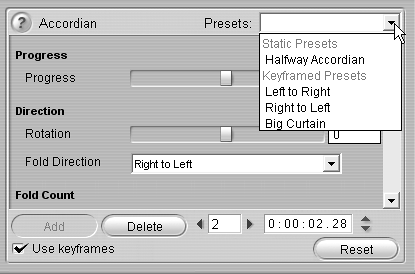
Keyframed presets contain keyframes with start and end values to produce a dynamic effect. As you would expect, when you apply a keyframed preset, Studio creates the keyframes and inserts the preset values for you. You can use these as a starting point and modify as desired, or accept them as is and move on to your next edit. |
|
