| Studio is a fluid program with multiple versions marketed to different target groups and features that appear in one version and not in another (but check back tomorrow, and that may change). I've learned that the quickest way to render a book obsolete is to try to provide a definitive breakdown of what's in one version and not the other, so I won't do that here. In general, if I demonstrate a feature that you don't have, you should assume that you have a feature-limited version that can be upgraded to a version with the demonstrated feature. In particular, Pinnacle has reserved the overlay effects and keyframe capabilities for advanced Studio versions. After an overview of the special effects interface, which applies to all special effects, I'll describe how to use the following types of effects. Cleaning Effects: These are curative filters that fix problems with the underlying video. Auto Color Correct fixes white balance and other color- and brightness-related issues, while Noise Reduction removes noise, usually caused by shooting with poor lighting or capturing from analog sources (more on this in "Video Rescue 101," later in this chapter). Stabilize minimizes unwanted motion in a video, usually produced by shooting with a handheld camera. Time Effects: These artistic effects change the speed of the video, either slowing it down or making it faster; these tools are demonstrated in "Varying Playback Speed," later in this chapter. Still Image Effects: These tools allow you to rotate your digital pictures and remove red-eye, and then add pan and zoom effects; these tools are demonstrated in "Quick Image Fixes in Studio" and "Inserting Pan and Zoom Effects," in Chapter 5. Overlay Effects: These tools allow you to create picture-in-picture and chroma key effects; these tools are demonstrated in multiple sections starting with "About the Overlay Track," later in this chapter. Auto-Movie Effects: Though not a true effect like others covered in this chapter, this feature automatically converts your footage into a music video-like production, and is explained in "Creating Music Videos Automatically," later in this chapter.
Studio offers additional effects not addressed in this book in the following classes: Color Effects: These artistic effects adjust the color of the video, for example, to black and white or sepia. Fun Effects: These artistic effects change the video in some fundamental way; for instance, the Water Drop effect makes your video look like a pond with water dropping into it. Style Effects: These artistic effects change the style of the video; for instance, Old Film makes your video look like it was shot in the 1940s.
Note that in Studio 9, Pinnacle sorted the special effects by category, as shown in Figure 9.1. In Studio 10, Pinnacle presents most effects by Studio version and some by category, while preserving the categorization icons so you can more quickly identify the function of each effect (Figure 9.2). Figure 9.1. Studio used to present special effects by function. 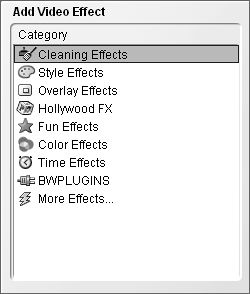
Figure 9.2. In Studio 10, Pinnacle switched to a product view with some special functional categories. Here's what you'd get with the base-level product. 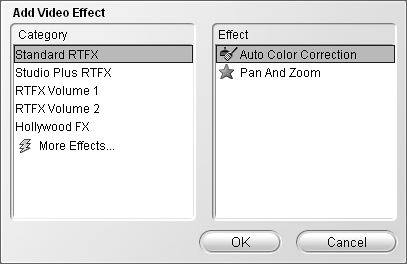
|
