| Beam and receive whole categories from Calendar, Contacts, Tasks, Memos, and other applications to quickly share lots of info. Whether you want to share a bunch of photos or a combination of contacts and deadlines, there's no easier way to pass along stuff to the people who need it (or just can't wait to see it). Real Life Beam calendars 
Marla and John are married airline pilots. Every week was a scheduling nightmare until they both got handhelds. Now they beam their schedules to each other at the beginning of every month. They each maintain a category with their own schedules. When either of them views All in Calendar, both of their schedules appear together. |
Beaming on/off When you turn off your handheld's ability to receive beamed info (Prefs > Power), it doesn't affect your ability to beam info. |
Beam a category Beaming a category works just like beaming a single item, except that you select Beam Category from the menu. You must be viewing the category as a whole you can't beam a category when an individual entry is displayed. If you're receiving a category of info and don't have a preset category, create a category before the beam and select it when you receive the beamed info. |
Beam applications Beaming entire applications can be easier than installing them from scratch, but you can't beam copy-protected apps. Files created or used by a program must be beamed separately. Select Home > Menu > App > Beam to beam anything that isn't a single entry or a category. |
Beam photos  Open Photos from the Home screen. (If you don't see it, install it from your installation CD.) Open Photos from the Home screen. (If you don't see it, install it from your installation CD.)
| 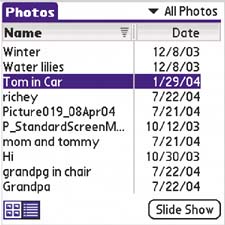
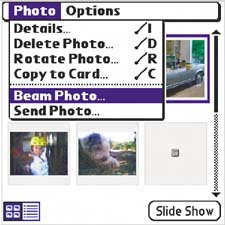
|  From either the thumbnail view or the list view, select the photo you want to beam. Use the navigator, since tapping a photo will open it. Select Menu > Photos > Beam Photo. From either the thumbnail view or the list view, select the photo you want to beam. Use the navigator, since tapping a photo will open it. Select Menu > Photos > Beam Photo.
| 
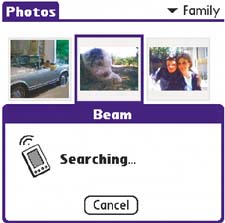
|  Position your handheld close to the receiving handheld and beam it. Position your handheld close to the receiving handheld and beam it.
| 
|
|
Swap numbers If you think a friend should meet one of your contacts (or vice versa), beam the info. For more about Contacts, see page 49. |
Beam tasks You can beam a task or an entire category of tasks. Nothing feels better than creating tasks for someone else and then beaming them all their assignments at once. |
Beam from an expansion card To beam info or applications from an expansion card, select Beam from the Home screen's App menu. Tap Beam From at the top of the screen and select the expansion card. |
Quickly beam your business card First, designate an entry as your business card (see page 50). Beam your business card by holding down the Contacts button until the beaming message ("Searching…") appears. |
Beam a game Many apps and games can be beamed. Just go to the Home screen and select Menu > App > Beam, select the game, and tap Beam. Some commercial games, like Handmark Scrabble, let you beam a trial version of the game that can be played several times. |
|
