Flylib.com

Books Software


Customize synchronization


Customize synchronization

When you sync, info on your handheld and Palm Desktop is automatically exchanged and updated. Conduits control how the info is shared.

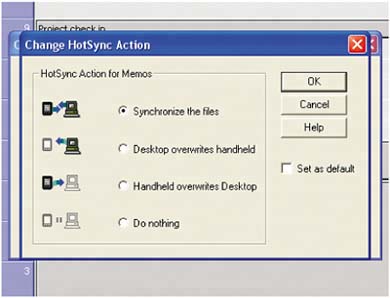
The relationship between your handheld and computer is characterized by one of four settings:

  • Synchronize the files

  • Desktop overrides handheld

  • Handheld overrides Desktop

  • Do nothing

Import contacts from other apps

You can import info into Palm Desktop from most contact programs and from other applications such as Microsoft Excel. For details, see your Tungsten E Handbook, available from the Help menu of Palm Desktop or as a free download from www.palmOne.com/support/tungstene.


In general, don't mess with conduits

Be careful with your conduits. The default settings make sure the most current info syncs between your handheld and computer.


When to mess with conduits

Change your conduits when there's an app you don't want to sync, or you want the info on your handheld to overwrite the info on your computer, or vice versa.


What are conduits?

  • Conduits are settings that manage how your handheld's applications sync with your computer.

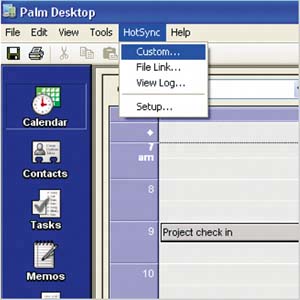
  • You set conduits in Palm Desktop, not on your handheld. Select HotSync > Custom (on a Mac, select HotSync > Conduit Settings ).

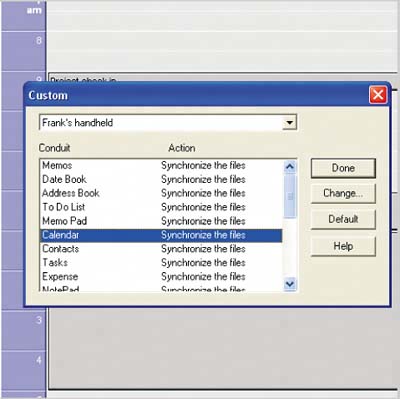
  • Different users can have different conduit settings. The username shown in the Custom dialog box in Palm Desktop is the one being changed.

  • Conduits for palmOne VersaMail , Documents To Go, and other applications have custom settings


Changing conduits

From the HotSync menu, select Custom (or Conduit Settings on a Mac).

Select any conduit from the list and click Change (or Settings on a Mac).
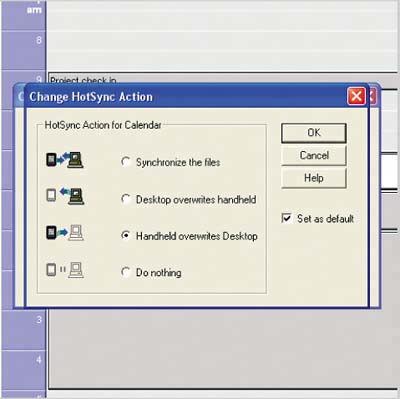
Choose what you want the conduit to do. This affects only your next sync. To make the change permanent, select Set as Default .


What can I do with conduits?

  • Make photos sync with your home PC, but not with your work PC.

  • Set your email so that it won't sync, saving time.

  • Have your PC overwrite your handheld if your spouse accidentally beams you the wrong task list.


Changing from Outlook (Windows only)

If you've set up your PC to sync with Palm Desktop, you can change to Outlook anytime . Insert your installation CD and select Install Microsoft Outlook Conduits .


Back up Palm Desktop (Mac)

If you like to keep your info extra safe, save a copy of your Palm Desktop data as a backup. Select File > Save a Copy and give the backup file a name and location. This saves a snapshot of the info at the moment you saved the copy.


Change your view (Mac)

Choose any list view from the View menu. Arrange it to your liking and choose Memorize View from the pick list in the upper-left corner. The new arrangement is now listed in the View pick list.


More Palm Desktop time-savers

Some of the coolest features of Palm Desktop defy easy categorization. Here are a few more time-savers to try out on your computer.

To make the password on your handheld protect info in Palm Desktop, select Tools > Options > Security and check the box.

Choose your alarms (Windows)

Arm your computer with alarm sounds, too. Select Tools > Options > Alarms .


Online help

Go to Help > Online Support to directly access palmOne's worldwide support.


Save time with Palm Desktop

Drag and drop events

Need to reschedule an appointment? In the Day View of Palm Desktop's Calendar, drag an event to any date in the months shown to the right.

Reschedule events

When someone reschedules a lunch , a meeting, or any other event, edit the old entry rather than creating a new one from scratch.

Cycle through views (Mac)

To cycle through the Calendar views, click the Date Book icon in the tool bar. Quickly scan your events in Agenda, Day, and Week Views.


Chapter 7: Did you discover how to...

Adjust conduits to sync Calendar but not Contacts?… Dig up a phone number you thought you'd never need again?… Enter an officeful of contacts fast?… Share your handheld with someone else without going crazy (or letting them in on your secrets)?