5.2 DebuggingBecause ASP.NET pages are compiled into assemblies, you can debug them in much the same way you might debug any other .NET component. First, you must be sure you compile your pages with debug symbols. To do this on a per-page basis, set the Debug attribute on the Page directive to true , as shown in Listing 5-1. Listing 5-1 .aspx Page with Debug Compilation<%@ Page Language="VB" Debug="true" %> <!-- ... --> Alternatively, you can enable debug compilation for all the pages in your application by adding the compilation element to your web.config file with debug set to true , as shown in Listing 5-2. Listing 5-2 web.config with Debug Compilation
<configuration>
<system.web>
<compilation debug='true' />
</system.web>
</configuration>
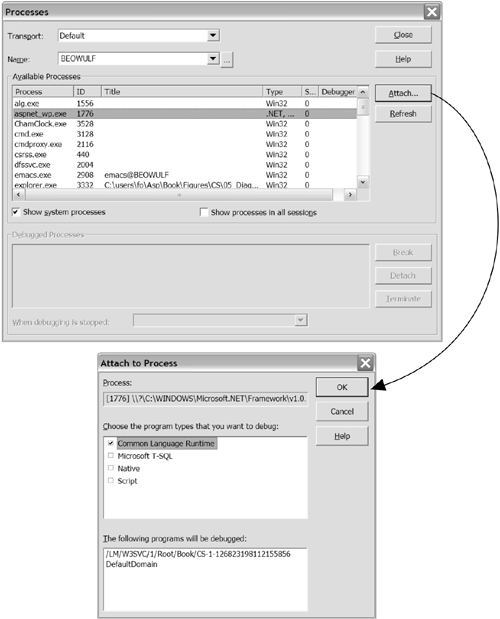
Also keep in mind that any code-behind assemblies that you precompile must be built with debug symbols enabled in order to debug them with source display. Once debug symbols have been generated for your page assemblies, you can use the Visual Studio .NET debugger to step through any server-side or client-side code. If you are building a Web application with Visual Studio .NET, the simplest way to execute your program is with Debug/Start. If, on the other hand, you are trying to debug an application that is already running or that was not built with Visual Studio .NET, you can use the alternative technique of attaching to the ASP.NET worker process. To do this, select Debug/Processes from the menu within Visual Studio .NET. When presented with a dialog, select the
aspnet_wp.exe
process to attach. This will bring up a second dialog, displaying all the active
AppDomains
in the worker process. Select the
AppDomain
that has your virtual directory
Figure 5-5. Attaching a Debugger to the ASP.NET Worker Process
|
5.3 Error HandlingBy default, ASP.NET displays generic error pages for any server errors that occur, such as missing files or internal server errors. The default display for a 404 error is shown in Figure 5-6. Figure 5-6. Default ASP.NET Display for HTTP 404 File-Not-Found Error
If you prefer, you can build specific error pages to display to users when an error occurs in your application. You can specify a particular page to be displayed when an error occurs on a page-by-page basis by using the ErrorPage attribute of the Page directive with the URL of the error page, as shown in Listing 5-3. It is more likely, however, that you will want to specify a general error page, or a collection of specific error pages, to be used for an entire application. Application-wide error pages can be specified in your web.config file by using the customErrors element, as shown in Listing 5-4. Listing 5-3 Specifying an Error Page<%@ Page ErrorPage="MyErrorPage.aspx" %> Listing 5-4 Specifying Error Pages for an Application
<configuration>
<system.web>
<customErrors defaultredirect='ouch.aspx' mode='On'>
<error statuscode='404' redirect='nofile.aspx'/>
</customErrors>
</system.web>
</configuration>
With the
customErrors
element, you can specify a unique error page (or URL) for each HTTP error code, and one top-level page that users will be redirected to if none of the specific error codes are
Table 5-4. customErrors Attributes
5.3.1 Unhandled Exceptions
One of the most compelling aspects of working with the CLR is that even poorly written code is
Whenever errors are
Figure 5-7. Default ASP.NET Display for Unhandled Exceptions
As a developer, you should be embarrassed if your clients ever see this page. Not only does it state that an unhandled error occurred on the server, but it gives advice on how to configure the application to avoid showing this page again. The second piece of advice given by this page is one you should always follow: Include a
customErrors
element in your configuration file that provides a redirection to your own internal error handling page so that clients never see this page. The only
To deal with this lack of error information in your default redirection page, you can provide a handler for the
Error
event of the
HttpApplication
class. This event is issued whenever there is an unhandled exception, and it is called before the internal ASP.NET unhandled event code executes, giving you the chance to deal with the error yourself and perhaps not display an error page at all. To add a handler to this even, create a
global.asax
file, and define a function named
Application_Error
, as shown in Listing 5-5. By calling the
ClearError()
method of the
HttpContext
class, you can prevent ASP.NET's unhandled exception code from ever being executed. Be
Listing 5-5 Dealing with Unhandled Exceptions
<!-- global.asax -->
<%@ Application Language='VB' %>
<script runat=server>
Protected Sub Application_Error(src As Object, e As EventArgs)
Dim ex As Exception = Server.GetLastError()
' do something with the error here, such as
' writing to the event log
' The following line writes the error message
' to the event log with a source of "MyApp"
' Note that the "MyApp" source must be preregistered
EventLog.WriteEntry("MyApp", ex.Message, _
EventLogEntryType.Error)
' At this point you could call:
' Context.ClearError();
' to clear the error and continue execution.
' In general, you don't want to do this, because it will
' prevent ASP.NET from redirecting to your error pages
End Sub
</script>
The one other possible approach, which gives you the best of both
Listing 5-6 Retaining Exception Information
' in global.asax
Protected Sub Application_Error(sender As Object, _
e As EventArgs)
Dim ex As Exception = Server.GetLastError()
If ex.GetType() Is GetType(HttpUnhandledException) Then
Server.Transfer("MyErrorPage.aspx")
End If
' Otherwise, we fall through, and the normal ASP.NET
' error handling takes over
End Sub
Listing 5-7 Accessing Exception Information in an Error Page
<!-- MyErrorPage.aspx -->
<%@ Page Language='VB' %>
<html>
<h1>My error page</h1>
<%
Dim ex As Exception = Server.GetLastError()
If Not ex Is Nothing Then
Dim err As String = ""
If Not ex.InnerException Is Nothing Then
Response.Output.Write("The error was: {0}", _
ex.InnerException.Message)
End If
End If
%>
</html>
|