| To begin to develop dynamic web sites with ColdFusion MX, you need to understand what ColdFusion is and how all the pieces fit together. The major components of the ColdFusion MX environment are the ColdFusion Markup Language (CFML) and the ColdFusion MX application server software. Along with these two components, you also will need a development environment with tools to help you create your web site (see Figure 1.3). Figure 1.3. ColdFusion development environment components. 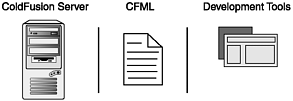 ColdFusion Markup Language ColdFusion Markup Language is a tag-based scripting language very similar to HTML. ColdFusion tags are used to embed commands and functions into your web pages. When a client requests one of these web pages, the web server works with the ColdFusion MX Server to process these commands and functions and then returns the processed page back to the client. In addition, CFML easily integrates with other programming languages and components, such as COM objects, Java Servlets, and Java classes. ColdFusion Markup Language consists of two major components: tags and functions. CFML tags and functions can work on their own but are most often mixed with other languages, such as HTML and JavaScript, within the same document. These documents are usually referred to as ColdFusion templates. These templates are saved with a .cfm extension as opposed to an .htm or .html extension. ColdFusion MX Server and ColdFusion Administrator The other major component of ColdFusion MX is the ColdFusion application server software. ColdFusion Server works in combination with your web server software to interpret page requests and publish the results. The web server takes any browser requests for files with a .cfm extension and hands them off to ColdFusion Server. ColdFusion Server then parses through the file, looking for ColdFusion tags and functions. ColdFusion Server processes all the ColdFusion tags and functions contained in the file and outputs the results as HTML. The resulting HTML document is returned to the web server, which in turn sends the document back to the browser that made the request. If the user were to use the browser's View, Source command on the returned document, he would not see any ColdFusion code, only the returned HTML. This process is outlined in Figure 1.4. Figure 1.4. ColdFusion request process. 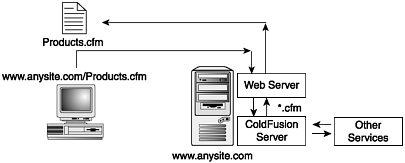 The new Java-based architecture of ColdFusion MX means that there are several configurations for ColdFusion Server. You can install ColdFusion Server as a standalone server or as an application running on top of another Java application server, such as Macromedia JRun or IBM WebSphere. Throughout this book, we will use ColdFusion Server in the standalone configuration. In this configuration, ColdFusion Server installs with an embedded version of Macromedia JRun. See the Appendix, "System Setup" for installation and configuration instructions. In addition, you can check the Macromedia web site for more information at www.macromedia.com/software/coldfusion/. ColdFusion Server comes with a set of browser-based administration tools called ColdFusion Administrator. As the name implies, ColdFusion Administrator provides you with the capability to remotely configure and manage your ColdFusion Server installation. Access to ColdFusion Administrator is controlled by a password that is specified during the ColdFusion Server installation. Once installed, you can access ColdFusion Administrator locally (on the machine it is installed on) either through the Macromedia ColdFusion MX program group in your Start menu or by entering http://localhost/CFIDE/Administrator/index.cfm into a browser (see Figure 1.5). ColdFusion Administrator gives you the capability to configure such things as the following: Figure 1.5. ColdFusion Administrator. 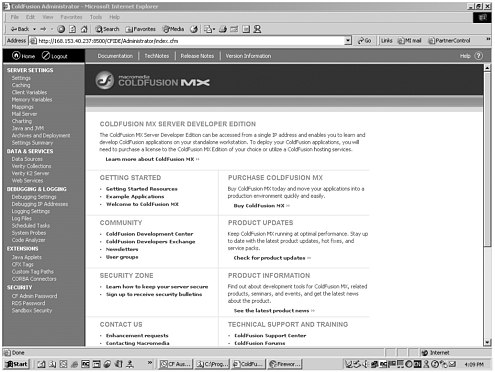 Development Environment Now that we know about the two major components of ColdFusion MXCFML and ColdFusion Serverwe need to decide what tools we are going to use to build our web applications. As with HTML, when you know the language and syntax well enough, you can write code in a simple text editor, such as Notepad. However, most developers would find this tedious. Macromedia has several tools that help developers streamline the process of creating ColdFusion applications. For the budget conscious, entry-level coder Macromedia Homesite would be a good starting point. For the more design oriented, Dreamweaver MX might be the tool of choice. For the power coder, there is ColdFusion Studio or Homesite+. Macromedia Homesite Homesite is popular choice for those who choose to hand-code HTML documents and is a good choice for those just starting to learn ColdFusion. Homesite is an easily affordable text editor that provides many additional tools to help speed development of either HTML or CFML documents. The following are some of the features that make Homesite a powerful development tool: Code formatting and color-coding CFML support Project management and FTP Tag completion Integrated help and reference material Code validation Customizable interface Keyboard shortcuts Integrated CSS editor
The Homesite interface can be seen in Figure 1.6. Figure 1.6. Macromedia Homesite. 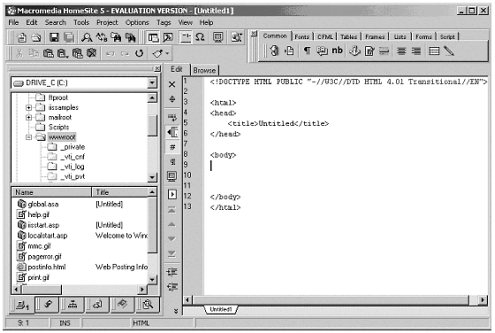 In addition to all the features that make it a great HTML editor, Homesite comes with a built-in CFML toolbar that lets you easily insert common ColdFusion tags into your web pages (see Figure 1.7). Figure 1.7. The Homesite CFML toolbar.  Macromedia Dreamweaver MX Building on the success of its Dreamweaver web page design tool, Macromedia also offers Dreamweaver MX. Dreamweaver MX gives web site designers the capability to visually develop data-driven web applications using ColdFusion, Active Server Pages (ASP), ASP.NET, PHP, or Java Server Pages (JSP). Dreamweaver MX does this by adding several tool palettes to the normal Dreamweaver interface. You use these tool palettes to enter commands, and MX writes the ColdFusion code for you. These additional tools include the following: Visual design layout Live data preview Built-in query tools Multilanguage design environment (CFML, ASP, JSP) Flash and Fireworks integration Built-in server behaviors
By using the Dreamweaver MX code view, you also get the capability to edit the code directly. The Dreamweaver MX interface is shown in Figure 1.8. Figure 1.8. Macromedia Dreamweaver MX. 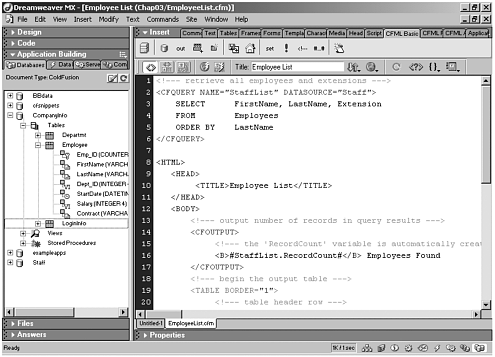 Macromedia ColdFusion Studio For power coding, Macromedia offers ColdFusion Studio or HomeSite+, which is packed with everything the serious code writer needs to create powerful, feature-rich ColdFusion MX applications and is the tool of choice for many ColdFusion developers. It is similar in look and feel to Homesite, but it is brimming with advanced features, such as the following: Visual database tools Code formatting and color-coding Project management features An interactive debugger Configurable workspace Integrated ColdFusion help and reference material Custom tag creation Scriptable deployment
The ColdFusion Studio interface is shown in Figure 1.9. Figure 1.9. Macromedia ColdFusion Studio. 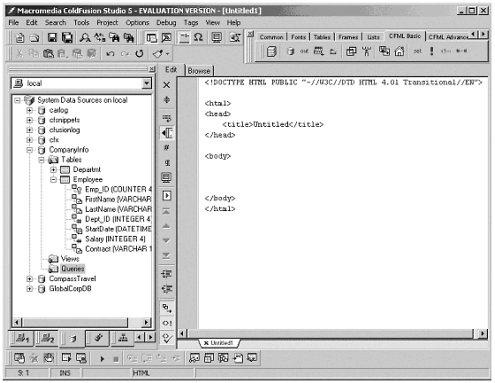 These added features make ColdFusion Studio or HomeSite+ an excellent development environment for ColdFusion. However, the price of this powerful tool might be beyond the budget of most beginners. Because we are going to be concentrating on learning ColdFusion code and because you probably don't have a lot of money burning a hole in your pocket, we will be using Macromedia Homesite throughout this book as our coding environment. Free evaluation copies of all these products are available from the Macromedia web site at www.macromedia.com. | 

