Flylib.com

Books Software


Task 2: Selecting a Desktop Theme


Task 2: Selecting a Desktop Theme

graphics/10inf03.jpg

graphics/one_icon.jpg

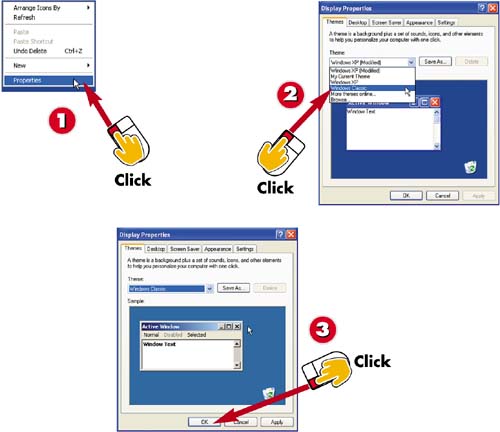
Right-click an empty spot on your desktop, and select Properties from the pop-up menu that appears.

graphics/two_icon.jpg

The Display Properties dialog box appears, with the Themes tab displayed. Open the Themes drop-down list, and select a theme.

graphics/three_icon.jpg

The theme you selected is previewed in the Sample window. To apply the theme, click the OK button.

INTRODUCTION

Windows XP enables you to personalize your workspace by selecting a desktop theme. Desktop themes consist a background, sounds, icons, and other elements. Windows XP offers numerous color -coordinated themes to choose from; alternatively, you can create your own.

TIP

Saving Your Changes

If you modify the chosen theme, you can save it as a new theme. To do so, click the Save As button on the Themes tab in the Display Properties dialog. A Save As dialog box opens; give the theme a name , specify where you want it saved, and click the Save button. The theme is saved, and its name is added to the Themes drop-down list.

Task 3: Applying a Background Image

graphics/10inf04.jpg

graphics/one_icon.jpg

In the Display Properties dialog box, click the Desktop tab. (Refer to the preceding task if you need help opening the Display Properties dialog box.)

graphics/two_icon.jpg

In the Desktop tab, click one of the entries in the Background list.

graphics/three_icon.jpg

The selected background image appears in the sample monitor on the Desktop tab. To apply the image to your desktop, click the OK button.

graphics/four_icon.jpg

The background image is added to your desktop.

INTRODUCTION

You can personalize your desktop in Windows by applying a background image. Windows offers many colorful image options, including a tropical island, an arid desert, and bubbles .

TIP

Desktop Not Covered?

If you see only one small image in the center of your screen when selecting a background image, click the Position drop-down list and choose Tile. Click Apply , and then click OK to accept the changes.

TIP

Display Your Own Photo

To display one of your own digital photos click the Browse button on the Desktop tab. Then double-click the image you want to use. That file will appear at the bottom of the Desktop tab's Background list; select it as you would any other background.


Task 4: Customizing Desktop Icons

graphics/10inf05.jpg

graphics/one_icon.jpg

In the Desktop tab of the Display Properties dialog box, click the Customize Desktop button. (For help navigating to the Display Properties dialog, refer to Task 2.)

graphics/two_icon.jpg

The Desktop Items dialog box opens, with the General tab displayed. In the middle of the General tab, click the icon you want to change.

graphics/three_icon.jpg

Click the Change Icon button.

INTRODUCTION

Another way to experiment with the appearance of the desktop is to change how the icons are displayed. You can select a different picture for any of the default icons. Windows XP comes with several icons to choose from.

TIP

Add or Remove Icons from the Desktop

If you want only certain icons to appear on your desktop, open the Desktop Items dialog box and, in the Desktop icons area, check those folders that you want to appear on your desktop.

TIP

Enlarge Icons

To enlarge the icons displayed on your desktop, open the Appearance tab on the Display Properties dialog, and click the Effects button. The Effects dialog opens; click the Use large icons check box, and then click the OK button.

graphics/10inf06.jpg

graphics/four_icon.jpg

Select the picture you want to use for the selected icon.

graphics/five_icon.jpg

Click the OK button in the Change Icon dialog box, click the OK button in the Desktop Items dialog box, and click the OK button in the Display Properties dialog box.

graphics/six_icon.jpg

The icon on your desktop reflects the change you made.

TIP

Display Your Own Icon

If you've created or obtained pictures that you would like to apply to your icons, simply click the Browse button in the Change Icon dialog box. In the screen that appears, locate and then double-click the image you want to use.

TIP

Revert to Original Icons

To revert to an icon's original image, display the Desktop Items dialog box and select the icon. Click the Restore Default button, and then click the OK button.
