Flylib.com

Books Software


Attaching a File to a Message


Attaching a File to a Message

graphics/02inf20.jpg

graphics/one_icon.jpg

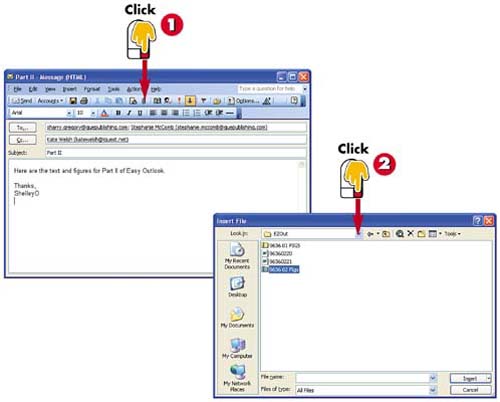
After you've created a new message, completing the To and Subject fields and typing the message text, click the Insert File button on the Message window's toolbar.

graphics/tow_icon.jpg

The Insert File dialog box opens, displaying the contents of the My Documents folder. Navigate to the drive and folder that contains the file you want to attach.

INTRODUCTION

In addition to sending text messages, you can attach files to messages. For example, you might send in your expense report to your office, submit a chapter to your editor, or send a picture of your child to his grandparents.

TIP

Finding a File

You can change to another drive or folder by using the Look In drop-down list, the Up One Level button, or the Places bar. You can also double-click any one of the listed folders to open and select files within that folder.

HINT

Downloading Attachments

Depending on the recipient's connection speed, a file attachment can take a while to download. For this reason, you may want to compress the file(s) into a compressed folder before sending.

graphics/02inf21.jpg

graphics/three_icon.jpg

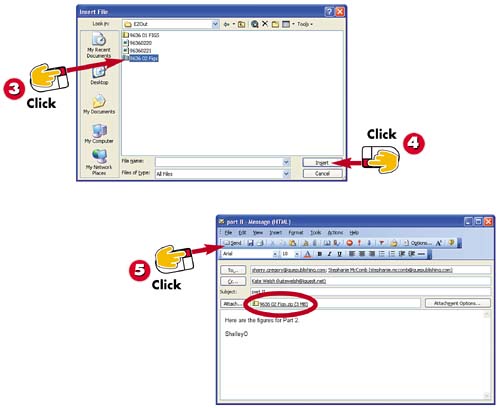
Click the file you want to attach to select it.

graphics/foure_icon.jpg

Click Insert .

graphics/five_icon.jpg

The mail window now includes an Attach box, which lists the file you selected. Send the message as usual by clicking the Send button.

HINT

A Word on File Types

For the recipient to open the file, he or she must have the appropriate software program. For example, if you send a Word document, the recipient must have a program that can open and work with Word documents. If you are not sure, you can save the document using a generic file type such as plain text when you create the actual file.

TIP

Removing a File Attachment

To remove a file attachment from an e-mail message, right-click the filename in the message window's Attach box and click Remove .

Adding a Web Page Link to a Message

graphics/02inf22.jpg

graphics/one_icon.jpg

Create a new message, completing the To and Subject fields, and begin typing the message text.

graphics/tow_icon.jpg

When you get to the spot in the message text where you want to insert the link, type the Web address of the site (in this example, www.earthdesignsyarn.com ).

graphics/three_icon.jpg

Finish typing the message and send it as usual.

INTRODUCTION

Your e-mail message is not limited to including only text. In fact, it can include any number of other elements, including links to Web sites. Using Outlook, you can e-mail a link to a site to another person. When that person opens the message, he or she can click the link to go to the site.

TIP

Sending Mail from Internet Explorer

Internet Explorer includes a Mail toolbar button for sending a link or page directly from the Web site. Click this button to create a mail message with the link or page included.

HINT

Pasting the Address

If you prefer, you can copy an address from your Internet browser by first selecting it and then opening the Edit menu and choosing the Copy command. You can then paste the link into the message using Edit, Paste .


Requesting a Receipt

graphics/02inf23.jpg

graphics/one_icon.jpg

After you create a new message, completing the To and Subject fields and typing the message text, click the Options button on the Message window's toolbar.

graphics/tow_icon.jpg

The Message Options dialog box opens. To request a delivery receipt, click the Request a Delivery Receipt for This Message check box to select it.

graphics/three_icon.jpg

To request a read receipt, click the Request a Read Receipt for This Message check box to select it.

graphics/foure_icon.jpg

Click the Close (x) button and send the message as usual. When the message is delivered and/or read, you'll receive a confirmation e-mail message.

INTRODUCTION

If you want to be sure that someone has received your message, you can request a delivery receipt . That way, when the recipient downloads your message from his or her ISP's e-mail server, you receive a message indicating that your e-mail was delivered. In addition, you can request a read receipt , which notifies you when your message is opened by the recipient.

CAUTION

No Receipt Received?

If you've requested a receipt but don't receive one, it doesn't necessarily mean your message wasn't delivered or read. Some e-mail programs do not send delivery or read receipts.