Easy Microsoft Office Outlook 2003
Authors: Oap]Hara S.
Published year: 2003
Pages: 138-140/185
Buy this book on amazon.com >>

Setting Up a Tasks List for Printing

graphics/07inf18.jpg

graphics/one_icon.jpg

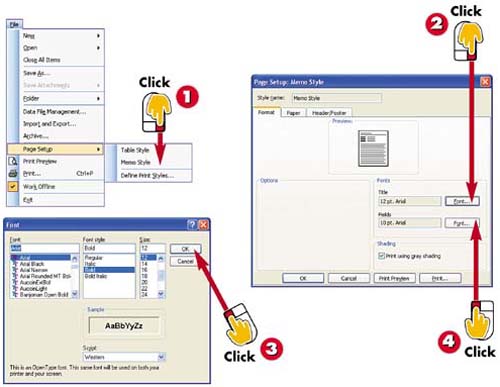
Open the File menu, choose Page Setup , and in the submenu that appears, select the style you want to modify ( Table Style or Memo Style ).

graphics/tow_icon.jpg

The Page Setup dialog box opens, displaying the page options for that style. To change the font for the page title, click the Font button next to Title field.

graphics/three_icon.jpg

The Font dialog box opens. Select a font, style, and size for the title, and click OK .

graphics/foure_icon.jpg

Back in the Page Setup dialog box, change the font for the fields by clicking the Font button to the right of the Fields entry; repeat step 3 to assign the desired fonts.

INTRODUCTION

There may be times when you want to print your Tasks list. Before you print, however, you must use Outlook's Page Setup options to specify how the printout will look. You can select from two print styles: memo and table. Each style also has various options, such as the orientation of the page, the margins, and the font, which you can change.

TIP

Understanding the Options

The Page Setup options vary depending on the selected printout style. If you are unsure about an option, right-click it and select What's This? to view a brief description.

graphics/07inf19.jpg

graphics/five_icon.jpg

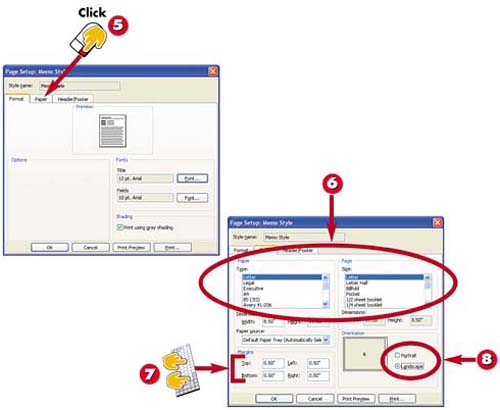
To print the Tasks list on special paper or to change the orientation to better suit the data, click the Paper tab in the Page Setup dialog box.

graphics/six_icon.jpg

Using the Type and Size lists, select from any number of available paper types and sizes.

graphics/seven_icon.jpg

To change the margins, type new values in the Top, Bottom, Left , or Right fields.

graphics/eight_icon.jpg

To change the page's orientation, click the Landscape or Portrait option button. When you're finished, click OK ; you're now ready to preview and print the Tasks list.

TIP

Adding a Header or Footer

You can add a header or a footer to the printout using the Page Setup dialog box's Header/Footer tab. Specify where the text should appear (at the left margin, centered, or at the right margin) and type the text. You can also, if you want, use the handy buttons to insert common header and footer items such as page numbers or dates.

TIP

Previewing and Printing

You can preview or print the Tasks list directly from the Page Setup dialog box by clicking the Print Preview or Print button.


Previewing a Tasks List

graphics/07inf20.jpg

graphics/one_icon.jpg

Open the File menu and choose Print Preview .

graphics/tow_icon.jpg

A preview of the Tasks list printout appears.

graphics/three_icon.jpg

When you are finished previewing the printout, click the Close button.

INTRODUCTION

Before you print your Tasks list, you may want to preview the printout. If the preview doesn't match your expectations, you can make adjustments as needed.

TIP

Using the Preview Toolbar

You can use the buttons in the Preview toolbar to zoom in, display multiple pages, access the Page Setup dialog box, or print. Simply click the appropriate button.

TIP

Printing from the Print Preview Window

You can print directly from Print Preview by clicking the Print button at the top of the window.


Printing a Tasks List

graphics/07inf21.jpg

graphics/one_icon.jpg

Open the File menu and choose Print .

graphics/tow_icon.jpg

The Print dialog box opens. In the Print Style area, select the style you prefer.

graphics/three_icon.jpg

In the Number of Copies field, type the number of copies you want to print.

graphics/foure_icon.jpg

Click OK to print your Tasks list.

INTRODUCTION

If you need a hard copy of your Tasks list ”for example, to use when you are away from your computer or to pass out to participants in a group project ”you can print it. Outlook provides two handy task print layouts.

TIP

Print Options

For Table style, you can select the print range ”all rows or only selected rows. For Memo style, you can select to start each item on its own page and/or print any attached files.

TIP

Using Print Shortcuts

If you prefer using Outlook's toolbars to its menus , click the Print button to open the Print dialog box. Alternatively, press Ctrl+P .

Easy Microsoft Office Outlook 2003
Authors: Oap]Hara S.
Published year: 2003
Pages: 138-140/185
Buy this book on amazon.com >>