Flylib.com

Books Software


Setting the Field Size for a Text Field


Setting the Field Size for a Text Field

graphics/02inf20.jpg

graphics/one_icon.jpg

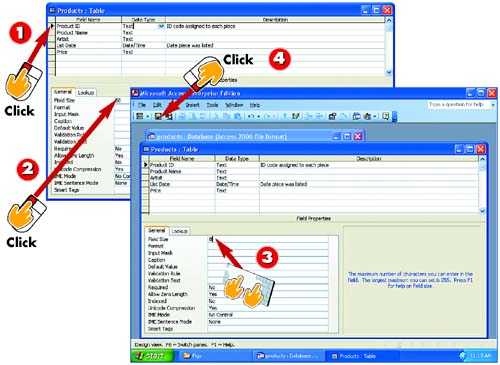
After you've opened the table you want to modify in Design view, click the text field whose size you want to change to select it.

graphics/two_icon.jpg

The lower half of the table window shows the properties of the selected field, the first of which for text fields is Field Size. Click the Field Size text box.

graphics/three_icon.jpg

Type the number of characters you want the text field to allow.

graphics/four_icon.jpg

Click the Save button on the Standard toolbar in the main Access window to save your changes to the database table.

INTRODUCTION

Text fields (that is, fields that use a Text data type) have a default length of 50 characters, which is usually long enough. To conserve space or to limit the number of characters, however, you may want to change the field size. For example, for a field that contains state abbreviations, you may want to set the field size to 2 so that users can enter only two characters. For longer entries (such as a street address), you may want to increase the field size.

TIP

Data Types and Field Sizes

You can change the field size of text and number fields only. Other field types have a default size, which you cannot change.

Setting the Field Size for a Number Field

graphics/02inf21.jpg

graphics/one_icon.jpg

After you've opened the table you want to modify in Design view, click the number field whose size you want to change to select it.

graphics/two_icon.jpg

The lower half of the table window shows the properties of the selected field, the first of which for number fields is the Field Size. Click the Field Size text box.

graphics/three_icon.jpg

Click the down arrow that appears in the Field Size text box and select a field size from the list that appears.

graphics/four_icon.jpg

Click the Save button on the Standard toolbar in the main Access window to save your changes to the table.

INTRODUCTION

As with text fields, you can also change the size of number fields. Unlike text fields, however, the size of a number field is not tied to the number of characters that field can contain. Instead, Access uses a special name for each available field size. The most common is Long Integer, which is the longest size for a number. (You can store numbers between “2,147,483,648 and 2,147,483,647.)

TIP

Understanding Number Field Sizes

The most common field sizes for numbers are Double and Long Integer. You can, however, use other sizes for special purposes. Consult the online help for detailed instructions on the other sizes and their uses.


Adding a Field Description

graphics/02inf22.jpg

graphics/one_icon.jpg

After you've opened the table you want to modify in Design view, click in the Description column for the field whose Description text you want to add (or change).

graphics/two_icon.jpg

Type (or edit) the field description.

graphics/three_icon.jpg

Click the Save button on the Standard toolbar in the main Access window to save your changes to the table.

INTRODUCTION

Although your table's field names may be quite descriptive, it's good practice to add some additional information about each field for people performing data-entry tasks . A field description is useful for this purpose. Using the Description column in the table window, you can type informational phrases or reminders for each field's contents. A field's description appears in the table window's status bar when you are entering data and that field is selected.
