Once your mail server is up and running, you can configure Squirrelmail to allow the users of your mail server to get their mail from their Web browsers. To use Squirrelmail, you must install the squirrelmail package from the Fedora Core 3 installation DVD that comes with this book. Also, to use Squirrelmail, you need to have configured your mail server, IMAP server, and Web server, along with the
Squirrelmail has a very intuitive, menu-based administrative interface. That interface includes a variety of plugins you can add to Squirrelmail to use features such as spell checking, calendar, password changing, and fetching mail from a POP3 server. You can get more plugins from squirrelmail.org as well.
To configure Squirrelmail, type the following as root user from a Terminal window:
# /usr/share/squirrelmail/config/conf.pl
Features you might want to consider tuning include: Organization preferences (such as the organization's
Also, by default, mail can only be accessed from a browser on the local host, so you will probably want to change Server Settings. For example, change the Domain name to the name of the domain from which you will allow users to access their mail.
For a user to get to mail using squirrelmail, he simply needs to type the following address into the location box of his Web browser (replacing server with localhost or the name of the computer, if you are running this outside of the localhost):
http:// server /webmail
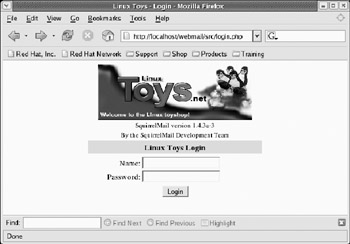
Figure 19-1 shows an example of the webmail browser interface with the webmail logo
Figure 19-1:
Add a logo to SquirrelMail and let users login from the Web to get mail.
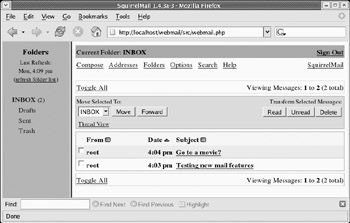
Type your username and password. Your mailbox should appear, as
Figure 19-2:
Manage your mail from multiple folders in SquirrelMail.
Mailman is a popular
If you need more information about configuring mailman, there are plenty of places to go. Check the mailman Web site at www.gnu.org/software/mailman/mailman.html . Also view README files in /usr/share/doc/mailman-* .
| Note |
If you used mailman previously in an earlier version of Fedora or Red Hat Linux, note that the mailman installation directory has moved from /var/mailman to /usr/lib/mailman . If you made any changes to files in the /var/mailman directory, you need to move those files to the /var/lib/mailman directory after you upgrade the mailman software package. |
The following is a brief procedure for configuring a discussion list using mailman:
Install the mailman RPM from the Fedora Core 3 DVD.
Start your Web server (if it isn't already running) as
# service httpd start # chkconfig httpd on
Create a password for your site as follows:
# /usr/lib/mailman/bin/mmsitepass New site password: ***** Again to confirm password: *****
Edit the
/usr/lib/mailman/Mailman/mm_cfg.py
file and change the
DEFAULT_URL_HOST
and
DEFAULT_EMAIL_HOST
values. For example, the host
DEFAULT_EMAIL_HOST = 'toys.linuxtoys.net' DEFAULT_URL_HOST DEF = 'linuxtoys.net'
To create a mailman mailing list, you must first create an unpopulated mailing list called mailman. Along with that list, you must assign the e-mail and initial password for the person responsible for administering the list. To do that, type the following:
# /usr/lib/mailman/bin/newlist mailman Enter the email of the person running the list: chris@linuxtoys.net Initial mailman password: ********
Start the mailman service as follows:
# service mailman start # chkconfig mailman on
Create a new mailing list, using the newlist command as follows:
# /usr/lib/mailman/bin/newlist Enter the name of the list: projectlist Enter the email of the person running the list: chris@linuxtoys.net Initial projectlist password: ***** To finish creating your mailing list, you must edit /etc/aliases (or equivalent) file by adding the following lines, and running the `newaliases' program: ## projectlist mailing list projectlist: "/usr/lib/mailman/mail/mailman post projectlist" projectlist-admin: "/usr/lib/mailman/mail/mailman admin projectlist" projectlist-bounces: "/usr/lib/mailman/mail/mailmanbounces projectlist" projectlist-confirm: "/usr/lib/mailman/mail/mailman confirm projectlist" projectlist-join: "/usr/lib/mailman/mail/mailman join projectlist" projectlist-leave: "/usr/lib/mailman/mail/mailman leave projectlist" projectlist-owner: "/usr/lib/mailman/mail/mailman owner projectlist" projectlist-request: "/usr/lib/mailman/mail/mailman request projectlist" projectlist-subscribe: "/usr/lib/mailman/mail/mailman subscribe projectlist" projectlist-unsubscribe: "/usr/lib/mailman/mail/mailman unsubscribe projectlist"
Copy and past the text just shown (starting from the line ## projectlist mailing list ) into the end of your /etc/aliases file.
Run the newaliases command. At this point you should be able to view the new mailing list from your Web browser. From a Web browser on the local system, type the following name in the address box:
http://localhost/mailman/listinfo
If everything appears to be working, begin adding more mailing lists. In my example, I created a mailing list called projectlist. The name of that project appears on the list shown in Figure 19-3.
Figure 19-3:
Create multiple mailing lists in mailman.
Next, select that project name (click on it). The
Scroll to the bottom of that page and click on the project administrative interface link.
When prompted, type in the List Administrator Password. Now you can configure the look, feel and behavior of your mailing list. Important information you will want to consider includes:
Privacy options — Do you want the list to be public or private (as in, just within your organization)? Who do you want to allow to see your member list?
Send filters — Who can post messages to the list? Is the list
Membership management — Can your members see other member information? What are your policies for adding and removing
When you are finished configuring the options, be sure to submit your changes.
At this point, you can allow users to join the list. Encourage them to explore and set their own
If you encounter problems configuring mailman, refer to the INSTALL.REDHAT and README files in the /usr/share/doc/mailman-* directory.