System Startup and Shutdown
During system startup, a series of scripts are run to start the services that you need. These include scripts to start network interfaces, mount directories, and monitor your system. Most of these scripts are run from subdirectories of /etc/rc.d. The program that starts most of these services up when you boot and stops them when you shut down is the /etc/rc.d/rc script. The following sections describe run-level scripts and what you can do with them.
Starting run-level scripts
As previously mentioned, the /etc/rc.d/rc script is a script that is integral to the concept of run levels. Any change of run level causes the script to be executed, with the new run level as an argument. Here's a quick run-down of what the /etc/rc.d/rc script does:
-
Checks that run-level scripts are correct. The rc script checks to find each run-level script that exists and excludes those that represent backup scripts left by rpm updates.
-
Determines current and previous run levels. Determines the current and previous run levels to know which run-level scripts to stop (previous level) and start (current level).
-
Decides whether to enter interactive startup. If the confirm option is passed to the boot loader at boot time, all server processes must be confirmed at the system console before starting.
-
Kills and starts run-level scripts. Stops run-level scripts from the previous level, then starts run-level scripts from the current level.
In Fedora, most of the services that are provided to users and computers on the network are started from run-level scripts.
Understanding run-level scripts
A software package that has a service to start at boot time (or when the system changes run levels) can add a script to the /etc/init.d directory. That script can then be linked to an appropriate run-level directory and either be started or stopped (to start or stop the service).
Table 12-5 lists many of the typical run-level scripts that are found in /etc/init.d and explains their function. Depending on the Fedora software packages you installed on your system, you may have dozens more run-level scripts than you see here. (Later, I describe how these files are linked into particular run-level directories.)
| Run-Level Scripts | What Does It Do? |
|---|---|
| apmd | Controls the Advanced Power Management daemon, which monitors battery status, and which can safely suspend or shut down all or part of a machine that supports it. |
| atd | Starts or stops the at daemon to receive, queue, and run jobs submitted via the at or batch commands. (The anacron run- level script runs at and batch jobs that were not run because the computer was down.) |
| autofs | Starts and stops the automount daemon, for automatically mounting file systems (so, for example, a CD can be automatically mounted when it is inserted). |
| crond | Starts or stops the cron daemon to periodically run routine commands. |
| cups-lpd | Controls the printer daemon that handles spooling printing requests. |
| dhcpd | Starts or stops the dhcpd daemon, which automatically assigns IP addresses to computers on a LAN. |
| gpm | Controls the gpm daemon, which allows the mouse to interact with console- and text-based applications. |
| halt | Terminates all processes, writes out accounting records, removes swap space, unmounts all file systems, and either shuts down or reboots the machine (depending on how the command was called). |
| httpd | Starts the httpd daemon, which allows your computer to act as an HTTP server (that is, to serve Web pages). |
| iptables | Starts the iptables firewall daemon, which manages any iptables-style firewall rules set up for your computer. |
| keytable | Loads the predefined keyboard map. |
| killall | Shuts down any subsystems that may still be running prior to a shutdown or reboot. |
| kudzu | Detects and configures new hardware at boot time. |
| netfs | Mounts or unmounts network (NFS, SMB, and NCP) file systems. |
| network | Starts or stops all configured network interfaces and initializes the TCP/IP and IPX protocols. |
| nfs | Starts or stops the NFS-related daemons (rpc.nfsd, rpc.mountd, rpc.statd, and rcp.rquotad) and exports shared file systems. |
| pcmcia | Loads or unloads modules, drivers, and programs (including the cardmgr daemon) to support PCMCIA cards (Ethernet adapters, modems, memory cards, and so on) in laptop computers. |
| portmap | Starts or stops the portmap daemon, which manages programs and protocols that utilize the Remote Procedure Call (RPC) mechanism. |
| random | Loads or saves the current state of the machine’s random number generator’s random seed to ensure more random randomness. |
| routed | Starts or stops the routed daemon, which controls dynamic- routing table updates via the Router Information Protocol (RIP). |
| rwhod | Starts or stops the rwhod daemon, which enables others on the network to obtain a list of all currently logged-in users. |
| sendmail | Controls the sendmail daemon, which handles incoming and outgoing SMTP (Simple Mail Transport Protocol) mail messages. |
| single | Terminates all running processes and enters run level 1 (single- user mode). |
| smb | Starts or stops the smbd and nmbd daemons for allowing access to Samba file and print services. |
| snmpd | Starts or stops the snmpd (Simple Network Management Protocol) daemon, which enables others to view machine-configuration information. |
| squid | Starts or stops the squid services, which enables proxy service to clients on your network. |
| syslog | Starts or stops the klogd and syslogd daemons that handle logging events from the kernel and other processes, respectively. |
| xfs | Starts or stops xfs, the X Window font server daemon. |
| xinetd | Sets the machine’s host name, establishes network routes, and controls xinetd, the network services daemon which listens for incoming TCP/IP connections to the machine. |
| ypbind | Binds to an NIS (Network Information Service) master server (if NIS is configured), and starts or stops the ypbind process, which communicates with the master server. |
Each script representing a service that you want to start or stop is linked to a file in each of the run-level directories. For each run level, a script beginning with K stops the service, whereas a script beginning with S starts the service.
The two digits following the K or S in the filename provide a mechanism to select the priority in which the programs are run. For example, S12syslog is run before S90crond. However, while humans can readily see that 85 is less than 110, the file S110my_daemon is run before S85gpm. This is because the ASCII collating sequence orders the files, which simply means that one positional character is compared to another. Therefore, a script beginning with the characters S110 is executed between S10network and S15netfs in run level 3.
All of the programs within the /etc/rcX.d directories (where X is replaced by a run-level number) are symbolic links, usually to a file in /etc/init.d. The /etc/rcX.d directories include the following:
-
/etc/rc0.d: Run level 0 directory
-
/etc/rc1.d: Run level 1 directory
-
/etc/rc2.d: Run level 2 directory
-
/etc/rc3.d: Run level 3 directory
-
/etc/rc4.d: Run level 4 directory
-
/etc/rc5.d: Run level 5 directory
-
/etc/rc6.d: Run level 6 directory
In this manner, /etc/rc0.d/K05atd, /etc/rc1.d/K05atd, /etc/rc2.d/K05atd, /etc/rc3.d/S95atd, /etc/rc4.d/S95atd, /etc/rc5.d/S95atd, and /etc/rc6.d/K05atd are all symbolic links to /etc/init.d/atd. Using this simple, consistent mechanism, you can customize which programs are started at boot time.
Understanding what startup scripts do
Despite all the complicated rcXs, Ss, and Ks, the form of each startup script is really quite simple. Because they are in plain text, you can just open one with a text editor to take a look at what it does. For the most part, a run-level script can be run with a start option, a stop option, and possibly a restart option. For example, the following lines are part of the contents of the smb script that defines what happens when the script is run with different options to start or stop the Samba file and print service:
#!/bin/sh # # chkconfig: - 91 35 # description: Starts and stops the Samba smbd and nmbd daemons \ # used to provide SMB network services. . . . start() { KIND="SMB" echo -n $"Starting $KIND services: " daemon smbd $SMBDOPTIONS RETVAL=$? echo KIND="NMB" echo -n $"Starting $KIND services: " daemon nmbd $NMBDOPTIONS RETVAL2=$? echo [ $RETVAL -eq 0 -a $RETVAL2 -eq 0 ] && touch /var/lock/subsys/smb || \ RETVAL=1 return $RETVAL } stop() { KIND="SMB" echo -n $"Shutting down $KIND services: " killproc smbd RETVAL=$? echo KIND="NMB" echo -n $"Shutting down $KIND services: " killproc nmbd RETVAL2=$? [ $RETVAL -eq 0 -a $RETVAL2 -eq 0 ] && rm -f /var/lock/subsys/smb echo "" return $RETVAL } restart() { stop start } . . . To illustrate the essence of what this script does, I skipped some of the beginning and end of the script (where it checked if the network was up and running and set some values). Here are the actions smb takes when it is run with start or stop:
-
start — This part of the script starts the smbd and nmbd servers when the script is run with the start option.
-
stop — When run with the stop option, the /etc/init.d/smb script stops the smbd and nmbd servers.
The restart option runs the script with a stop option followed by a start option. If you want to start the smb service yourself, type the following command (as root user):
# service smb start Starting SMB services: [ OK ] Starting NMB services: [ OK ]
To stop the service, type the following command:
# service smb stop Shutting down SMB services: [ OK ] Shutting down NMB services: [ OK ]
The smb run-level script is different from other run-level scripts in that it supports several other options than start and stop. For example, this script has options (not shown in the example) that allow you to reload the smb.conf configuration file (reload) and check the status of the service (rhstatus).
Changing run-level script behavior
Modifying the startup behavior of any such script merely involves opening the file in a text editor. For example, the atd daemon queues jobs submitted from the at and batch commands. Jobs submitted via batch are executed only if the system load is below a particular value, which can be set with a command-line option to the atd command. The default value of 0.8 is based on the assumption that a single-processor machine with less than 80 percent CPU utilization could handle the additional load of the batch job. However, if you were to add another CPU to your machine, the default threshold value would be too low and the batch jobs would be excessively restricted.
You can change the system load threshold value from 0.8 to 1.6 to accommodate the increased processing capacity. To do this, simply modify the following line (in the start section) of the /etc/init.d/atd script:
daemon /usr/sbin/atd
Replace it with this line, using the -l argument to specify the new minimum system load value:
daemon /usr/sbin/atd -l 1.6
After saving the file and exiting the editor, you can reboot the machine or just run any of the following three commands to begin using the new batch threshold value:
service atd reload service atd restart service atd stop ; service atd start
| Note | Always make a copy of a run-level script before you change it. Also, keep track of changes you make to run-level scripts before you upgrade the packages they come from. You need to make those changes again after the upgrade. |
If you are uncomfortable editing startup scripts and you simply want to add options to the daemon process run by the script, there may be a way of entering these changes without editing the startup script directly. Check the /etc/sysconfig directory and see if there is a file by the same name as the script you want to modify. If there is, that file probably provides values that you can set to pass options to the startup script. Sysconfig files exist for apmd, arpwatch, dhcpd, kudzu, ntpd, samba, squid, and others.
Reorganizing or removing run-level scripts
There are several ways to deal with removing programs from the system startup directories, adding them to particular run levels, or changing when they are executed. From a Terminal window, you can use the chkconfig command. From a GUI, use the Service Configuration window.
| Caution | You should never remove the run-level file from the /etc/init.d directory. Because no scripts are run from the /etc/init.d directory automatically, it is okay to keep them there. Scripts in /etc/init.d are only accessed as links from the /etc/rcX.d directories. Keep scripts in the init.d directory so you can add them later by re-linking them to the appropriate run-level directory. |
To reorganize or remove run-level scripts from the GUI, use the Service Configuration window. Either select System Settings ® Server Settings ® Services or log in as root user
and type the following command in a Terminal window:
# serviceconf &
Figure 12-1 shows an example of the Service Configuration window.
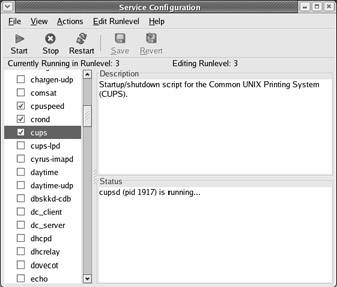
Figure 12-1: Reorganize, add, and remove run-level scripts from the Service Configuration window.
The Service Configuration window lets you reconfigure services for runlevels 3, 4, and 5.The run levels that you are currently running and currently editing are displayed near the top of the screen. Services that are available for the run level appear in the middle of the frame, with check marks next to the ones configured to start at that level. Here is what you can do from this window:
-
Add — Click the box next to each service you want to start automatically at that run level so that a check mark appears in the box.
-
Remove — Click the run-level script that you want to remove for a particular run level to remove the check mark.
-
Save — Click File, then Save Changes on the window to save any changes you have made to the run-level scripts.
-
Refresh — Click View, then Refresh Service List to refresh the list of services.
-
Start, Stop, or Restart — Click a service on the list. Select Actions, then either Start, Stop, or Restart Service. The selected service immediately starts, stops, or restarts.
Some administrators prefer text-based commands for managing run-level scripts and for managing other system services that start automatically. The chkconfig command can be used to list whether services that run-level scripts start, as well as services the xinetd daemon starts, are on or off. To see a list of all system services, with indications that they are on or off, type the following:
# chkconfig --list | less
You can then page through the list to see those services. If you want to view the status of an individual service, you can add the service at the end of the list option. For example, to see whether the nfs service starts in each run level, type the following:
# chkconfig --list nfs nfs 0:off 1:off 2:off 3:on 4:on 5:on 6:off
This example shows that the nfs service is set to be on for runlevels 3, 4, and 5, but that it is set to off for runlevels 0, 1, 2, and 6.
Another tool that can be run from the shell to change which services start and do not start at various levels is the ntsysv command. Type the following as root user from the shell:
# ntsysv
A screen appears with a list of available services. Use the up and down arrow keys to locate the service you want. With the cursor on a service, press the Spacebar to toggle the service on or off. Press the Tab key to highlight the OK button, and press the Spacebar to save the change and exit. The ntsysv tool is somewhat clever; it checks your default run level (the initdefault set in the /etc/inittab file) and turns on the service so it starts at that run level.
Adding run-level scripts
Suppose you want to create and configure your own run-level script. For example, after installing the binaries for the fictitious my_daemon program, it needs to be configured to start up in runlevels 3, 4, and 5, and terminated in any other run level. You can add the script to the /etc/init.d directory, then use the chkconfig command to configure it.
To use chkconfig, ensure that the following lines are included in the /etc/init.d/my_daemon script:
# chkconfig: 345 82 28 # description: Does something pretty cool - you really \ # have to see it to believe it! # processname: my_daemon
| Note | The line chkconfig: 345 82 28 sets the script to start in runlevels 3, 4, and 5.It sets start scripts to be set to 82 for those run levels. It sets stop scripts to be set to 28 in all other levels. |
With those lines in place, simply run the following command:
# chkconfig --add my_daemon
Appropriate links are created automatically. This can be verified with the following command:
# chkconfig --list my_daemon
The resulting output should look like this:
my_daemon 0:off 1:off 2:off 3:on 4:on 5:on 6:off
The script names that are created by chkconfig to make this all work are:
/etc/rc0.d/K28my_daemon /etc/rc1.d/K28my_daemon /etc/rc2.d/K28my_daemon /etc/rc3.d/S82my_daemon /etc/rc4.d/S82my_daemon /etc/rc5.d/S82my_daemon /etc/rc6.d/K28my_daemon
Managing xinetd services
There are a bunch of services, particularly Internet services, that are not handled by separate run-level scripts. Instead, a single run-level script called xinetd (formerly inetd) is run to handle incoming requests for these services. For that reason, xinetd is sometimes referred to as the super-server. The xinetd run-level script (along with the xinetd daemon that it runs) offers the following advantages:
-
Fewer daemon processes. Instead of one (or more) daemon processes running on your computer to monitor incoming requests for each service, the xinetd daemon can listen for requests for many different services. As a result, when you type ps -ax to see what processes are running, dozens of fewer daemon processes will be running than there would be if each service had its own daemon.
-
Access control and logging. By using xinetd to oversee the management of services, consistent methods of access control (such as PAM) and consistent logging methods (such as the /var/log/messages file) can be used across all of the services.
When a request comes into your computer for a service that xinetd is monitoring, xinetd uses the /etc/xinetd.conf file to read configuration files contained in the /etc/xinetd.d directory. Then, based on the contents of the xinetd.d file for the requested service, a server program is launched to handle the service request (provided that the service is not disabled).
Each server process is one of two types: single-thread or multithread. A single-thread server will handle only the current request, whereas a multithread server will handle all incoming requests for the service as long as there is still a client holding the process open. Then the multithread server will close and xinetd will begin monitoring that service again.
The following are a few examples of services that are monitored by xinetd. The daemon process that is started up to handle each service is also listed.
-
comsat (/usr/sbin/in.comsat) — Alerts the biff client that new mail has arrived.
-
eklogin (/usr/kerberos/sbin/klogind) — Kerberos-related login daemon.
-
finger (/usr/sbin/in.fingerd) — Handles incoming finger requests for information from remote users about local users.
-
gssftp (/usr/kerberos/sbin/ftpd) — Kerberos-related daemon for handling file transfer requests (FTP).
-
ntalk (/usr/sbin/in.ntalkd) — Daemon for handling requests to set up chats between a remote user and a local one (using the talk command).
-
rlogin (/usr/sbin/in.rlogind) — Daemon for responding to remote login requests (from a remote rlogin command).
-
rsh (/usr/sbin/in.rshd) — Handles requests from a remote client to run a command on the local computer.
Other services that can be launched by requests that come to xinetd include services for remote telnet requests, Samba configuration requests (swat), and Amanda network backups. A short description of each service is included in its /etc/xinetd.d file.
Manipulating run levels
Aside from the run level chosen at boot time (usually 3 or 5) and the shutdown or reboot levels (0 and 6, respectively), you can change the run level at any time while you’re logged in (as root user). The telinit command (really just a symbolic link to init) enables you to specify a desired run level, causing the termination of all system processes that shouldn’t exist in that run level, and starting all processes that should be running.
| Note | The telinit command is also used to instruct init to reload its configuration file, /etc/inittab. This is accomplished with either the telinit q or the telinit Q commands. |
For example, if you encountered a problem with your hard disk on startup, you may be placed in single-user mode (runlevel 1) to perform system maintenance. After the machine is stable, you can execute the command as follows:
# telinit 5
The init command handles terminating and starting all processes necessary to present you with a graphical login window.
Determining the current run level
You can determine the machine’s current run level with the aptly named runlevel command. Using the previous example of booting into single-user mode and then manually changing the run level, the output of the runlevel command would be:
# runlevel S 5
This means that the previous run level was S (for single-user mode) and the current run level is 5.If the machine had booted properly, the previous run level would be listed as N to indicate that there really wasn’t a previous run level.
Changing to a shutdown run level
Shutting down the machine is simply a change in run level. With that in mind, other ways to change the run level include the reboot, halt, poweroff, and shutdown commands. The reboot command, which is a symbolic link to the halt command, executes a shutdown -r now, terminating all processes and rebooting the machine. The halt command executes shutdown -h now, terminating all processes and leaving the machine in an idle state (but still powered on). Similarly, the poweroff command, which is also a link to the halt command, executes a change to run level 0, but if the machine’s BIOS supports Advanced Power Management (APM), it will switch off the power to the machine.
| Note | A time must be given to the shutdown command, either specified as +m (representing the number of minutes to delay before beginning shutdown) or as hh:mm (an absolute time value, where hh is the hour and mm is the minute that you would like the shutdown to begin). Alternatively, now is commonly used to initiate the shutdown immediately. |

EAN: 2147483647
Pages: 286