Flylib.com

Books Software


Section 3.2. Creating HTML Pages


3.2. Creating HTML Pages

From time to time, you may need to create a static web page on your team site. Although you could create the page externally and link to it with a Page Viewer Web Part, you can also take advantage of the built-in HTML features of SharePoint Services. You can create a page by adding text, pictures, and tables through your web browser without writing any HTML code. By default, all of the web pages you create are stored in the shared documents library.

To create an HTML page in SharePoint Services:

  1. Click Create in the top menu bar located at the top of the page.

  2. Click Basic Web Page to open up the New Basic Page form.

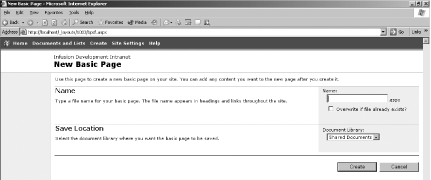
Figure 3-4 shows the New Basic Page, which is used to create new HTML pages for your team site:

  1. Type a name for your web page in the Name text field. Note that your page is always given the extension .aspx even though the page only contains basic HTML.

  2. If you want to overwrite an existing file with the same name, select the "Overwrite if file already exists?" checkbox.

  3. Select where you want to save the web page from the Document Library drop-down list.

  4. Click Create.

Figure 3-4. Create basic web page form

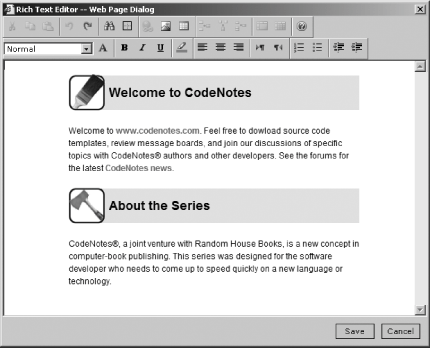
Figure 3-5 shows the Rich Text Editor - Web Page Dialog box that is launched after you click the Create button. You can use the Web Page Dialog box to create simple .aspx pages without writing tedious HTML code. You can add and format text, insert images, and create tables and lists just as you would in Microsoft Word.

Figure 3-5. Web Page Dialog box

3.3. Sharing Information Between Web Parts

SharePoint Services Web Parts can communicate with other Web Parts. Web Parts can be connected and synchronized to each other and to external data sources. The SharePoint architecture supports connection interfaces that allow you to configure one Web Part to provide information and another to consume it.

For example, at your company's human resources team site, each employee's file might contain the scheduled dates for performance reviews. The Employee File document library would pass the scheduled dates to the announcement Web Part. The announcement list would automatically retrieve new review dates from the Employee File document library and update itself accordingly .

3.3.1. Providing Information to a Web Part

To provide information to a Web Part:

  1. In the design mode of your team site, click on the down arrow of the Web Part that will provide the information (for example, the Employee File Web Part).

  2. In the pop-up menu, select Connections Provide Row To and select the Web Part that will consume the information.

Figure 3-6 shows how you can configure a Web Part to provide information to another Web Part without writing any configuration code.

Figure 3-6. Configuring the Employee File Web Part to provide information to the Announcements Web Part

The actual code that sends and receives events is beyond the scope of this book. However, you can work with your developers to create custom Web Parts that provide additional communication options within your Windows SharePoint Services sites.


The Employee File Web Part will now broadcast information to the announcements Web Part.

3.3.2. Consuming Information from a Web Part

Not only do you have to establish the link from the provider Web Part (the Employee File) to the consuming Web Part (the announcements list), you also have to tell the consumer Web Part how to use the information. In this example, you want the announcements list to display a new row based on the data sent by the Employee File Web Part.

To consume information from a Web Part:

  1. In the design mode, click on the down arrow of the Web Part that will consume the information (for example, the Announcements Web Part).

  2. In the resulting menu, select Connections Get Sort/Filter From and select the Web Part that will provide the information (for example, the Employee File Web Part).

Figure 3-7 shows how you can configure a Web Part to consume information from another Web Part without writing any configuration code.

Figure 3-7. Configuring the announcements Web Part to consume information from the Employee File Web Part