Back
Back
Back
Back
Back
Back
Week 2 begins by addressing the remaining topics
Days 10 and 11 taught you how to create and alter
Days 12-14 cover the database schema, including table and index creation as well as clusters and views.
Copyright, Macmillan Computer Publishing. All rights reserved.
So far you have learned about the structure of the Oracle database from the standpoint of the data itself. By the end of week 3, you will know more about the
Day 15 covers various topics relating to Oracle security matters,
Days 16-18 cover the most important responsibility of the Oracle DBA: the development and implementation of a backup and recovery plan. An effective plan can save your company millions of dollars in the event of a system failure. Also covered in this section are other
Days 19-21 cover more advanced topics such as the use of the Oracle parallel server. Also included is a lesson on Oracle optimization and performance tuning. The book concludes with a lesson covering the Oracle Web Publishing Assistant and the Oracle Network Computing Architecture (NCA).
Copyright, Macmillan Computer Publishing. All rights reserved.
Today you will learn about managing job queues and the Oracle auditing facility. Job queues are used to schedule jobs during off-peak hours or to schedule certain tasks on a recurring basis. The Oracle job queue facility allows you to schedule single or recurring
The Oracle auditing facility allows the administrator to monitor or audit the system usage. Auditing is important if one or more incident has occurred to make you suspicious of the activity of one or more users. Through auditing, a record is made of the suspicious activity and can be used to track down the party at fault. Think of auditing as a way of logging activity in the system.
Oracle job queues are used to divert the execution of an operation to a later time. This allows you to schedule jobs.
New
Using the Oracle job-queuing facility, you can easily schedule jobs to be run at various times or on a regular schedule. Some examples of where this might be useful include
NOTE: An advantage of scheduling jobs is that you need not be present when the job runs. Adisadvantage is that if the job fails during its operation, nobody is around to restart it. Therefore, you should thoroughly test your job before queuing it.
Let's look at how to schedule jobs using both the Enterprise Manager and the stored procedures in the DBMS_JOB package.
As you recall from Day 5, "Managing the Oracle RDBMS," the Enterprise Manager has a pane called the Job pane. Within this pane you can manage jobs that are running on this or other systems managed by this Enterprise Manager. By default, the Job pane is located in the lower-left corner of the Enterprise Manager, as shown in Figure 15.1.
Because this lesson is
To create a job using the Enterprise Manager, select the Create option by pulling down the Job menu. This will invoke the Create Job dialog box, as shown in Figure 15.2. It is from this dialog that you create an Oracle job, as you will see in this section.
Figure 15.1.
The Oracle Enterprise Manager.
Figure 15.2.
The Create Job dialog box.
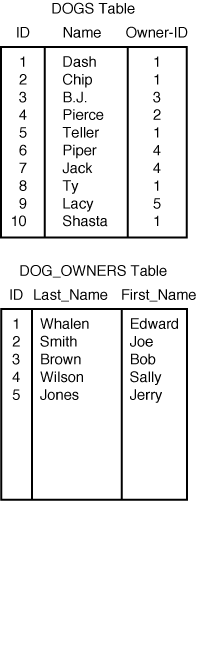
Say you're the president of a dog club that keeps track of a large number of dogs and their
These screens are very flexible and easy to use.
Use the General screen to uniquely define the job. Type the
Figure 15.3.
Use the General screen to define the job.
You use the Tasks screen to define the task that the job will perform. There are a number of predefined tasks, or you can define your own, as shown in Figure 15.4.
Figure 15.4.
The Tasks screen is where you define what the job will do.
Possible choices include the following administrative tasks:
There are also a number of predefined,
The appearance of the Parameters screen will vary depending on what type of task is selected in the Tasks screen.
The Parameters screen allows you to further define the parameters for the task that was selected. Because I selected an export task for this example, this screen allows me to define further export parameters, as shown in Figure 15.5.
Figure 15.5.
You further define the task in the Parameters screen.
Here you can select the database to be exported as well as the export filename. You can also choose to select export objects or advanced export options. The advanced export options screen is shown in Figure 15.6.
Figure 15.6.
You can choose advanced options for exporting.
This gives you a wide range of options for the export operation. Similarly, other tasks have their own parameters you can set.
The Schedule screen allows you to define how the job is to be run, as shown in Figure 15.7.
Figure 15.7.
You define the timing of the job in the Schedule screen.
Scheduling can be done at various rates, including
Scheduling is very flexible and easy to set up and run. At this point, all that is necessary to schedule the job is to click the Submit button. You will see the scheduled job listed on the Active Jobs screen, as shown in Figure 15.8.
Figure 15.8.
The Active Jobs screen shows the status of active jobs.
NOTE: For job queuing to work properly, the user preferences must be set up correctly. The user for the database must be a valid database user with the system permissions necessary to perform the task required. The user for the node must be a valid NT user with "login as batch job" permission. Thisuser must also have a password. Accounts with no passwords cannot be used. The preferences setup screen for the Enterprise Manager is shown in Figure 15.9. For my setup I created a batch account and added the proper privileges.
It is important for the Enterprise Manager to be properly configured for it to be able to submit jobs. After you have submitted the job, you can also modify it from the Enterprise Manager.
Figure 15.9.
Setting Enterprise Manager preferences.
After the job has been scheduled, you can administer it from the Enterprise Manager. You can't do much here except monitor the status and delete the job; these tasks can be accomplished from the Jobs menu. Selecting the Show Details option shows you how the job was submitted. Selecting the Remove Job option deletes the selected job.
It is possible to manage the Oracle job queues through the Server Manager or SQL*Plus rather than use the Enterprise Manager. This is very useful because all users can use Oracle queuing, and typically only administrators have access to the Enterprise Manager console.
A job is administered by calling the DBMS_JOB package just as you would call any other package. The stored procedures that make up this package are the following:
Each of these options has its own parameters that call it. The following sections outline the parameters for a few of them.
The SUBMIT function can be executed by calling the package with a syntax such as
DBMS_JOB.SUBMIT( Job What Next_date Interval No_parse )
where Job is an output parameter and the others are input parameters.
The SUBMIT procedure returns the job number. Here is an example:
SQL> VARIABLE job number; SQL> begin 2 DBMS_JOB.SUBMIT( 3 :job, 4 `DELETE FROM dogs2;', 5 SYSDATE, 6 NULL); 7 COMMIT; 8 end; 9 / PL/SQL procedure successfully completed. SQL> PRINT job; JOB --------- 1
The REMOVE function can be executed by calling the package with syntax such as
DBMS_JOB.REMOVE(Job)
where Job is the job number.
An example of using
DBMS_JOB.REMOVE
is as
SQL> begin 2 DBMS_JOB.REMOVE(1); 3 COMMIT; 4 end; 5 / PL/SQL procedure successfully completed.
If you don't know the job number, you can try to find it by using the following query:
SQL> select job, next_date, next_sec from user_jobs; JOB NEXT_DATE NEXT_SEC --------- --------- -------- 1 25-JUL-97 16:55:28 2 25-JUL-97 17:07:51
Other activities, such as DBMS_JOB.BROKEN , use a similar syntax. You can find more details in the Oracle documentation.
The Oracle auditing facility is used to log information about database operations such as when they occurred and who performed them. Auditing is important primarily if one or more incidents have occurred to make you suspicious of the activity of one or more users. Through auditing, a record is made of this activity that can be used to track down the party at fault.
TIP: For auditing to be effective, it is necessary for each user (especially the DBAs) to have his own account and use it. It does no good to audit database activity and determine that the SYSTEM user is at fault if you have 15 DBAs who use the SYSTEM account.
Auditing is not only used when you think you have some
Auditing, although useful, is very expensive in terms of both CPU overhead and disk usage. As such, you should use auditing very
Before attempting to start auditing, you must first decide what needs to be audited. This not only involves the activity that is to be audited, but the user accounts that are to be
There may be one or more reasons why you want to audit. By determining these reasons, you can better put together the audit plan. You might perform auditing for either of the following reasons:
Depending on the reason for auditing, different guidelines should be followed. In this section you will learn how these different types of
If you are auditing for historical information, you should determine which database activities will provide the most useful information for the audit. Because you are auditing for information only, decide which events are of interest to your audit and which events are not. Once you have compiled a list of pertinent activities, only those activities should be audited. Occasionally, you should extract the important information and purge the audit logs. In this way, you can keep down the
When auditing suspicious behavior, it is usually necessary to audit most database activity. If you limit the database activity that is being audited, you might
Also, note that when auditing suspicious behavior it is necessary to protect the audit logs. If this undesirable behavior is intentional, the perpetrator might try to cover up his or her tracks by removing information from the audit trail. How to protect the audit trail is described later today in the section titled "Protecting the Audit Trail."
To enable the audit trail, first you must run the administration SQL script CATAUDIT.SQL . This script is located in the directory Orant\Rdbms80\Admin . This administrative SQL script will create a number of views into the audit tables; each view shows a different perspective of the tables. The CATAUDIT.SQL script should be run by the SYS user.
To remove the audit trail views when they are no longer needed, use the administrative SQL script CATNOAUD.SQL . This will remove the views and disable auditing.
Each entry in the audit trail contains a wealth of information about the event in question:
For some auditing events, this might be all the information that is provided. Other auditing events might provide more information than this.
The audit trail contains a variety of information depending on how the system is configured. Auditing of particular functions and users is enabled with the AUDIT statement. Auditing is disabled using the NOAUDIT statement. By default, some operations are automatically audited. These operations include
All other auditing information is enabled by specifying them individually using the AUDIT command. Auditing can be set on three different levels:
Auditing Statements and Privileges
To audit SQL statements you should use the following syntax with the AUDIT SQL statement:
AUDIT SQL_STATEMENT_OPTIONS or PRIVILEGE [, SQL_STATEMENT_OPTIONS or PRIVILEGE ...] [BY user_name [, user_name]...] [BY SESSION or BY ACCESS] [WHENEVER SUCCESSFUL or WHENEVER NOT SUCCESSFUL]
This statement is all that is necessary to enable auditing. The
Besides auditing particular SQL statements by statement or privilege, you may also audit schema objects, as shown in the next section.
Auditing Objects
Auditing schema objects is very similar to auditing SQL statements. You can also audit access to particular schema objects. The syntax used to audit objects is very similar to the syntax used to audit SQL statements, as shown here:
AUDIT Object_Option [, Object_Option ...] ON [schema.]object] or ON DIRECTORY dir_name or ON DEFAULT [BY SESSION or BY ACCESS] [WHENEVER SUCCESSFUL or WHENEVER NOT SUCCESSFUL]
This statement is all that is necessary to enable auditing. Following are the explanations of the parameters:
This is the syntax necessary to perform auditing on schema objects.
TIP: If you audit WHENEVER NOT SUCCESSFUL , a record is kept of unsuccessful attempts at various operations. If you suspect that a user is trying to tamper with the system, this information can be very useful.
It is important that you protect the audit trail if you suspect unusual behavior. In this manner, if there is malicious behavior going on, the party or parties involved cannot cover their tracks. You protect the audit trail with the following two steps:
2. Enable auditing on the audit trail itself. You do this with the following SQL statement:
AUDIT INSERT, UPDATE, DELETE ON sys.aud$ BY ACCESS;
This will cause all access to the audit trail to be audited, thus indicating whether someone is covering up something.
As mentioned in the beginning of this lesson, there are a number of views into the audit trail created by the CATAUDIT.SQL administrative script. You can select these views to provide useful auditing information. Here is a description of the most relevant of the views:
By selecting from these views, you can retrieve information about the audit trails. The specific information in the audit trails may vary, but all of them contain the same basic information:
The auditing information can be useful, but should be used with care to avoid consuming excess system resources. Using auditing as necessary and selectively can be very enlightening.
WARNING: Because of the overhead auditing adds to the system, it should be used sparingly. Only audit the events that are necessary and only audit when necessary.
In today's lesson you have learned about managing job queues and the Oracle auditing facility. Oracle job queues are used to divert the execution of an operation to a later time, thus allowing you to schedule jobs. By using the Oracle job-queuing facility, you can easily schedule jobs to be run at various times or on a regular schedule. This allows you to automate many of the repetitive tasks that need to be done. You have learned how to schedule jobs using both the Enterprise Manager and the stored procedures in the DBMS_JOB package.
The Oracle auditing facility is used to log various database operations such as when they occurred and who performed that operation. Auditing is important if one or more incidences have occurred to make you suspicious of the activity of one or more users. Through auditing, a record will be made of this activity that can be used in tracking down the party at fault. Auditing is also useful to periodically monitor the activity of the system and to allow you to make adjustments to improve performance or usability of the system.
In tomorrow's lesson, "Understanding Effective Backup Techniques," you will begin to learn about one of the most important tasks the DBA is charged with: backup and recovery. In the next three days you will learn various techniques for
A
The Oracle job-queuing mechanism is used to
Q Who can use the job queues?
A Any user can use the job queues, but use of the Oracle Enterprise Manager is usually limited to the database administrators.
Q What is auditing used for?
A Auditing is used either to characterize database activity or to find the source of suspicious activity.
Q Who uses auditing?
A Auditing is limited to database administrators. There is no reason for users to need to use the auditing facilities.
The workshop provides quiz questions to help you
2. What kind of jobs can be scheduled?
3. Can only database operations be scheduled?
4. Should a new user account be created for job queuing?
5. What NT user right needs to be created for this user account?
6. Can jobs be run on remote systems?
7. What kinds of scheduling can be done?
8. What needs to be configured in the Enterprise Manager?
9. Why might you need to enable auditing?
10. What do you need to watch out for with auditing?
2. Create a test job using the Enterprise Manager. This job can be a simple select operation.
3. Schedule this job to run every week.
4. Delete this job from the job queue.
Copyright, Macmillan Computer Publishing. All rights reserved.