Analysis Tools
Excel is certainly no slouch when it comes to analysis. After all, that's what most people use a spreadsheet for. Most analysis tasks can be handled with formulas, but Excel offers many other options.
Outlines
A worksheet outline is often an excellent way to work with hierarchical data such as budgets . Excel can create an outline (horizontal, vertical, or both) automatically, or you can do so manually. After the outline is created, you can collapse or expand it to display various levels of detail.
Analysis ToolPak
In previous versions of Excel, the Analysis ToolPak add-in provided additional special-purpose analysis tools and worksheet functions, primarily statistical in nature. In Excel 2007, these features are built in. These tools make Excel suitable for casual statistical analysis.
Pivot tables
Pivot tables are among Excel's most powerful tools. A pivot table is capable of summarizing data in a handy table, and this table can be arranged in many ways. In addition, a pivot table can be manipulated entirely by VBA. Data for a pivot table comes from a worksheet database or an external database and is stored in a special cache, which enables Excel to recalculate rapidly after a pivot table is altered . Figure 2-26 shows a pivot table.
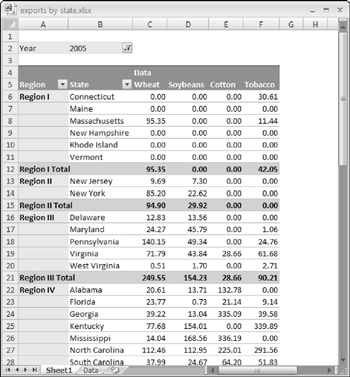
Figure 2-26: Excel's pivot table feature has many applications.
| CROSS-REFERENCE | See Chapter 17 for information about manipulating pivot tables with VBA. |
Solver
For specialized linear and nonlinear problems, Excel's Solver add-in calculates solutions to what-if scenarios based on adjustable cells, constraint cells , and, optionally , cells that must be maximized or minimized.
XML features
One of the few new features introduced in Excel 2003 dealt with XML files. (XML is an accepted standard that enables exchange of data between different applications.) You can import data from an XML file and then map the data to specific worksheet cells.

EAN: 2147483647
Pages: 319