Excel s User Interface
Excel's User Interface
The user interface (UI) is the means by which an end user communicates with a computer program. Generally speaking, a UI includes elements such as menus , toolbars , dialog boxes, keystroke combinations, and so on.
This section discusses the main components of Excel 2007's UI:
-
The Ribbon
-
Shortcut menus
-
Dialog boxes
-
Keyboard shortcuts
-
Smart Tags
-
Task pane
Introducing the Ribbon
If you've used Excel 2007 for more than a minute, you know that it has an entirely new UI. Menus and toolbars are gone, replaced with a brand new "tab and Ribbon" UI. Click a tab along the top (that is, a word such as Home, Insert, Page Layout), and the Ribbon displays the commands for that tab. Office 2007 is the first software in history to use this new interface, so the jury is still out regarding how it will be accepted.
The appearance of the commands on the Ribbon varies, depending on the width of the Excel window. When the window is too narrow to display everything, the commands adapt, and may seem to be missing. But the commands are still available. Figure 2-2 shows the Home tab of the Ribbon with all controls fully visible. Figure 2-3 shows the Ribbon when Excel's window is narrower. Notice that some of the descriptive text is gone, but the icons remain . Figure 2-4 shows the extreme case, in which the window is very narrow. Some of the groups display a single icon. However, if you click the icon, all of the group commands are available to you.

Figure 2-2: The Home tab of the Ribbon.

Figure 2-3: The Home tab when Excel's window is narrower.
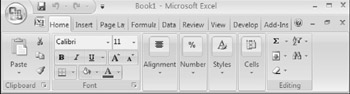
Figure 2-4: The Home tab when Excel's window is very narrow.
| Tip | If you would like to hide the Ribbon to increase your worksheet view, just double-click any of the tabs. The Ribbon goes away, and you'll be able to see about five additional rows of your worksheet. When you need to use the Ribbon again, just click any tab, and it comes back. You can also press Ctrl+F1 to toggle the Ribbon display on and off. |
CONTEXTUAL TABS
In addition to the standard tabs, Excel 2007 includes "contextual tabs." Whenever an object (such as a chart, a table, a picture, or SmartArt) is selected, tools for working with that specific object are made available in the Ribbon.
Figure 2-5 shows the contextual tabs that appear when a pivot table is selected. In this case, Excel displays two contextual tabs: Options and Design. Notice that the contextual tabs contain a description (PivotTable Tools) in Excel's title bar. When contextual tabs are displayed, you can, of course, continue to use all of the other tabs.
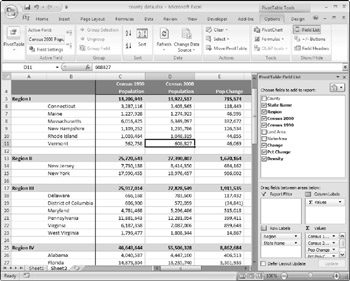
Figure 2-5: When you select an object, contextual tabs contain tools for working with that object.
TYPES OF COMMANDS ON THE RIBBON
For the most part, the commands in the Ribbon work just as you would expect them to. You'll encounter several different styles of commands on the Ribbon, as described next :
-
Simple buttons : Click the button, and it does its thing. An example of a simple button is the Increase Font Size button in the Font group of the Home tab. Some buttons perform the action immediately; others display a dialog box so you can enter additional information. Button controls may or may not be accompanied by text.
-
Toggle buttons: A toggle button is clickable and also conveys some type of information by displaying two different colors. An example is the Bold button in the Font group of the Home tab. If the active cell is not bold, the Bold button displays in its normal color . But if the active cell is already bold, the Bold button displays a different background color. If you click this button, it toggles the Bold attribute for the selection.
-
Simple drop- downs : If the Ribbon command has a small downward-pointing arrow, then the command is a drop-down. Click it, and additional commands appear below it. An example of a simple drop-down is the Merge and Center command in the Alignment group of the Home Tab. When you click this control, you see four options related to merging and centering information.
-
Split buttons: A split button control combines a one-click button (on the top) with a drop-down (on the bottom). If you click the button part, the command is executed. If you click the drop-down part, you choose from a list of related commands. You can identify a split button because it displays in two colors when you hover the mouse over it. An example of a split button is the Paste command in the Clipboard group of the Home tab. Clicking the top part of this control pastes the information from the Clipboard. If you click the bottom part of the control, you get a list of paste-related commands. See Figure 2-6.
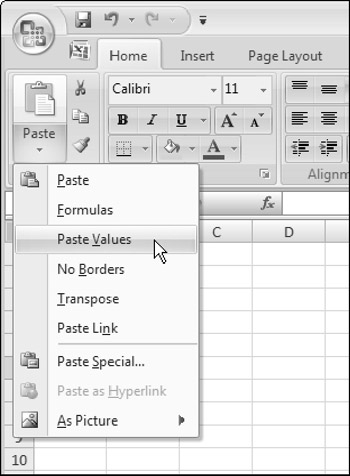
Figure 2-6: The Paste command is a split button control. -
Check boxes: A check box control turns something on or off. An example is the Gridlines control in the Show/Hide group of the View tab. When the Gridlines check box is checked, the sheet displays gridlines. When the control is not checked, the sheet gridlines are not displayed.
-
Spinners: An example of a spinner control is in the Scale to Fit group of the Page Layout tab. Click the top part of the spinner to increase the value; click the bottom part of the spinner to decrease the value.
| CROSS-REFERENCE | Refer to Chapter 22 for information about customizing Excel's Ribbon. |
Some of the Ribbon groups contain a small icon on the right side, known as a dialog launcher. For example, if you examine the Home  Alignment group, you'll see this icon (refer to Figure 2-7). Click it, and it displays the Format Cells dialog box, with the Number tab preselected. This dialog box provides options that aren't available in the Ribbon.
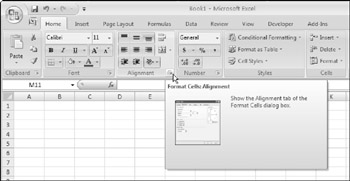
Figure 2-7: This small dialog launcher icon displays a dialog box that has additional options.
THE QUICK ACCESS TOOLBAR
In previous versions of Excel, end users were free to customize their menus and toolbars. Things have changed in Excel 2007. Although the Ribbon can be customized, it's a task best left for a knowledgeable developer. In Excel 2007, the only end-user customization option is the Quick Access Toolbar (QAT). Normally, the QAT is displayed on the left side of the title bar. Alternatively, you can display the QAT below the Ribbon by right-clicking the QAT and selecting Place Quick Access Toolbar Below Ribbon.
By default, the QAT contains these tools: Save, Undo, and Redo. You can, of course, customize the QAT by adding other commands that you use often. To add a command from the Ribbon to your QAT, right-click the command and choose Add To Quick Access Toolbar.
Excel has commands that aren't available in the Ribbon. In most cases, the only way to access these commands is to add them to your QAT. Figure 2-8 shows the Customization section of the Excel Options dialog box. This is your one-stop shop for QAT customization. A quick way to display this dialog box is to right-click the QAT and choose Customize Quick Access Toolbar.
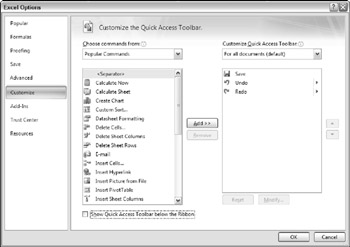
Figure 2-8: Add new icons to your QAT by using the Customization section of the Excel Options dialog box.
ACCESSING THE RIBBON BY USING YOUR KEYBOARD
At first glance, you may think that the Ribbon is completely mouse-centric. After all, none of the commands has the traditional underlined letter to indicate the Alt+keystrokes. But, in fact, the Ribbon is very keyboard friendly. The trick is to press the Alt key to display the pop-up "keytips." Each Ribbon control has a letter (or series of letters ) that you type to issue the command.
| Tip | It's not necessary to hold down the Alt key as you type the keytip letters. |
Figure 2-9 shows how the Home tab looks after I press the Alt key to display the keytips. If you press one of the keytips, the screen then displays more keytips. For example, to use the keyboard to align the cell contents to the left, press Alt, followed by H (for Home) and then AL (for Align Left). If you're a keyboard fan (like me), it will just take a few times before you memorize the keystrokes required for common commands.

Figure 2-9: Pressing Alt displays the keytips.
After you press Alt, you can also use the left and right arrow keys to scroll through the tabs. When you reach the proper tab, press the down-arrow key to enter the Ribbon. Then use the left- and right-arrow keys to scroll through the Ribbon commands. When you reach the command you need, press Enter to execute it. This method isn't as efficient as using the keytips, but it is a quick way to take a quick look at the choices on the Ribbon.
Shortcut menus
The only menus that remain in Excel 2007 are shortcut menus. These menus appear when you right-click after selecting one or more objects. The shortcut menus are contextsensitive. In other words, the menu that appears depends on the location of the mouse pointer when you right-click. You can right-click just about anything - a cell, a row or column border, a workbook title bar, a toolbar, and so on.
Right-clicking some objects displays a mini-toolbar above the shortcut menu. This toolbar provides quick access to commonly used formatting commands. Figure 2-10 shows the mini-toolbar when a cell is selected.
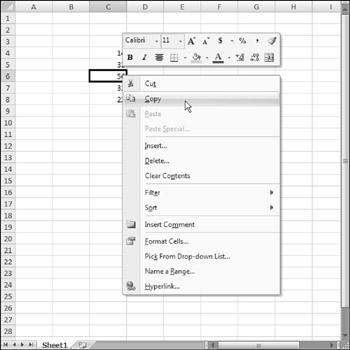
Figure 2-10: Right-clicking some objects displays a mini-toolbar.
Although you cannot customize the Ribbon by using VBA, you can use VBA to customize any of the shortcut menus.
| CROSS-REFERENCE | Refer to Chapter 23 for more information about customizing shortcut menus. |
Dialog boxes
Some of the Ribbon commands display a dialog box. In many cases, these dialog boxes contain additional controls that aren't available in the Ribbon.
You'll find two general classes of dialog boxes in Excel:
-
Modal dialog boxes: When a modal dialog box is displayed, it must be closed in order to execute the commands. An example is the Format Cells dialog box. None of the options you specify are executed until you click OK. Use the Cancel button to close the dialog box without making any changes.
-
Modeless dialog boxes: These are "stay on top" dialog boxes. For example, if you're working with a chart using the Format dialog box, changes that you make are reflected immediately in the chart. Modeless dialog boxes usually have a Close button rather than an OK button and a Cancel button.
Many of Excel's dialog boxes use a notebook tab metaphor, which makes a single dialog box function as several different dialog boxes. In older dialog boxes, the tabs are usually along the top. But in newer dialog boxes (such as the one shown in Figure 2-11), the tabs are along the left side.
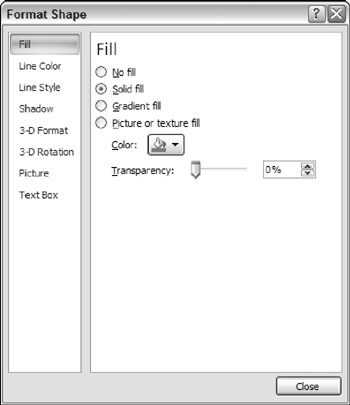
Figure 2-11: Tabbed dialog boxes make many options accessible without overwhelming the user.
Developers can create custom dialog boxes by using the UserForm feature. As you'll see, it's possible to create a wide variety of dialog boxes, including tabbed dialog boxes.
| CROSS-REFERENCE | Refer to Part IV for information about creating and working with UserForms. |
Keyboard shortcuts
Excel has many useful keyboard shortcuts. For example, you can press Ctrl+D to copy a cell to selected cells below it. If you're a newcomer to Excel - or you just want to improve your efficiency - I urge you to check out the Help system (access the Accessibility main topic, and go from there). Learning these shortcuts is key to becoming proficient in Excel. The Help file has tables that summarize useful keyboard commands and shortcuts.
And, as I noted previously, you can access the Ribbon commands by using the keyboard.
Smart Tags
A Smart Tag is a small icon that appears automatically in your worksheet after you perform certain actions. Clicking a Smart Tag reveals several options. For example, if you copy and paste a range of cells, Excel generates a Smart Tag that appears below the pasted range (see Figure 2-12) and provides you with several options regarding the formatting of the pasted data.
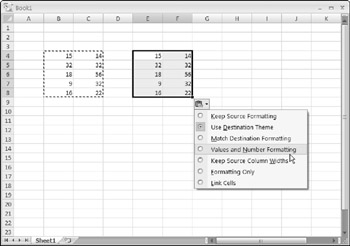
Figure 2-12: This Smart Tag appears when you paste a copied range.
If you don't like these Smart Tags, you can turn them off in the Excel Options dialog box. Choose Office  Excel Options and click the Advanced tab. Use the controls in the section labeled Cut, Copy And Paste.
Task pane
Excel 2002 introduced a new UI element known as the task pane. This is a multipurpose user interface element that is normally docked on the right side of Excel's window (but you can drag it anywhere ). The task pane is used for a variety of purposes, including displaying the Office Clipboard, displaying a pivot table field list, inserting clip art, providing research assistance, and mapping eXtensible Markup Language (XML) data. Figure 2-13 shows the Clip Art task pane.
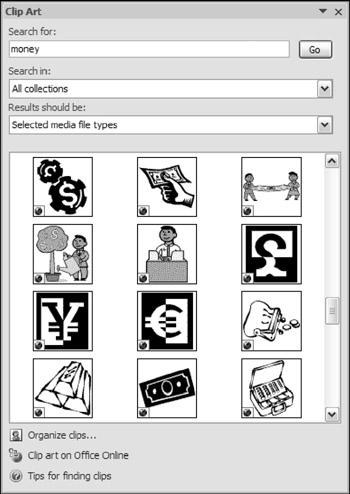
Figure 2-13: Locating clip art is one of several uses for the task pane.
 |
Nothing.
Most of Excel 2007's updated object model is accessible in your VBA code, but the VB Editor is exactly the same as it was in Excel 2003.
| |

EAN: 2147483647
Pages: 319