Flylib.com

Books Software


Hack 49 Determine Who Has A Particular File Open on the Network

 < Day Day Up > 

Hack 49 Determine Who Has A Particular File Open on the Network

figs/beginner.gif figs/hack49.gif

Using the Hyena utility, quickly find out which user on your network has a particular file open .

One of the biggest problems for system administrators is dealing with help-desk or user requests that ask you to see who has a particular document open on the network. This can be most effectively completed using a utility called Hyena from SystemTools.com (http://www.systemtools.com). With this utility, you can even disconnect the user who has the open file or send her a message asking her to close the file in question.

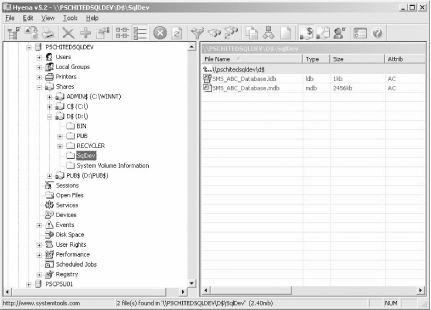
Here's a quick walkthrough on how to use the product, so you can see how easy it is to use. Start Hyena and begin by selecting the server name where the file is stored. Expand the + sign and the Shares leaf, and select the share you want to examine. Then, drill through the directories until you find the subdirectory you want, such as SqlDev in Figure 5-1.

Figure 5-1. Finding open files in Hyena
figs/wsh_0501.gif

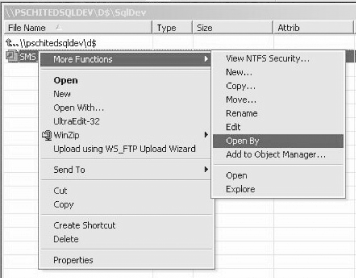
Now, select the file you want ( SMS_ABC_Database.mdb in our example) in the right pane to see who has it open. Right-click it, and from the context menu select More Functions and then Open By (Figure 5-2).

Figure 5-2. Selecting an open file
figs/wsh_0502.gif

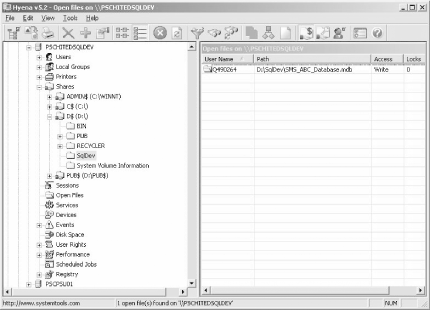
Now, in the menu to the right, you will see who the user is by examining the User Name column, as shown in Figure 5-3.

Figure 5-3. Viewing who has the file open
figs/wsh_0503.gif

Now it is just a matter of either sending the user a message or, if he is unavailable, disconnecting him, by right-clicking on the file and choosing the appropriate menu option (Figure 5-4). If you opt for the latter, keep in mind that the file will be closed without giving the user the opportunity to make any final changes.

Figure 5-4. Disconnecting the user

figs/wsh_0504.gif

You can download a free, 30-day, fully functional, evaluation copy of this great tool from http://systemtools.com/hyena/download_frame.htm. Enjoy!

Don Hite

 < Day Day Up > 
 < Day Day Up > 

Hack 50 Display a Directory Tree

figs/beginner.gif figs/hack50.gif

Using some simple coding, you can display a complete map of a directory structure from a command prompt .

The Explorer interface makes it easy to browse directories on a Windows machine, but it doesn't provide a simple method to document the structure of directories and their subdirectories. For troubleshooting purposes, it's helpful to know the directory structure on file servers where users store their work. This VBScript simplifies the process of documenting a directory's structure by allowing you to view such structure from the command line. Alternatively, by redirecting the output of the command to a text file, you can print a permanent record of the structure of your directories.

The Code

Type the following code into Notepad (with Word Wrap turned off) and save the file with a .vbs extension as vbtree.vbs :

' Show simple directory tree


Option Explicit

Dim sArg, oFSO

Set oFSO = CreateObject("Scripting.FileSystemObject")


' Get folder (default is current directory)

If Wscript.Arguments.Count > 0 Then

sArg = Wscript.Arguments(0)

Else

sArg = "."

End If

sArg = oFSO.GetAbsolutePathName(sArg)


' Process entire tree (if valid folder)

If oFSO.FolderExists(sArg) Then

Wscript.Echo "Folder tree for:", sArg

ShowTree "", oFSO.GetFolder(sArg)

End If


Set oFSO = Nothing

Wscript.Quit(0)


Sub ShowTree(sIndent, oFolder)

Dim oSubFolder, ix

ix = 1

For Each oSubFolder In oFolder.SubFolders

Wscript.Echo sIndent & "+--" & oSubFolder.Name

If ix <> oFolder.SubFolders.Count Then

ShowTree sIndent & " ", oSubFolder

Else

ShowTree sIndent & " ", oSubFolder

End If

ix = ix + 1

Next

End Sub

Running the Hack

The script is hardcoded by design to display the structure of the current directory. Place the script into to directory whose structure you want to display, such as C:\data . Then, open a command prompt, change the current directory to C:\data , and type cscript vbtree.vbs to display the tree of subdirectories under the current directory (Figure 5-5). Alternatively, you can type cscript vbtree.vbs > tree.txt to redirect the output of the script to a text file for documentation purposes.

Figure 5-5. Displaying the tree of subdirectories under C:\data
figs/wsh_0505.gif

Make sure you have the latest scripting engines on the workstation from which you run this script. You can download current scripting engines from the Microsoft Scripting home page (http://msdn.microsoft.com/scripting/).

Rod Trent

 < Day Day Up >