Flylib.com

Books Software


Changing the Canvas Color

 < Day Day Up > 

Changing the Canvas Color

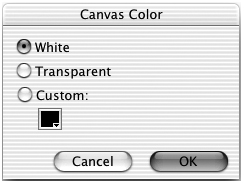
The canvas color is the background color of your document. When you export an image for placement on a Web page, you generally want to make the canvas the same color as the background of your Web page so that the image blends in with the page. For this exercise, you want to make the canvas color white to make the effects that you will add later in the lesson easier to see.

To change the canvas color, do one of the following:

  • Choose Modify > Canvas > Canvas Color. In the Canvas Color dialog box, select White.

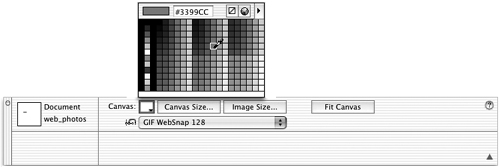
  • Click the Canvas color box in the Property inspector. Choose White from the color palette.

Note

The candy image covers the background canvas so you won't see any changes when you change the canvas to white.


The Property inspector displays information about the selected object. If nothing is selected, then the Property inspector displays information about the document: the canvas color and canvas size. If your bitmap image is selected, switch to the Pointer tool and click outside the image to deselect it, or choose Select > Deselect. Click Canvas Size or Image Size on the Property inspector to change the size of the canvas or the size of the image. Click the Canvas color box on the Property inspector to choose a canvas color from the color box pop-up window. Click Fit Canvas to size the canvas to the boundary of the elements on the canvas.

Note

Document settings appear in the Property inspector only if nothing is selected on the page.

 < Day Day Up > 
 < Day Day Up > 

Using the Crop Tool

The pecan_cluster_raw.png image shows not only the candy on the gray background, but also part of the table where the image was shot. You don't need all that surrounding material—you just need the candy for the final image. The Crop tool allows you to select a rectangular portion of the image you want to keep and deletes the rest.

Tip

You can change the Crop tool preferences to leave the pixels outside of the cropping area. Choose Edit > Preferences (PC) or Fireworks > Preferences (Mac) and then choose the Editing category. Deselect the option to delete objects when cropping. You don't need to do this for this exercise.


1.

Select the Crop tool from the Tools panel.

The pointer cursor changes to the cropping tool cursor.

2.

Start at the top left of the candy image and drag diagonally to the lower-right side.

As you drag, you'll see a dashed rectangle that indicates the area you want to keep. Even after you release the mouse button, you can modify the area by dragging one of the corner handles or dragging on the sides of the rectangle. If you want to move the cropping rectangle, drag from within the rectangle to the new location. The pointer appears as a four-pointed arrow when you are within the cropping area.

3.

Press Enter (PC) or Return (Mac) to crop the image.

Tip

Press Esc to release the Crop tool if you change your mind and don't want to crop the image.

 < Day Day Up > 
 < Day Day Up > 

Using the Info Panel

When you look at the gray background of the bitmap image, all the gray pixels appear to be similar in color . There is actually a wide variety of colors. To see the difference in the colors, you can use the Info panel.

1.

Choose Window > Info.

Move the pointer around the gray background of the image and notice the change of the values in the Info panel. The Info panel displays the color and position of the pixel directly below the mouse pointer.

2.

Click the Options menu on the Info panel and then select HSB from the menu.

The Options menu is located on the right side of all panels. This menu contains options specific to that panel. On the Info panel, you can view the hexadecimal, RGB (red, green, blue), CMY (cyan, magenta , yellow), and HSB (hue, saturation, and brightness) values of colors. When you view the HSB values, you can see the differences in gray colors that appear to be the same on your screen.

Note

To see the values in the Info panel, the image may need to be selected with a bitmap tool. If you don't see the values, double-click the image with the pointer tool, then try again.

Note

The Options menu is common to all panels in Fireworks.

 < Day Day Up >