Detecting an Object's Position In the previous section, I showed you how to find an object's properties, showing as an example how to find the object's width and height. Now let's apply that same process to locating the object's position. You can use CSS to set the top, left, bottom, and/or right positions of objects (see "Setting an Element's Position" in Chapter 7). Then you can use JavaScript to detect those positions and change them to move the objects around. One major use of DHTML is to make objects move around on the page (see "Moving Objects from Point to Point" in Chapter 16). But to make something move, you need to know where it is to begin with. Let's take a moment and look specifically at how to find the top/left position and the bottom/right position of an object. Finding an Object's Top and Left Positions To set the position of an object's top-left corner, you use the CSS top and left properties. You might, then, assume that you would also use these style properties in JavaScript to find what those values are. However, the browsers use the offsetLeft and offsetTop properties to find this information. Although not a part of the W3C DOM specification, these properties are universally available in all browsers. In this example (Figure 14.6), clicking any of the objects makes an alert display showing that object's position from the top and left sides of its parent elementin this case, the body of the document. Figure 14.6. An alert appears, telling you the top and left positions of the object. 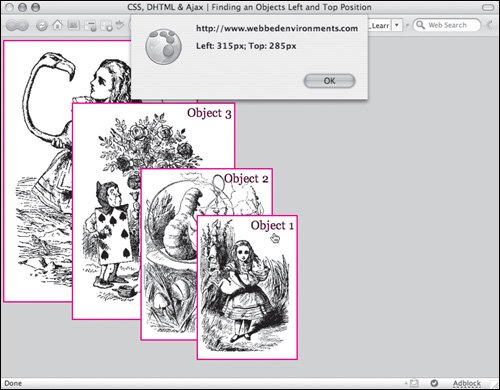
To find the top and left positions of an object: | | 1. | function findLeft(objectID) {...}
Add the functions findLeft() and findTop() to your JavaScript (Code 14.3).
Code 14.3. The functions findLeft() and findTop() detect the position of an individual object on the page.| [View full width] <!DOCTYPE html PUBLIC "-//W3C//DTD XHTML 1.0 Strict//EN" "http://www.w3.org/TR/xhtml1/DTD  /xhtml1-strict.dtd"> <html xmlns="http://www.w3.org/1999/xhtml"> <head> <meta http-equiv="Content-Type" content="text/html; charset=UTF-8" /> <title>CSS, DHTML & Ajax | Finding an Objects Left and Top Position</title> <script type="text/javascript"> function findLeft(objectID) { var object = document.getElementById(objectID); if (object.offsetLeft) return object.offsetLeft; return (null); } function findTop(objectID) { var object = document.getElementById(objectID); if (object.offsetTop) return object.offsetTop; return (null); } function showPosTL(evt) { var objectID = (evt.target) ? evt.target.id : ((evt.srcElement) ? evt.srcElement.id : null); if (objectID) { leftPos = findLeft(objectID); topPos = findTop(objectID); alert('Left: ' + leftPos + 'px; Top: ' + topPos + 'px' ); } else return (null); } </script> <style type="text/css" media="screen"> .dropBox { position: absolute; text-align: right; padding: 4px; background-color: #FFFFFF; border: 2px solid #f00; cursor: pointer; } #object1 { z-index: 3; top: 285px; left: 315px; background: white url(alice22a.gif) no-repeat; height:220px; width:150px; } #object2 { z-index: 2; top: 210px; left: 225px; background: white url(alice15a.gif) no-repeat; height:264px; width:200px; } #object3 { z-index: 1; top: 105px; left: 115px; background: white url(alice28a.gif) no-repeat; height:336px; width:250px;} #object4 { z-index: 0; top: 5px; left: 5px; background: white url(alice30a.gif) no-repeat; height:408px; width:300px; } </style> </head> <body> <div onclick="showPosTL(event)"> Object 1</div> <div onclick="showPosTL(event)"> Object 2</div> <div onclick="showPosTL(event)"> Object 3</div> <div onclick="showPosTL(event)"> Object 4</div> </body></html> /xhtml1-strict.dtd"> <html xmlns="http://www.w3.org/1999/xhtml"> <head> <meta http-equiv="Content-Type" content="text/html; charset=UTF-8" /> <title>CSS, DHTML & Ajax | Finding an Objects Left and Top Position</title> <script type="text/javascript"> function findLeft(objectID) { var object = document.getElementById(objectID); if (object.offsetLeft) return object.offsetLeft; return (null); } function findTop(objectID) { var object = document.getElementById(objectID); if (object.offsetTop) return object.offsetTop; return (null); } function showPosTL(evt) { var objectID = (evt.target) ? evt.target.id : ((evt.srcElement) ? evt.srcElement.id : null); if (objectID) { leftPos = findLeft(objectID); topPos = findTop(objectID); alert('Left: ' + leftPos + 'px; Top: ' + topPos + 'px' ); } else return (null); } </script> <style type="text/css" media="screen"> .dropBox { position: absolute; text-align: right; padding: 4px; background-color: #FFFFFF; border: 2px solid #f00; cursor: pointer; } #object1 { z-index: 3; top: 285px; left: 315px; background: white url(alice22a.gif) no-repeat; height:220px; width:150px; } #object2 { z-index: 2; top: 210px; left: 225px; background: white url(alice15a.gif) no-repeat; height:264px; width:200px; } #object3 { z-index: 1; top: 105px; left: 115px; background: white url(alice28a.gif) no-repeat; height:336px; width:250px;} #object4 { z-index: 0; top: 5px; left: 5px; background: white url(alice30a.gif) no-repeat; height:408px; width:300px; } </style> </head> <body> <div onclick="showPosTL(event)"> Object 1</div> <div onclick="showPosTL(event)"> Object 2</div> <div onclick="showPosTL(event)"> Object 3</div> <div onclick="showPosTL(event)"> Object 4</div> </body></html>
|
These functions use the ID of the object to be addressedpassed to them as the variable objectIDto identify the object. They then use feature sensing to determine whether the browser uses offsetLeft and offsetTop to return the left and top positions of the object in pixels.
| 2. | function showPosTL(evt) {...}
Add a JavaScript function that uses the functions you created in Step 1. In this example, showPosTL() first finds the ID of the triggering object using the evt variable:
var objectID = (evt.target) ? evt.target.id : ((evt.srcElement) ? evt.srcElement.id : null);
It then passes this value to findLeft() and findTop(), displaying the values they return in an alert.
| 3. | #object1 {...}
Set up the CSS rules for your object(s) with left, and top properties. You will use these to define objects in your HTML.
| 4. | onclick="showPos(event);"
Add an event handler to trigger the function you created in Step 2, and pass to it the event.
|
 Tips Tips
Microsoft Internet Explorer 4 also lets you use the pixelLeft and pixelTop properties to find the left and top position. However, since offsetLeft and offsetTop work in all other browsers, these are generally preferred. Remember that unless you are using the Strict mode DTD, you will run into problems with discrepancies in how Internet Explorer and other browsers measure width and height and how they set the default page margin.
Finding an Object's Bottom and Right Positions Like the top and left positions, the bottom and right positions can be determined with DOM properties. However, you don't do this directly using a particular object. Instead, you find the left or top position of the object and the width or height of the object and add these values. In this example (Figure 14.7), clicking any of the objects will cause a pop-up alert to appear, displaying the position of the bottom and right sides of the object. Figure 14.7. An alert pops up to tell you the bottom and right positions of the object. 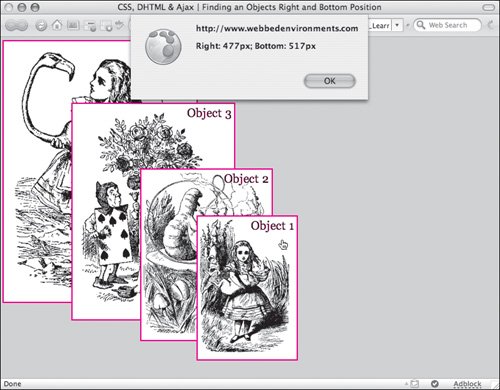
To find the bottom and right positions of an object: | | 1. | function findRight(objectID) {...}
Add the functions findRight() and findBottom() to your JavaScript (Code 14.4).
Code 14.4. The functions findRight() and findBottom() calculate where the bottom and right sides o the object are on the page.| [View full width] <!DOCTYPE html PUBLIC "-//W3C//DTD XHTML 1.0 Strict//EN" "http://www.w3.org/TR/xhtml1/DTD /xhtml1-strict.dtd"> <html xmlns="http://www.w3.org/1999/xhtml"> <head> <meta http-equiv="Content-Type" content="text/html; charset=UTF-8" /> <title>CSS, DHTML & Ajax | Finding an Objects Right and Bottom Position</title> <script type="text/javascript"> function findRight(objectID) { var object = document.getElementById(objectID); if (object.offsetLeft) { return (object.offsetLeft + object.offsetWidth); } return (null); } function findBottom(objectID) { var object = document.getElementById(objectID); if (object.offsetTop) { return (object.offsetTop + object.offsetHeight); } return (null); } function showPosBR(evt) { var objectID = (evt.target) ? evt.target.id : ((evt.srcElement) ? evt.srcElement.id : null); if (objectID) { rightPos = findRight(objectID); bottomPos = findBottom(objectID); alert('Right: ' + rightPos + 'px; Bottom: ' + bottomPos + 'px' ); } else return (null); } </script> <style type="text/css" media="screen"> .dropBox { position: absolute; text-align: right; padding: 4px; background-color: #FFFFFF; border: 2px solid #f00; cursor: pointer;} #object1 { z-index: 3; top: 285px; left: 315px; background: white url(alice22a.gif) no-repeat; height:220px; width:150px;} #object2 { z-index: 2; top: 210px; left: 225px; background: white url(alice15a.gif) no-repeat; height:264px; width:200px; } #objet3 { z-index: 1; top: 105px; left: 115px; background: white url(alice28a.gif) no-repeat; height:336px; width:250px; } #object4 { z-index: 0; top: 5px; left: 5px; background: white url(alice30a.gif) no-repeat; height:408px; width:300px; } </style> </head> <body> <div onclick="showPosBR(event)"> Object 1</div> <div onclick="showPosBR(event)"> Object 2</div> <div onclick="showPosBR(event)"> Object 3</div> <div onclick="showPosBR(event)"> Object 4</div> </body></html>
|
These functions use the ID of the object to be addressedpassed to them as the variable objectIDto find the object. They then use feature sensing to find the left position and width of the object, and add these to calculate the right position:
offsetLeft+offsetWidth
Then add the top position and height of the object to calculate the bottom position:
offsetTop+offsetHeight
See "Determining an Object's Properties" and "Finding an Object's Top and Left Positions" earlier in this chapter.
| | | 2. | function showPosBR(objectID) {...}
Add a JavaScript function that uses the functions you created in Step 1. In this example, showPosBR() first finds the ID of the triggering object using the evt variable:
var objectID = (evt.target) ? evt.target.id : ((evt.srcElement) ? evt.srcElement.id : null);
It then passes this value to findRight() and findBottom(), displaying the values they return in an alert.
| 3. | #object1 {...}
Set up the CSS rules for your object(s) with left and top properties. You will use these to identify your objects in your HTML.
| 4. | onclick="showPosBR(event);"
Add an event handler to trigger the function you created in Step 2, and pass to it the event.
|
|
