Flylib.com

Books Software


ToolStripContainer


ToolStripContainer

The ToolStripContainer control contains a ToolStripPanel along each of its edges where a ToolStrip control can dock. The control’s center is filled with another ToolStripPanel that can contain other controls that are not part of the menus .

The user can drag the ToolStrips around and position them inside of any of the ToolStripPanel controls much as you can move the menus in the Visual Basic development envirtonment. The user can drag the ToolStrips into multiple rows or columns within the panels.

Figure G-29 shows a form containing a ToolStripContainer with its Dock property set to Fill , so it fills the form. The lighter area in the middle is a PictureBox sitting inside the middle ToolStripPanel , also with its Dock property set to Fill.
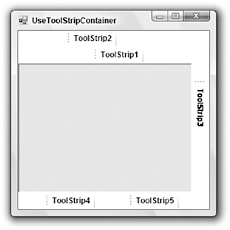
image from book
Figure G-29: The ToolStripContainer control lets the user rearrange ToolStrip controls at runtime.

The ToolStripContainer holds five ToolStrip controls positioned in the container’s various edge panels. The ToolStrip3 control’s TextDirection property is set to Vertical90 , so it sits along the right edge of the form. The ToolStrip1 and ToolStrip2 controls have been dragged into two rows at the top of the form. The ToolStrip1 and ToolStrip2 controls share a row at the bottom.

The control’s LeftToolStripPanel , RightToolStripPanel , TopToolStripPanel , BottomToolStrip?Panel , and ContentPanel properties contain references to the ToolStripPanel controls that this control contains. Its LeftToolStripPanelVisible , RightToolStripPanelVisible , TopToolStripPanel?Visible , and BottomToolStripPanelVisible properties let you show or hide specific panels. For example, you can hide the bottom or side panels if you don’t want the user to drag ToolStrip s there.

The ToolStripContainer control’s other properties are relatively straightforward. See the online help ( msdn2.microsoft.com/library/system. windows .forms.toolstripcontainer.aspx ) for more information.


ToolTip

The ToolTip component allows you to provide tooltip help when the user hovers the mouse over a control. After you add a ToolTip component to a form, the other controls on the form get a special ToolTip property. For example, suppose that you create a ToolTip component named ttHint . Then a button on the form would have a new property named ToolTip on ttHint . Set that property to the text you want the ToolTip to display, and you are all set.

The following table describes the ToolTip component’s most useful properties.

Open table as spreadsheet

Property

Purpose

Active

Determines whether the component displays tooltips.

AutomaticDelay

Sets the AutoPopDelay , InitialDelay , and ReshowDelay properties to values that are appropriate for this value.

AutoPopDelay

The number of milliseconds before the tooltip disappears if the mouse remains stationary in the tooltip’s area.

BackColor

Determines the tooltip’s background color .

ForeColor

Determines the tooltip’s foreground color.

InitialDelay

The number of milliseconds that the mouse must remain stationary inside the tooltip’s area before the component displays the tooltip.

IsBalloon

Determines whether the tooltip is displayed as a balloon rather than a rectangle.

OwnerDraw

Determines whether your code will draw the tooltip. If you set this to True , catch the ToolTip component’s Draw method and draw the tooltip. Parameters to the method give the Graphics object to use, the bounds of the area to draw, and the tooltip text. This property is ignored if IsBalloon is True .

ReshowDelay

The number of milliseconds before the next tooltip will display when the mouse moves from one tool tip area to another. The idea is that subsequent tooltips display more quickly if one is already visible.

ShowAlways

Determines whether the component still displays tooltips, even if the form does not have the focus. The mouse still must hover over the tooltip area as usual if ShowAlways is True .

StripAmpersands

Determines whether the component removes ampersand characters from tooltip text. This can be useful if the tooltip text looks like menu and label captions where ampersands are converted into underscores.

UseAnimation

Determines whether animation effects are used to show and hide the tooltip.

UseFading

Determines whether fading effects are used to show and hide the tooltip.

The ToolTip component’s SetToolTip method lets a program associate a tooltip with a code at runtime. The following code adds tooltip text to several address controls:


ttHint.SetToolTip(txtFirstName, "Customer first

name

")


ttHint.SetToolTip(txtLastName, "Customer last name")


ttHint.SetToolTip(txtStreet, "Mailing address street number and name")


ttHint.SetToolTip(txtCity, "Mailing address city")


ttHint.SetToolTip(cboState, "Mailing address state")


ttHint.SetToolTip(txtZip, "Mailing address ZIP code")


The following table lists the ToolTip component’s most useful methods .

Open table as spreadsheet

Method

Purpose

GetToolTip

Returns a control’s associated tooltip text.

RemoveAll

Removes all tooltip text associated with this ToolTip component.

SetToolTip

Sets a control’s associated tooltip text. Set the text to Nothing or an empty string to remove that control’s tooltip text.

Show

Displays a tooltip over a specific control. Different overloaded versions let you specify the tooltip’s location and duration.
