Easy Microsoft Office Word 2003
Authors: Steele H.
Published year: 2003
Pages: 29-31/178
Buy this book on amazon.com >>

Typing Anywhere on the Page

graphics/02inf05.jpg

graphics/one_icon.jpg

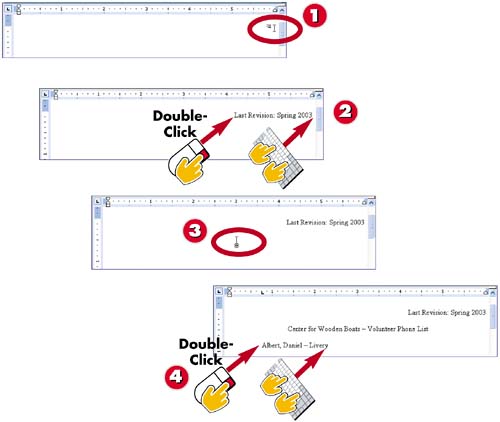
To type text that is right-aligned, move your I-beam close to the right margin. After a moment, a special click-and-type icon appears next to the I-beam, indicating right-alignment.

graphics/tow_icon.jpg

Double-click to move the insertion point to the location of the I-beam, and type your text.

graphics/three_icon.jpg

Move the I-beam to the page's center. The I-beam icon changes to indicate center alignment. Double-click to move the insertion point to the I-beam, and type your text.

graphics/foure_icon.jpg

To type text that is left-aligned on the left side of the page, move your I-beam to where you want to begin typing. Double-click to move the insertion point and type your text.

INTRODUCTION

Word's click-and-type feature lets you start typing in the middle of the page or near the right margin by simply double-clicking at the desired location. Click and type works only in Print Layout and Web Layout views.

TIP

Enabling Click and Type

If double-clicking doesn't move the insertion point, open the View menu and choose Print Layout . Then choose Tools, Options . Click the Edit tab, mark the Enable click and type check box, and click OK .

TIP

Left-Aligning Text on the Right Margin

You can also type left-aligned text that is on the right side of the page. Again, move your I-beam to the place where you want to begin typing. Double-click to move the insertion point and type your text.

Moving Around the Document with the Keyboard

graphics/02inf06.jpg

graphics/one_icon.jpg

Press the left- and right-arrow keys to move one character to the left or to the right.

graphics/tow_icon.jpg

Press the up- and down-arrow keys to move one line up or down.

graphics/three_icon.jpg

Press Ctrl+left arrow to move backward through the paragraph, word by word. Press Ctrl+right arrow to move forward through the paragraph.

graphics/foure_icon.jpg

Press Ctrl+up arrow to move up through the document, paragraph by paragraph. Press Ctrl+down arrow to move down through the document.

INTRODUCTION

When navigating with the mouse, you must constantly move your hands away from the keyboard to the mouse and back. When you navigate with the keyboard, however, the insertion point moves as you press the keys. You don't have to click once before you start typing to move the insertion point, as you do when you navigate with the mouse.

TIP

Moving to the Beginning or End of a Line

To move to the beginning of a line, press Home . To move to the end of a line, press End .

graphics/02inf07.jpg

graphics/five_icon.jpg

Press Page Down and Page Up to move one screenful of text down or up.

graphics/six_icon.jpg

Press Ctrl+Home to move to the very beginning of the document.

graphics/seven_icon.jpg

Press Ctrl+End to move to the very end of the document.

graphics/eight_icon.jpg

You can always tell what page you're on by looking at status bar. Here, the insertion point is on page 9 of a 9-page document.

TIP

Pressing Key Combinations

When you press a key combination such as Ctrl+Home, be sure to hold down the first key as you press the second key, and then release both keys.

TIP

Getting Back to the Insertion Point

If you have used the mouse pointer to scroll to a different part of your document and want to quickly get back to the insertion point to continue editing where you were, press Shift+F5 .


Going to a Specific Page

graphics/02inf08.jpg

graphics/one_icon.jpg

Open the Edit menu and choose Go To to display the Go To tab of the Find and Replace dialog box.

graphics/tow_icon.jpg

Type the number of the page you want to display onscreen in the Enter page number text box.

graphics/three_icon.jpg

Click the Go To button.

INTRODUCTION

When you're editing a long document, you often need to go to a particular page to make a change. You can, of course, navigate to that page using the standard mouse and keyboard techniques described in the previous two tasks . However, it's often faster to use Word's Go To feature, which allows you to jump directly to any page in your document.

graphics/02inf09.jpg

graphics/foure_icon.jpg

Word jumps to that page. (Check the page number in the status bar.) The dialog box remains onscreen so that you can go to another page if desired.

graphics/five_icon.jpg

When you're finished using Go To, click the Close button.

TIP

Using Go To for Changes

You can use Go To to make editing changes on several pages. Jump to the first page, click outside the dialog box, and make the change in the text. Then click the title bar of the dialog box to reactivate it, jump to the next page, and so on.

TIP

Other Uses of the Go To Feature

In addition to jumping to specific pages, the Go To feature also enables you to jump to other items such as comments, footnotes, and endnotes. As you explore Word beyond what is covered in this book, you will likely learn how to use some of these features.

Easy Microsoft Office Word 2003
Authors: Steele H.
Published year: 2003
Pages: 29-31/178
Buy this book on amazon.com >>

Similar books on Amazon