Flylib.com

Books Software


Working with Toolbars


Working with Toolbars

graphics/01inf14.jpg

graphics/one_icon.jpg

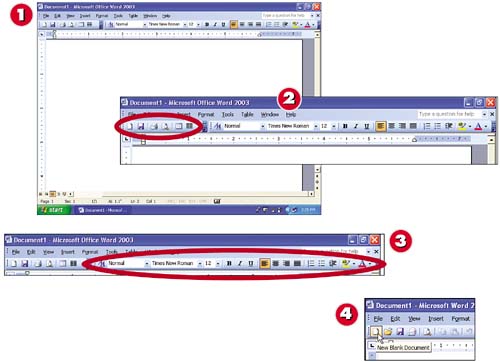
By default, the Standard and Formatting toolbars share the same row. The Standard toolbar is on the left and the Formatting toolbar is on the right.

graphics/tow_icon.jpg

The Standard toolbar contains buttons for creating, saving, and opening documents, as well as for performing common editing tasks .

graphics/three_icon.jpg

The Formatting toolbar contains buttons for formatting your text.

graphics/foure_icon.jpg

Point to the leftmost toolbar button in the Standard toolbar. A ScreenTip appears, displaying the name of the button. All toolbar buttons have ScreenTips.

INTRODUCTION

Word's toolbars contain buttons you can use to issue commonly used commands. Although most people find clicking toolbar buttons more convenient than accessing commands in the pull-down menus , you can use any combination of toolbar buttons and menu commands you choose. Word comes with 21 toolbars, but displays only two by default: the Standard and Formatting toolbars. You can easily hide or display any toolbar to suit your preferences.

graphics/01inf15.jpg

graphics/five_icon.jpg

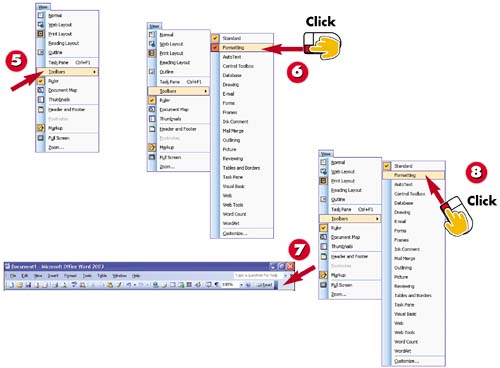
Open the View menu and choose Toolbars .

graphics/six_icon.jpg

Notice that the Standard and Formatting toolbars have check marks next to them. Click Formatting .

graphics/seven_icon.jpg

The Formatting toolbar is now hidden, and all the buttons in the Standard toolbar are displayed now that there is room for them.

graphics/eight_icon.jpg

Open the View menu and choose Toolbars , and click Formatting again to bring the toolbar back.

TIP

Viewing Additional Buttons

When the Standard and Formatting toolbars share the same row, there isn't room to display all of their buttons at the same time. See the next task to learn how to bring hidden buttons into view.

Personalizing Word Toolbars

graphics/01inf16.jpg

graphics/one_icon.jpg

Click the Toolbar Options arrow at the right end of the Standard toolbar.

graphics/tow_icon.jpg

The Toolbar Options list contains the buttons that don't fit on the visible part of the toolbar. Click the Show/Hide button.

graphics/three_icon.jpg

The Show/Hide button is now visible, and the feature is turned on; click the button again to turn the feature off. (See "Seeing Paragraph, Tab, and Space Marks" in Part 3.)

graphics/foure_icon.jpg

To add a new button to the Standard toolbar, click the Toolbar Options arrow, and then point to Add or Remove Buttons . A submenu appears.

INTRODUCTION

When the Standard and Formatting toolbars are on the same row, you can't see all their toolbar buttons. Word makes it easy to access the hidden buttons, however, and as soon as you use one of them, Word moves it to a visible spot on the toolbar. In addition to displaying buttons that are included by default on a toolbar, you can also add new buttons, or remove ones that you never use. And, of course, you can reset a toolbar to return to the default set of buttons.

graphics/01inf17.jpg

graphics/five_icon.jpg

Point to Standard to display all the buttons you can add to the Standard toolbar. If necessary, click the down arrow to bring them all into view.

graphics/six_icon.jpg

Buttons that don't have check marks are not currently included in the toolbar. Click the Find button to add it to the toolbar, and then click outside the menu.

graphics/seven_icon.jpg

The Find button is now on the Standard toolbar. (You'll learn about this feature in "Searching for Text" in Part 8.)

graphics/eight_icon.jpg

To reset the Standard toolbar, click the Toolbar Options arrow, point to Add or Remove Buttons , point to Standard , and then click Reset Toolbar .

TIP

Resetting Your Usage Information

Word tracks your usage of toolbars and personal menus and displays or hides buttons and commands accordingly . To delete this record and restore the default set of visible buttons and commands, choose Tools, Customize , click the Options tab, click the Reset menu and toolbar usage data button, click Yes , and click Close .

TIP

Moving Buttons

You can rearrange the order of the buttons on a toolbar. To move a button, point to it and hold down your Alt key as you drag it to the desired position. Then release the Alt key and your mouse button at the same time.