Using SQL Server Configuration Manager

| | ||
| | ||
| | ||
SQL Server Configuration Manager is a Microsoft Management Console application that allows you to configure SQL Server 2005s installed services, network configuration, and network protocols. You can perform actions such as starting, pausing, and stopping services as well as defining the SQL Server and SQL Native Client network configuration. SQL Server Configuration Manager uses the Window Management Instrumentation (WMI) provider to interact with the system. For example, if the SQL Server Configuration Manager needs to modify a registry entry, it will use WMI to access the appropriate registry entry instead of accessing the registry directly.
To Open SQL Server Configuration Manager, from the Start menu, choose All Programs Microsoft SQL Server 2005 Configuration Tools SQL Server Configuration Manager. Your screen will appear like that shown in Figure 3-1.
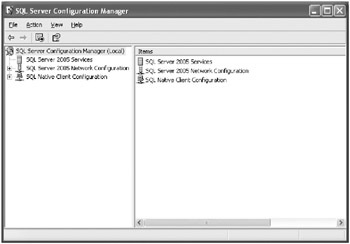
Figure 3-1: SQL Server Configuration Manager.
Using the SQL Server 2005 Services Node
The SQL Server 2005 Services node in SQL Server Configuration Manager allows you to configure SQL Server 2005 services on the local machine, as shown in Figure 3-2.
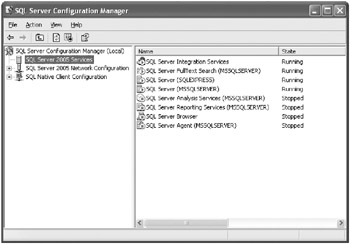
Figure 3-2: The SQL Server 2005 Services node.
You can pause, stop, and start services, change the user account that is running a service, and view the advanced properties of a service. For example, if you double-click on an instance of SQL Server 2005 and then click Advanced, you can view whether the instance is clustered, the start-up parameters, and the particular version of the SQL Server instance, as shown in Figure 3-3.
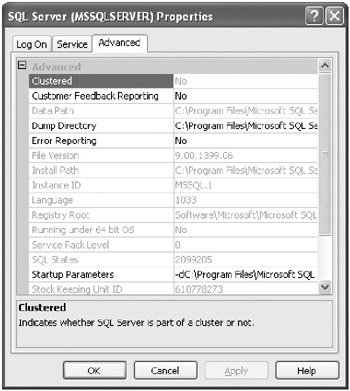
Figure 3-3: Advanced options for an instance of SQL Server 2005.
You may notice that the SQL Server 2005 Services interface is a bit slower than the Windows Services tool. It is slower because the SQL Server Configuration Manager uses the WMI provider to access and configure its services. You should use SQL Server Configuration Manager because it performs registry permission validations when changing the service account. In addition, in some cases, such as password account changes, a service does not need to be restarted as it does when using the Windows Services tool.
Using the SQL Server 2005 Network Configuration Node
The SQL Server 2005 Network Configuration node allows you to configure the network protocols used by each SQL Server instance by enabling or disabling the protocol. Refer to Figure 3-4.
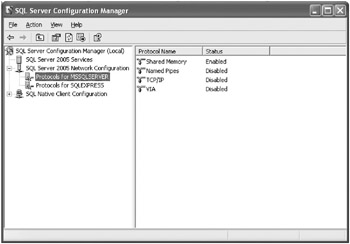
Figure 3-4: The SQL Server 2005 Network Configuration node.
| Note | The default installations of SQL Server 2005 Developer and Express Editions do not enable networking protocols. You should use the SQL Server 2005 Network Configuration utility or SQL Server Surface Area Configuration utility to enable networking protocols. |
You can configure each protocol property. For example, you can access the Transmission Control Protocol/Internet Protocol (TCP/IP) network configuration properties to configure IP addresses as well as the ports where the SQL Server instance will listen, as shown in Figure 3-5.
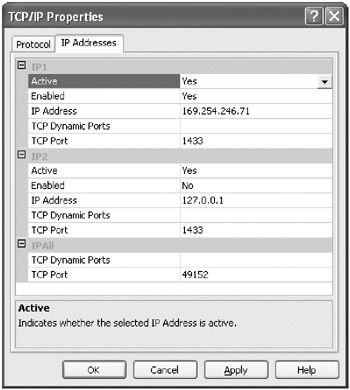
Figure 3-5: TCP/IP Properties dialog box.
Static Ports, Dynamic Ports, and Windows Firewall
By using the SQL Server 2005 Network Configuration tool, you can configure the port that will be used by SQL Server instances to attend to client application requests . You can configure an instance to listen to a specific TCP port, or dynamic port. When configuring an instance by using a static port, the client application can specify the server port in the connection string that will be used to connect to the server. On the other hand, if the server port is configured as dynamic, the server will have to use a mechanism to establish communication with the client application. The following text details an example of each port configuration.
Static ports Assume that you have configured your SQL Server instance to enable TCP/IP connections, and you have set the TCP/IP port number to 1457. The client application can connect to the SQL Server instance by specifying the server in the connection string as well as the port with which the instance should connect. The client application will then connect to the SQL Server instance through the specified port. For example, in the client application, you can code the connection string to look like the following:
' sqlClient Provider Connection String Example Dim sqlClient_connString As String = _ "Server=<IP_ADDRESS>,1457;" _ + "Database=AdventureWorks;Integrated Security=SSPI;" ' sql Native Client Provider Connection String Example Dim native_connString As String = _ "Provider=SQLNCLI;" _ + "Server=<IP_ADDRESS>,1457;" _ + "Database=AdventureWorks;Integrated Security=SSPI;"
If the client application does not specify the port with which the instance should connect in the connection string, then the SQL Server Browser Service is responsible for detecting the port number that the instance is listening to and retrieving it for the client application. The connection string will be similar to the two previous examples, but it will not specify the port number.
' sqlClient Provider Connection String Example Dim sqlClient_connString As String = _ "Server=server_name\instance_name;" _ + "Database=AdventureWorks;Integrated Security=SSPI;" ' sql Native Client Provider Connection String Example Dim native_connString As String = _ "Provider=SQLNCLI;" _ + "Server=server_name\instance_name;" _ + "Database=AdventureWorks;Integrated Security=SSPI;"
Dynamic ports In dynamic port configurations, the client application does not know the SQL Server instance listening port. The SQL Server Browser Service will determine which port number is sent to the client application.
In dynamic port configurations, a port is assigned to an instance when the instance starts. The instance will use the same port number until the service is stopped . When the instance service begins again, the SQL Server Browser Service will assign the same or a different port to the instance.
Windows Firewall How you configure Windows firewall settings will depend on how the client applications connect to the server instance and how the server protocols are configured. As noted earlier, there are situations when a client application needs to use the SQL Server Browser Service (that listens to the 1434 UDP port). You will also need to allow connections to the TCP port where the SQL Server instance is listening. It is recommended that you create exceptions for the specific client application instead of configuring exceptions for port numbers , as shown in Figure 3-6.
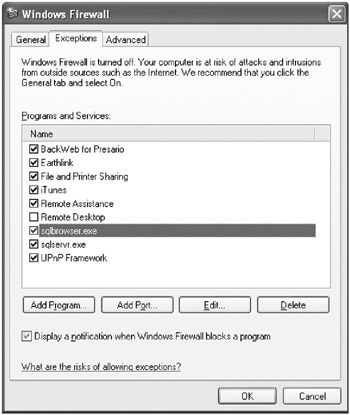
Figure 3-6: Windows Firewall exception configuration.
What is the best configuration?
-
Static ports, with the client application specifying the port number
In this scenario, the client application knows the port number and does not need the help of the SQL Server Browser Service to resolve the port number of the instance name . The benefit is that you avoid using the SQL Server Browser Service. The drawback is that the application is dependent on the port number.
-
Static ports, with the client application not specifying the port number of the instance, or dynamic ports
The server is configured with a static port, but the client application does not know the port. The SQL Server Browser Service will resolve the port number for the client application. The benefit is that the server does not depend on specific ports. The drawback is that the client application needs the SQL Server Browser Service to resolve the port number.
Using the SQL Native Client Configuration Node
The SQL Native Client Configuration node allows you to specify how client applications on the local computer will connect to SQL Server instances. You can determine whether a Secure Socket Layer (SSL) will be requested on the server and whether the server certificate must be validated when connecting to the server.
To open the SQL Native Client Configuration Properties dialog box, first select the SQL Native Client Configuration node and then select Properties from the Action menu. The dialog box is shown in Figure 3-7.
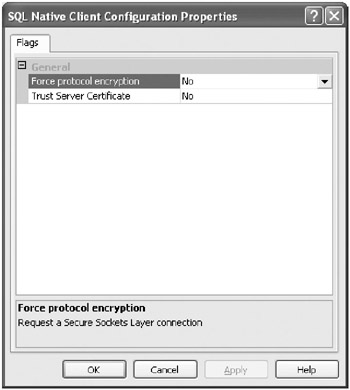
Figure 3-7: SQL Native Client Configuration Properties dialog box.
Client Protocols
The Client Protocols option configures the order in which the protocols will be used. When a client application tries to connect to a SQL Server instance without defining the protocol to use, the client application will try to connect using the protocols in the configured order, as shown in Figure 3-8.
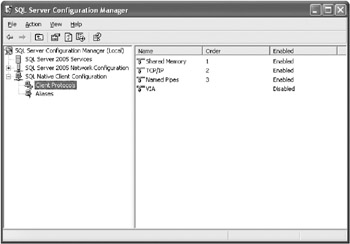
Figure 3-8: Client Protocols and their order of precedence.
| Tip | The Microsoft .NET SqlClient data provider does not follow the order configured in the Client Protocols option. The protocol order for .NET SqlClient is first TCP and then named pipes. |
Aliases
Aliases are alternate names that can be used to connect to a SQL Server instance. By defining an alias, you associate the alias name with an instance name, a network protocol, and a port number if applicable . For example, you could create an alias such as the one found in Figure 3-9.
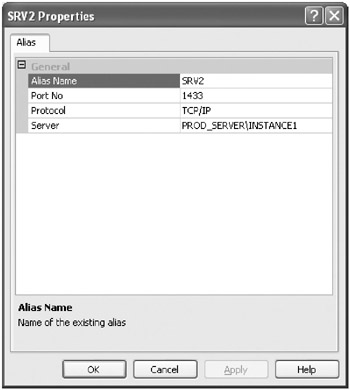
Figure 3-9: Alias creation.
SRV2 will be the alias name that maps to the SQL Server instance PROD_SERVER\INSTANCE1, using the TCP/IP network protocol with port number 1433. If you would rather define a dynamic port, you must leave the port number empty.
| | ||
| | ||
| | ||

EAN: N/A
Pages: 130