Useful Graphical Tools
While this book does not
System Preferences
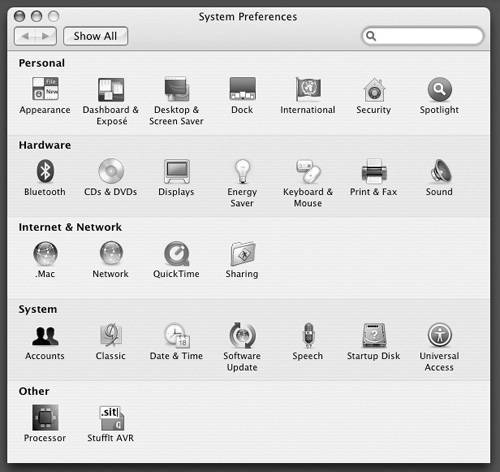
The System Preferences window (Figure 2-5) provides access to a number of system maintenance and configuration features. For example, System Preferences provides an easy way to change your password (page 36) and to handle system maintenance
Figure 2-5. The System Preferences window
Panes
When you click a control icon in the System Preferences window, OS X
On Mac OS X Server, many system maintenance functions are available from the Server Admin and Workgroup Manager applications. |
Getting the Facts: Where to Find Documentation
Distributions of Mac OS X typically come with only a little hardcopy reference. However, online documentation has always been one of UNIX's strengths. The manual and
The Help ViewerThe Help Viewer is a graphical application that you run by clicking Help on the menu bar at the top of the screen. For graphical applications, it is the default help program. In general, the Help Viewer offers the documentation for application programs, not for utilities. This documentation often includes links to useful resources. For example, the help for Terminal includes links to Apple's Web site. These links point to documentation about the UNIX system and utilities. System DocumentationWith the Developer Tools package installed (page 478), the Xcode development environment (page 478) offers access to much of the system programming and UNIX command line documentation as well as provides a general-purpose software development environment. man : Displaying the System ManualThe character-based man utility displays pages, known as man pages, from the system documentation. This documentation is useful when you know which utility you want to use but have forgotten exactly how to use it. You can also refer to the man pages to get more information about specific topics or to determine which features are available under Mac OS X. Because the descriptions in the system documentation are often terse, they are most helpful when you already understand basically what a utility does. Because man is a character-based utility, you must run it from the command line. Nicely formatted versions of the man pages are available from within Xcode (page 478).
To find out more about a utility, give the command
man
, followed by the
Figure 2-6. The man utility displaying information about who
The command man man displays information on man . The man utility automatically sends the output through a pager , usually less (page 42), which allows you to view a file one screen at a time. When you access a manual page in this way, less displays a prompt (:) at the bottom of the screen after each screen of text and waits for you to request another screen by pressing the SPACE bar. Pressing h (help) displays a list of the less commands that you can use. Pressing q (quit) stops less and displays a shell prompt. You can search for topics covered by man pages by using the apropos utility (page 59, or give the command man apropos ).
The Mac OS X system manual and the man pages are divided into ten sections. Each section describes
N. Tcl/Tk commands
This layout closely mimics the way the set of UNIX manuals has always been divided. Unless you specify a manual section,
man
displays the earliest occurrence in the manual of the word you specify on the command line. Most users find the information they need in sections 1, 6, and 7; programmers and system administrators frequently need to
In some cases there are manual entries for different tools with the same name. For example, the following command displays the manual page for the write utility (page 63) from section 1 of the system manual:
$
man write
To see the manual page for the write () system call from section 2, enter
$
man 2 write
This command instructs
man
to look only in section 2 for the manual page. Use the
a
option (see the adjacent tip) to view all the
man
pages for a given subject (press
q
to move to the
Tip: Options
An option modifies the way a utility or command works. Options are specified as one or more
Tip: man and info display different information The info utility displays more complete and up-to-date information on GNU utilities than does man . When a man page displays abbreviated information on a utility that is covered by info , the man page refers you to info . The man utility frequently displays the only information available on non-GNU utilities; when info displays information on non-GNU utilities, it is frequently a copy of the man page. info : Displaying Information About Utilities
The character-based
info
utility is a menu-based hypertext system developed by the GNU Project and distributed with Mac OS X. As with man, you must run
info
from a terminal emulator window (page 24). The
info
utility includes a tutorial on itself (give the command
info info
or go to www.gnu.org/software/texinfo/manual/info) and documentation on many Mac OS X
Figure 2-7. The first screen that info displays
Because the information on this screen is drawn from an editable file, your display may
The notation info uses to describe keyboard keys may not be familiar to you. The notation C-h is the same as CONTROL-H . Similarly M-x means hold down the META or ALT key and press x . Standard Mac keyboards do not have a META or ALT key. The "Activating the META key" tip explains how to set up the OPTION key to perform the same functions as the META key. For more information refer to "Keys: Notation and Use" on page 208.
Tip: Activating the META key In the Terminal utility, you can make the OPTION (or ALT ) key work as the META key. From the Terminal utility File menu, select Window Settings to display the Terminal Inspector window (Figure 2-8). This window provides a drop-down menu of properties that you can change. Select Keyboard , check the box labeled Use option key as meta key , and click Use Settings as Defaults . This procedure causes the OPTION key (on Mac keyboards) or the ALT key (on PC keyboards) to function as the META key while you are using the Terminal utility . Figure 2-8. Terminal Inspector window
After giving the command
info
, press the
SPACE
bar a few times to scroll the display. Figure 2-9 (next page) shows the first screen that
info
displays. The asterisk at the left end of the line means that this entry is the beginning of a menu item. Following the asterisk is the name of the menu item, a
Figure 2-9. The screen that info displays after you press the SPACE bar a few times
info menu items Each menu item is an active link to the info page that describes the item. To jump to that page, move the cursor to the line containing the menu item and press RETURN . Alternatively you can type the name of the menu item in a menu command to view the information. For example, to display information on bash , give the command m bash followed by a RETURN . When you type m (for menu ), the cursor moves to the bottom line of the screen and displays Menu item :. Typing bash displays bash on that line, and pressing RETURN displays the bash info page.
Figure 2-10 shows the
top node
of information on
bash
. A node is one
Figure 2-10. The info page on the bash utility
As you read this book and learn about new utilities, you may want to use
man
or
info
to find out more about those utilities. If you can print PostScript documents, you can print a manual page with the man utility using the
t
option (for example,
man t cat lpr
prints information about the
cat
utility). The Linux Documentation Project (www.tldp.org) has a large collection of documentation on UNIX utilities, much of which is
As with the man pages, much of the info documentation is available from within Xcode (page 478). Using the Internet to Get HelpThe Internet provides many helpful sites; see Appendix B for a list. Aside from visiting sites that carry various forms of documentation, you can enter an error message that you are having a problem with in a search engine such as Google (www.google.com). Enclose the error message within double quotation marks to improve the quality of the results. You will likely find a post concerning the problem and ways to solve it. See Figure 2-11. Figure 2-11. Google reporting on an error message
The Apple Web site The Apple Web site is a rich source of information. Following is a list of some locations that may be of interest:
GNU GNU makes many of its manuals available at www.gnu.org/manual. In addition, go to the GNU home page (www.gnu.org) for more documentation and other GNU resources. Many of the GNU pages and resources are available in a wide variety of languages. Mac OS X uses a number of GNU utilities, and many more are available for download. |