Protecting Your Windows Environment from Viruses
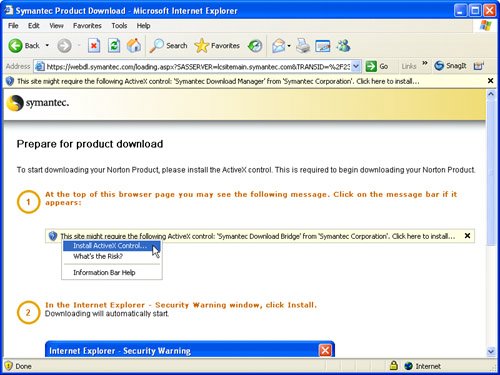
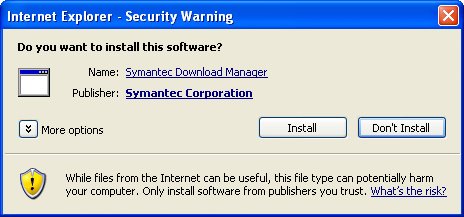
| The Windows world is packed full of viruses. There are constant attacks of viruses that come in many forms. Although many Mac users can get by with only "common sense" virus protection, it is not optional in the Windows world. You simply must protect your Windows environment from viruses by obtaining and using antivirus software. There are many kinds of antivirus software applications available for Windows; you'll need to purchase and install one of these in your Windows environment. Most of the antivirus applications offer a similar feature set, such as periodic virus definition updates, watched folders, and so on. It's likely that any of the popular Windows antivirus applications will work fine for you. Note There are also lots of free tools available, but personally, I prefer the commercial tools. Some free applications are Avent and AVGFree. Search the Internet if you want to try one of these. I recommend and use Norton AntiVirus by Symantec because it includes the basic features required and has proven to be effective protection from most virus threats. Symantec regularly updates its virus definitions so your computer will be protected from the latest virus threats. Note Obtaining and installing an antivirus application should be the first thing you do after you've connected the Windows environment to the Internet. Or, you can purchase an application via a retail source on disc if you don't want to get it online as described here. Downloading and Installing Norton AntiVirusThe following steps provide an example of downloading and installing Norton AntiVirus:
Configuring and Using Norton AntiVirusThe first time you move back into Windows after installing Norton AntiVirus, you'll be prompted to configure it with a wizard (see Figure 4.4). Figure 4.4. The wizard will guide you though configuring AntiVirus for the first time.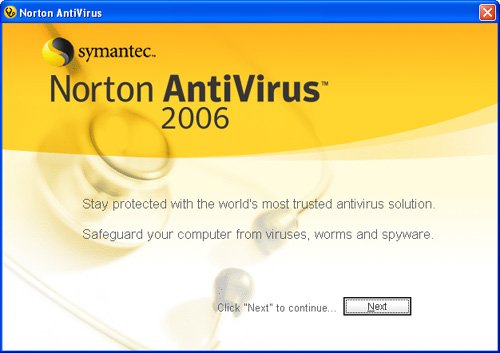 Click Next and follow the onscreen instructions to work through the wizard. The last step in the process will be to run LiveUpdate to make sure all the application's files, especially the virus definitions, are current. Note During the configuration process, the default settings will turn off the Windows Firewall because you'll use Norton AntiVirus' protection instead. That's fine because when you have Norton AntiVirus installed and configured, you don't really need the Windows Firewall any more. Other antivirus applications might or might not perform this step too. After LiveUpdate is complete, you'll usually need to restart your computer. Do so. Then complete your configuration of Norton AntiVirus. Choose Start menu, All Programs, Norton AntiVirus, Norton AntiVirus to launch the application (or use the desktop icon that was created during the installation process). You'll see the program's home page that provides the current status of its various options (see Figure 4.5). Figure 4.5. The Norton AntiVirus home page provides information about the various components of the protection it provides.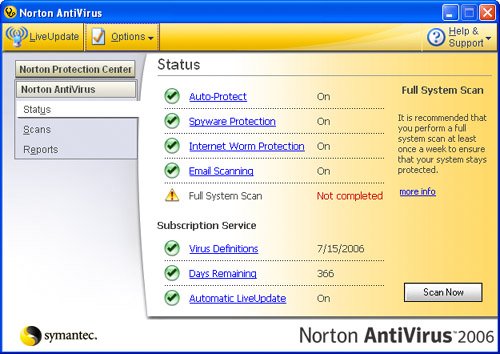 Tip If you run Windows only occasionally, you should launch AntiVirus and run the LiveUpdate to make sure your virus definitions are current in case you don't use Windows long enough for it to run automatically. In most cases, the defaults will be what you should use. These are to provide maximum protection of your Windows system by enabling all the Norton AntiVirus components, which are the following:
At the bottom of the home page, you'll see information about your current subscription. When you purchase Norton AntiVirus, your subscription provides access to the current virus definitions and other files. You should keep your subscription current to make sure your system is as protected as possible. If you have a lot of interest in each AntiVirus component, you can use the application's Options and other commands to configure them in detail. Refer to the application's Help system for more information. As Norton monitors your Windows environment, it will notify you when something needs your attention, such as your system needing to be scanned. These prompts include the links you need to follow to execute the needed tasks so you can easily defend your Windows environment (see Figure 4.6). Figure 4.6. Here Norton prompted me to allow it to run a full system scan because it hadn't been done before.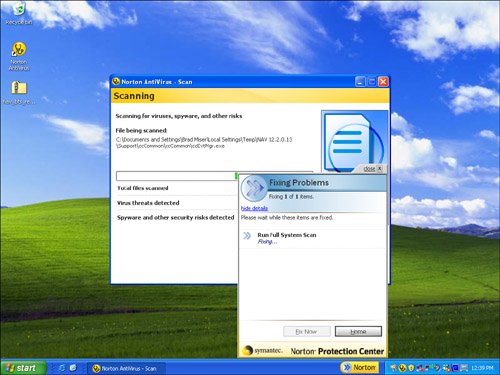 Tip By default, Norton AntiVirus installs additional access points, which include the desktop icon, an icon in the System Tray, a Norton button just to the left of the System Tray, and a Symantec LiveUpdate control panel. You can access the application and check your system's protection status with any of these tools. |

EAN: N/A
Pages: 58
- The Effects of an Enterprise Resource Planning System (ERP) Implementation on Job Characteristics – A Study using the Hackman and Oldham Job Characteristics Model
- Distributed Data Warehouse for Geo-spatial Services
- Healthcare Information: From Administrative to Practice Databases
- A Hybrid Clustering Technique to Improve Patient Data Quality
- Development of Interactive Web Sites to Enhance Police/Community Relations