A second type of menu system that you might want to add to your Visual C++ applications is a context menu. Context menus are hidden from view, only appearing when the
| Hint |
A context menu is a menu system that you can attach to a form or control to provide the form or control with additional options or functionality. |
The following steps outline the process involved in setting up a context menu:
Double-click on the ContextMenuStrip control located in the Toolbox to add it to the Component Tray.
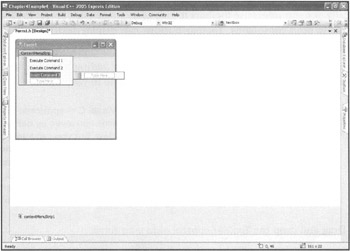
Add menu items to it by keying in text on top of the Type Here text, as demonstrated in Figure 4.24.
Double-click on each of the menu items in the context list and add your program code, as demonstrated
private: System::Void executeCommandlToolStripMenuItem_Click( System::Object^ sender. System::EventArgs^ e) { MessageBox::Show( "Command 1 Has Executed" ); }
Similarly, you might add the following code to the click event for the second context menu item:
private: System::Void executeCommand2ToolStripMenuItem_Click( System::Object^ sender, System::EventArgs^ e) { MessageBox::Show( "Command 2 Has Executed" ); }
Finally, you can assign the following code to the click event for the third context menu item, as shown here:
private: System::Void executeCommand3ToolStripMenuItem_Click( System::Object^ sender, System::EventArgs^ e) { MessageBox::Show( "Command 3 Has Executed" ); }
Select the control for which you created the context menu and set its
ContextMenuStrip
property equal to the
Figure 4.24:
Here the menu items for a context menu are configured.
After you have finished configuring the form or control's ContextMenuStrip property, you can run your application and access the context menu by right-clicking on the form or control, as demonstrated in Figure 4.25.
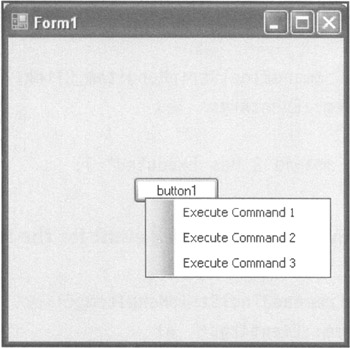
Figure 4.25:
This button has been given an associated context menu.

Toolbars are another popular feature in some Windows applications. They provide easy-to-recognize functionality by displaying an organized collection of
Typically, programmers use toolbars to give users
The following steps outline the process involved in adding a toolbar to a Visual C++ application and identify various options that are available to you.
| Trick |
The first step in adding a toolbar to a Visual C++ application is to add the ToolBar control Located in the Toolbox to a form. However, by default, the ToolBar control is not located in the Toolbox window. But you can add it by right-clicking on the Toolbox window and selecting the Choose Items option. This opens the Choose Toolbox Items dialog box. Make sure that the .NET Framework Components tab is selected when the Choose Toolbox Items dialog box appears, and scroll down until you see ToolBar control. Select the ToolBar control and click on OK. The control becomes visible in the Toolbox window. |
Drag and drop the ToolBar control onto your form.
Select the ToolBar control, locate the buttons property in the Properties window, and click on the (Collection) ellipsis button located in its property's value field. The ToolBarButton Collection Editor appears, as shown in Figure 4.26.
Click on the Add button to add as many buttons as you want to the toolbar. Each time you click on the Add button, an entry for the button is displayed in the Members pane located on the left side of the editor, as demonstrated in Figure 4.27.
To display a text string on the button, select the Text property and type a string as its value.
To add a ToolTip to the button, select the ToolTipText property and type the text that you want to be displayed.
Modify the Style property to specify the style that you want to apply to the button. The following options are available:
PushButton. Displays the three-dimensional button.
ToggleButton.
Toggles the button's appearance between a depressed and normal state each time the
Separator. Changes the button into a separator bar.
DropDownButton. Modifies the button to behave as a drop-down control that displays menu items.
Click on OK to close the ToolBarButton Collection Editor.
Figure 4.26:
The ToolBarButton Collection Editor a allows you to add and remove buttons on a toolbar.
Figure 4.27:
Use the up and down arrows to configure the order in which buttons are displayed on the toolbar.
| Trick |
If you are adding text to your toolbar buttons, you might need to specify toolbar button width, depending on the amount of text you plan to display. To change the width or height of toolbar buttons, select the ToolBar control's
ButtonSize
property and specify a new
|
You're not limited to displaying text in your toolbar buttons; you can display pictures, too. Graphic images enhance your toolbars even further by providing a visual cue as to a given button's purpose. But to provide this functionality, you must take a few extra steps before you can actually associate a graphic with a button. For starters, you must add an ImageList control from the Toolbox to your application. Using this control, identify all the graphics images that you plan to add to your toolbars. After you've added them to the ImageList, you can configure each of your toolbar buttons to display one of the graphics images defined in the ImageList.
The following function identifies the steps that are involved in making all this work:
Add an ImageList control to your form.
In the Properties window, click on the (Collection) ellipsis button located in the Images property's value field. The Images Collection Editor appears, as shown in Figure 4.28.
Click on the Add button and specify the
Click on OK to close the Images Collection Editor.
Figure 4.28:
The Images Collection Editor lets you specify the images that you will add to your toolbar.
After you have finished adding images to the ImageList control, select the
ImageList
property for your ToolBar control and specify the name of the ImageList that you just created. Then
Figure 4.29:
Here a graphic image is added to a ToolBar control button.
Unfortunately, individual toolbar buttons do not have their own click event. There is just a single click event for the entire ToolBar control. Therefore, you must determine, in code, which button the user clicked on and then execute the appropriate program behavior. Fortunately, despite this complication, it is easy to make this happen.
The
ToolBarButtonClickEventArgs
object's
Button
property is automatically passed to the
ButtonClick
event handler at runtime. If you look back at Figure 4.27, you see that just to the left of each toolbar button is a number that uniquely identifies the button's indexed position within the toolbar. By querying the
Button
property and comparing it to the button index
To see this in greater detail, let's create an example. For starters, access the toolbar's click event by double-clicking on it. The following code appears in the Code Editor:
private: System::Void toolBar1_ButtonClick(System::Object^ sender, System::Windows::Forms::ToolBarButtonClickEventArgs^ e) { }
In addition to defining the click event for the toolbar, this code automatically receives an argument that identifies the index number of the clicked button. You can access this number by your code as e->Button , as demonstrated in the following example:
private: System::Void toolBar1_ButtonClick(System::Object^ sender, System::Windows::Forms::ToolBarButtonClickEventArgs^ e) { // Test each button value to find which was clicked if( toolBar1->Buttons->IndexOf( e->Button ) == 0) MessageBox::Show( e->Button->Text ); if( toolBar1->Buttons->IndexOf( e->Button ) == 1) MessageBox::Show( e->Button->Text ); if( toolBar1->Buttons->IndexOf( e->Button ) == 2) MessageBox::Show( e->Button->Text ); }
In this example, e->Button is an argument representing the index number of the button the user clicked. After the comment, the first two statements check to see if the first toolbar button was clicked. The two following statements check to see if the second toolbar button was clicked, and the last two statements check to see if the third toolbar button was clicked.
Figure 4.30 shows the output displayed when the previous example is executed and the user clicks on a button that is named Command 1.
Figure 4.30:
A dialog box is displayed as a result of clicking within the correct area.