Lesson 3: Generating Aggregate Values within Result Sets
Use the GROUP BY clause with the ROLLUP and CUBE operators to generate summary aggregate values within result sets. The ROLLUP or CUBE operators can be useful for cross-referencing information within a table without having to write additional scripts.
When you use the ROLLUP or CUBE operators, the GROUPING function identifies the detail and summary values in the result set.
After this lesson, you will be able to:
- Generate summary data for a table by using aggregate functions with the GROUP BY clause and the ROLLUP or CUBE operator
- Generate control-break reports by using the COMPUTE and COMPUTE BY clauses
- Use the TOP n keyword to retrieve a list of the specified top values in a table
Estimated lesson time: 75 minutes
Using the GROUP BY Clause with the ROLLUP Operator
Use the GROUP BY clause with the ROLLUP operator to summarize group values. The GROUP BY clause with the ROLLUP operator provides data in a standard relational format.
In the example shown in Figure F.3, the GROUP BY clause groups rows by product ID and order ID so that the result set returns the total quantity of each product ordered on each order. If you wanted to know the total quantity of each product ordered on all orders or the total quantity of all products ordered, you would have to execute two more queries. Adding the ROLLUP operator to the GROUP BY clause adds these other totals to the result set of the original query.
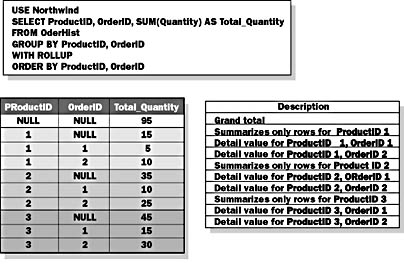
Figure F.3 Using the GROUP BY clause with the ROLLUP operator
Partial Syntax
SELECT select_list
FROM table_ source[ WHERE search_condition ]
[ [ GROUP BY [ALL] group_by_expression [,Ön]]
[ WITH { CUBE | ROLLUP } ]
]
[HAVING search_condition ]
When you use the GROUP BY clause with the ROLLUP operator, consider the following facts and guidelines:
- The ROLLUP operator adds extra summary rows to the result set by grouping rows based on the columns in the GROUP BY clause but successively excluding the rightmost columns. The row of the result set that excludes all the columns is therefore a summary of all the rows in the result set. The added rows have null values in the excluded columns.
- The aggregate values in extra rows in the result set are subtotals for the groups represented by the leftmost columns in the GROUP BY clause.
- You can have up to ten grouping expressions when you use the ROLLUP operator.
- You cannot use the ALL keyword with the ROLLUP operator.
- When you use the ROLLUP operator, ensure that the columns that follow the GROUP BY clause have a relationship that is meaningful in your business environment or you will be retrieving data that has no value.
Example 1
This example returns the total quantity of each product ordered per order. The three rows that have a NULL value in the OrderID column are product totals for all orders. The row that has a NULL value in the ProductID column and in the OrderID column is the total for all products.
USE Northwind SELECT ProductID, OrderID, SUM(Quantity) AS Total_Quantity FROM OrderHist GROUP BY ProductID, OrderID WITH ROLLUP ORDER BY ProductID, OrderID |
Result
ProductID OrderID Total_Quantity ----------- ----------- -------------- NULL NULL 95 1 NULL 15 1 1 5 1 2 10 2 NULL 35 2 1 10 2 2 25 3 NULL 45 3 1 15 3 2 30 (10 row(s) affected) |
The ten rows that were returned by the single query using the ROLLUP operator could have been generated by the following three queries:
USE Northwind SELECT ProductID, OrderID, SUM(Quantity) AS Total_Quantity FROM OrderHist GROUP BY ProductID, OrderID ORDER BY ProductID, OrderID SELECT ProductID, SUM(Quantity) AS Total_Quantity FROM OrderHist GROUP BY ProductID ORDER BY ProductID SELECT SUM(Quantity) AS Total_Quantity FROM OrderHist |
Results
ProductID OrderID Total_Quantity ----------- ----------- -------------- 1 1 5 1 2 10 2 1 10 2 2 25 3 1 15 3 2 30 (6 row(s) affected) ProductID Total_Quantity ----------- -------------- 1 15 2 35 3 45 (3 row(s) affected) Total_Quantity -------------- 95 (1 row(s) affected) |
Example 2
This example returns information about orders from the order details table. The query contains a SELECT statement with a GROUP BY clause without the ROLLUP operator. The example returns a list of the total quantity that is ordered for each product on each order, for orders with an OrderID less than 10250.
USE Northwind SELECT OrderID, ProductID, SUM(Quantity) AS Total_Quantity FROM [Order Details] WHERE OrderID < 10250 GROUP BY OrderID, ProductID ORDER BY OrderID, ProductID |
Result
OrderID ProductID Total_Quantity ----------- ----------- -------------- 10248 11 12 10248 42 10 10248 72 5 10249 14 9 10249 51 40 (5 row(s) affected) |
Example 3
This example adds the ROLLUP operator to the statement in Example 2. The result set includes the total quantity for:
- Each product for each order (as returned by the GROUP BY clause without the ROLLUP operator)
- All products on each order
- All orders (grand total)
The row that contains NULL in both the ProductID and OrderID columns represents the grand total quantity for all orders and all products. The rows that contain a NULL value in the ProductID column represent the total quantity of all products for the order in the OrderID column.
USE Northwind SELECT OrderID, ProductID, SUM(Quantity) AS Total_Quantity FROM [Order Details] WHERE OrderID < 10250 GROUP BY OrderID, ProductID WITH ROLLUP ORDER BY OrderID, ProductID |
Result
OrderID ProductID Total_Quantity ----------- ----------- -------------- NULL NULL 76 10248 NULL 27 10248 11 12 10248 42 10 10248 72 5 10249 NULL 49 10249 14 9 10249 51 40 (8 row(s) affected) |
Using the GROUP BY Clause with the CUBE Operator
The CUBE operator is similar to the ROLLUP operator but adds summary rows for all possible column combinations in the GROUP BY clause. Figure F.4 highlights the extra rows that result from executing the query from Figure F.3 using the CUBE operator instead of the ROLLUP operator. The GROUP BY clause with the CUBE operator provides data in a standard relational format.
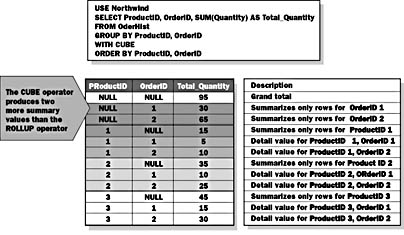
Figure F.4 Using the GROUP BY clause with the CUBE operator
When you use the GROUP BY clause with the CUBE operator, consider the following facts and guidelines:
- If you have n columns or expressions in the GROUP BY clause, SQL Server returns 2n 1 possible combinations in the result set.
- You can include up to ten grouping expressions when you use the CUBE operator (which would generate 1,023 rows).
- You cannot use the ALL keyword with the CUBE operator.
- When you use the CUBE operator, ensure that the columns that follow the GROUP BY clause have a relationship that is meaningful in your business environment.
Example 1
This example returns the total quantity of each product ordered per order. The three rows that have a NULL value in the OrderID column are product totals for all orders. The two rows that have a NULL value in the ProductID column are order totals; these are the new rows added by the CUBE operator. The row that has a NULL value in the ProductID column and in the OrderID column is the total for all products.
USE Northwind SELECT ProductID, OrderID, SUM(Quantity) AS Total_Quantity FROM OrderHist GROUP BY ProductID, OrderID WITH CUBE ORDER BY ProductID, OrderID |
Result
ProductID OrderID Total_Quantity ----------- ----------- -------------- NULL NULL 95 NULL 1 30 NULL 2 65 1 NULL 15 1 1 5 1 2 10 2 NULL 35 2 1 10 2 2 25 3 NULL 45 3 1 15 3 2 30 (12 row(s) affected) |
The two new rows added by the CUBE operator could have been generated by the following query:
USE Northwind SELECT OrderID, SUM(Quantity) AS Total_Quantity FROM OrderHist GROUP BY OrderID ORDER BY OrderID |
Result
OrderID Total_Quantity ----------- -------------- 1 30 2 65 (2 row(s) affected) |
Example 2
This example uses the CUBE operator with the GROUP BY clause. The result set includes the total quantity for:
- Each product for each order (as returned by the GROUP BY clause without the CUBE or ROLLUP operator)
- All products on each order (also returned by the ROLLUP operator)
- All orders (also returned by the ROLLUP operator)
- Each product for all orders
The row that contains a NULL value in both the ProductID and OrderID columns represents the grand total quantity for all orders and all products. The rows that contain a NULL value only in the ProductID column represent the total quantity of all products for the order in the OrderID column. The rows that contain a NULL value only in the OrderID column represent the total quantity of the product in the ProductID column.
USE Northwind SELECT OrderID, ProductID, SUM(Quantity) AS Total_Quantity FROM [Order Details] WHERE OrderID < 10250 GROUP BY OrderID, ProductID WITH CUBE ORDER BY OrderID, ProductID |
Result
OrderID ProductID Total_Quantity ----------- ----------- -------------- NULL NULL 76 NULL 11 12 NULL 14 9 NULL 42 10 NULL 51 40 NULL 72 5 10248 NULL 27 10248 11 12 10248 42 10 10248 72 5 10249 NULL 49 10249 14 9 10249 51 40 (13 row(s) affected) |
Using the GROUPING Function
Use the GROUPING function with either the ROLLUP or CUBE operator to distinguish between the standard rows and the rows that are generated by the ROLLUP or CUBE operator in your result set. Using the GROUPING function helps to determine whether the NULLs that appear in your result set are actual null values in the base tables or null values generated by the ROLLUP or CUBE operator. Figure F.5 shows how the GROUPING function indicates which rows are standard GROUP BY summary rows and which rows were generated by the CUBE operator. A 1 in a GROUPING column means that the row was generated by the CUBE operator, and a 0 means that the row is a standard GROUP BY summary row.
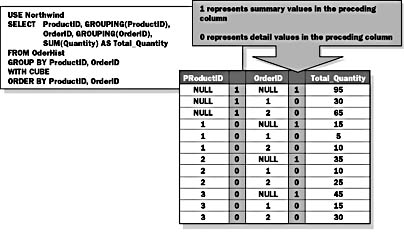
Figure F.5 Using the GROUPING function
When you use the GROUPING function, consider the following facts and guidelines:
- The GROUPING function is used like any expression in the select list. SQL Server returns a column for the GROUPING function values in the result set.
- The GROUPING function returns a value of 1 for any row in the result set that is a ROLLUP or CUBE summary and has a null value in the column specified in the GROUPING function.
- The GROUPING function returns a value of 0 for any row in the result set that does not have a null value in the column specified by the GROUPING function. The row could still be a row generated by the ROLLUP or CUBE operator, but it may have a null value in a different column from the GROUP BY list.
- You can specify the GROUPING function only for columns that exist in the GROUP BY clause.
- Use the GROUPING function to assist in referencing your result sets programmatically.
Example 1
This example returns the total quantity of each product ordered per order. The three rows that have a NULL value in the OrderID column are product totals for all orders. The two rows that have a NULL value in the ProductID column are order totals; these are the new rows added by the CUBE operator. The row that has a NULL value in the ProductID column and in the OrderID column is the total for all products. The GROUPING function columns in the select list distinguish the rows in the result set that the CUBE operator generates.
USE Northwind SELECT ProductID, GROUPING (ProductID), OrderID, GROUPING (OrderID), SUM(Quantity) AS Total_Quantity FROM OrderHist GROUP BY ProductID, OrderID WITH CUBE ORDER BY ProductID, OrderID |
Result
ProductID OrderID Total_Quantity ----------- ---- ----------- ---- -------------- NULL 1 NULL 1 95 NULL 1 1 0 30 NULL 1 2 0 65 1 0 NULL 1 15 1 0 1 0 5 1 0 2 0 10 2 0 NULL 1 35 2 0 1 0 10 2 0 2 0 25 3 0 NULL 1 45 3 0 1 0 15 3 0 2 0 30 (12 row(s) affected) |
Example 2
This example repeats Example 1 but shows how to combine the GROUPING function values to return a single column that indicates whether a row was generated by the ROLLUP or CUBE operator. The bitwise OR operator (|) is used to combine the GROUPING function values.
USE Northwind SELECT ProductID, OrderID, GROUPING (ProductID) | GROUPING (OrderID), SUM(Quantity) AS Total_Quantity FROM OrderHist GROUP BY ProductID, OrderID WITH CUBE ORDER BY ProductID, OrderID |
Result
ProductID OrderID Total_Quantity ----------- ----------- ---- -------------- NULL NULL 1 95 NULL 1 1 30 NULL 2 1 65 1 NULL 1 15 1 1 0 5 1 2 0 10 2 NULL 1 35 2 1 0 10 2 2 0 25 3 NULL 1 45 3 1 0 15 3 2 0 30 (12 row(s) affected) |
Example 3
This example uses the CUBE operator with the GROUP BY clause. The result set includes the total quantity for:
- Each product for each order (as returned by the GROUP BY clause without the CUBE or ROLLUP operator)
- All products on each order (also returned by the ROLLUP operator)
- All orders (also returned by the ROLLUP operator)
- Each product for all orders
Two GROUPING columns have been added to indicate which rows were generated by the CUBE operator.
The row that contains a NULL value in both the ProductID and OrderID columns represents the grand total quantity for all orders and all products. The rows that contain a NULL value only in the ProductID column represent the total quantity of all products for the order in the OrderID column. The rows that contain a NULL value only in the OrderID column represent the total quantity of the product in the ProductID column.
USE Northwind SELECT OrderID, GROUPING(OrderID), ProductID, GROUPING(ProductID), SUM(Quantity) AS Total_Quantity FROM [Order Details] WHERE OrderID < 10250 GROUP BY OrderID, ProductID WITH CUBE ORDER BY OrderID, ProductID |
Result
OrderID ProductID Total_Quantity ----------- ---- ----------- ---- -------------- NULL 1 NULL 1 76 NULL 1 11 0 12 NULL 1 14 0 9 NULL 1 42 0 10 NULL 1 51 0 40 NULL 1 72 0 5 10248 0 NULL 1 27 10248 0 11 0 12 10248 0 42 0 10 10248 0 72 0 5 10249 0 NULL 1 49 10249 0 14 0 9 10249 0 51 0 40 (13 row(s) affected) |
Exercise 1: Using the ROLLUP and CUBE Operators to Generate Summary Results
In this exercise, you will use the ROLLUP and CUBE operators with the GROUP BY and HAVING clauses to generate summary results. The C:\SQLDW\Exercise\AppF\rollupa.SQL script file contains a completed script for this exercise.
- Verify that you are using the Northwind database.
- Open C:\SQLDW\Exercise\AppF\rollup.SQL, modify the query to limit the result to product number 50 by using a WHERE clause, and then execute the query.
- Modify the query to use the CUBE operator instead of the ROLLUP operator. Also, use the GROUPING function on the ProductID and OrderID columns to distinguish between summary and detail rows in the result set, and then execute the query.
USE Northwind SELECT ProductID, OrderID, SUM(Quantity) AS Total_Quantity FROM [Order Details] WHERE ProductID = 50 GROUP BY ProductID, OrderID WITH ROLLUP ORDER BY ProductID, OrderID |
Result
ProductID OrderID Total_Quantity ----------- ----------- -------------- NULL NULL 235 50 NULL 235 50 10350 15 50 10383 15 50 10429 40 50 10465 25 50 10637 25 50 10729 40 50 10751 20 50 10920 24 50 10948 9 50 11072 22 (12 row(s) affected) |
USE Northwind SELECT ProductID, GROUPING(ProductID), OrderID, GROUPING(OrderID), SUM(Quantity) AS Total_Quantity FROM [Order Details] WHERE ProductID = 50 GROUP BY ProductID, OrderID WITH CUBE ORDER BY ProductID, OrderID |
Result
ProductID OrderID Total_Quantity ----------- ---- ----------- ---- -------------- NULL 1 NULL 1 235 NULL 1 10350 0 15 NULL 1 10383 0 15 NULL 1 10429 0 40 NULL 1 10465 0 25 NULL 1 10637 0 25 NULL 1 10729 0 40 NULL 1 10751 0 20 NULL 1 10920 0 24 NULL 1 10948 0 9 NULL 1 11072 0 22 50 0 NULL 1 235 50 0 10350 0 15 50 0 10383 0 15 50 0 10429 0 40 50 0 10465 0 25 50 0 10637 0 25 50 0 10729 0 40 50 0 10751 0 20 50 0 10920 0 24 50 0 10948 0 9 50 0 11072 0 22 (22 row(s) affected) |
Which rows are grand total summaries?
The rows with the number 1 in both of the GROUPING function columns.
Which rows are summaries by product? By order?
If a number 1 is present in the column generated by the GROUPING function for the ProductID column, the row is a summary by order. The ProductID for that row is NULL because it is a summary row rather than a detail row that contains a NULL value. The row with a number 1 in the OrderID GROUPING column is a summary row for product number 50.
Using the COMPUTE and COMPUTE BY Clauses
The COMPUTE and COMPUTE BY clauses allow you to add aggregate function values to a SELECT statement in a nonrelational format that is not ANSI standard. These clauses add subtotals to standard (detail-level) result sets for queries that do not have a GROUP BY clause.
The COMPUTE clause combines the results of a standard SELECT statement and the result of a SELECT statement that specifies an aggregate function. The sum row of the result set on the left in Figure F.6 is added by the COMPUTE clause. The COMPUTE BY clause combines the results of a standard SELECT statement, the result of a SELECT statement that specifies an aggregate function, and the results of a SELECT statement that has a GROUP BY clause. The sum rows of the result set on the right in Figure F.6 are added by the COMPUTE BY clause.
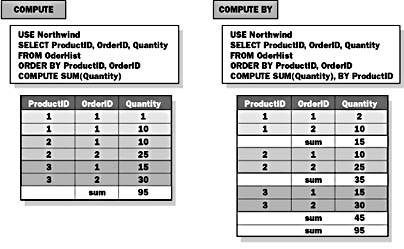
Figure F.6 Using the COMPUTE and COMPUTE BY clauses
Partial Syntax
SELECT select_list
FROM table_ source
[ WHERE search_condition ]
[ COMPUTE {{ AVG | COUNT | MAX | MIN | SUM
| STDEV | STDEVP | VAR | VARP }
(expression) }[, n]
[ BY expression [, n] ]
]
The COMPUTE and COMPUTE BY clauses are useful for quickly generating summary data, but the output is not well suited for generating result sets to use with other applications. For example, you may want to use the clauses to print basic reports quickly or to verify results of applications that you are writing. However, other tools, such as Microsoft Access or Crystal Reports, offer richer reporting capabilities.
If you use the COMPUTE and COMPUTE BY clauses, consider the following facts:
- Columns used in the aggregate functions in the COMPUTE list must be listed in the select list.
- You cannot include text, ntext, or image data types in a COMPUTE or COMPUTE BY clause.
- You cannot use the COUNT(*) aggregate function with COMPUTE.
- You cannot use the GROUP BY clause and the COMPUTE or COMPUTE BY clauses in the same statement.
- You cannot adjust the format of your result set. For example, if you use the SUM aggregate function, SQL Server displays the word sum in your result set; you cannot change it to another string such as Grand Total.
- You cannot use the SELECT INTO statement in the same statement as a COMPUTE clause, because statements that include COMPUTE do not generate relational output.
- COMPUTE and COMPUTE BY cannot be used with cursors. ROLLUP and CUBE can be used with cursors.
Example 1
This example lists each row in the OrderHist table and generates a grand total quantity for all products that are ordered.
USE Northwind SELECT ProductID, OrderID, Quantity FROM OrderHist ORDER BY ProductID, OrderID COMPUTE SUM(Quantity) |
Result
ProductID OrderID Quantity ----------- ----------- ----------- 1 1 5 1 2 5 1 2 5 2 1 6 2 1 4 2 2 25 3 1 15 3 2 10 3 2 20 sum ========== 95 (10 row(s) affected) |
Generating a Report with Detail and Summary Values for a Subset of Groups
The COMPUTE BY clause generates detail rows and multiple aggregate values. Aggregate values are generated for each group of rows with the same values in the columns in the COMPUTE BY list. Use COMPUTE BY for data that is easily categorized. When you use the COMPUTE BY clause, consider the following facts and guidelines:
- You must use an ORDER BY clause with the COMPUTE BY clause so that rows are grouped together.
- The expressions in the COMPUTE BY list determine how SQL Server groups rows when calculating the aggregate values.
- The expressions in the COMPUTE BY list must be identical to or a subset of those that are listed after the ORDER BY clause. They must be listed in the same order (left to right), starting with the first expression, and they cannot skip any expressions.
Example 2
This example lists each row in the OrderHist table, generates the total quantity of each product that is ordered, and generates a grand total quantity of all products that are ordered.
USE Northwind SELECT ProductID, OrderID, Quantity FROM OrderHist ORDER BY ProductID, OrderID COMPUTE SUM(Quantity) BY ProductID |
Result
ProductID OrderID Quantity ----------- ----------- ----------- 1 1 5 1 2 5 1 2 5 sum ========== 15 2 1 6 2 1 4 2 2 25 sum ========== 35 3 1 15 3 2 10 3 2 20 sum ========== 45 (12 row(s) affected) |
Exercise 2: Using the COMPUTE and COMPUTE BY Clauses to Generate Reports
In this exercise, you will modify an existing query by adding the COMPUTE and COMPUTE BY clauses to generate subtotals and grand totals. The C:\SQLDW\Exercise\AppF\computea.SQL script file contains a completed script for this exercise.
- Verify that you are using the Northwind database.
- Open C:\SQLDW\Exercise\AppF\compute.SQL, modify the query to generate a grand total for the Quantity column, and then execute the query.
- Modify the query to generate a control-break report that provides the total quantity for order numbers 11075 and 11076, and then execute the query.
- Modify the query to add total quantity and average quantity to the end of the control-break report, and then execute the query.
USE Northwind SELECT OrderID, Quantity FROM [Order Details] WHERE OrderID >= 11070 COMPUTE SUM(Quantity) |
Result
OrderID Quantity ----------- -------- 11070 40 11070 20 11070 30 11077 4 11077 2 sum ========== 543 (45 row(s) affected) |
USE Northwind SELECT OrderID, Quantity FROM [Order Details] WHERE OrderID = 11075 OR OrderID = 11076 ORDER BY OrderID COMPUTE SUM(Quantity) BY OrderID |
Result
OrderID Quantity ----------- -------- 11075 10 11075 30 11075 2 sum ========== 42 11076 20 11076 20 11076 10 sum ========== 50 (8 row(s) affected) |
USE Northwind SELECT OrderID, Quantity FROM [Order Details] WHERE OrderID = 11075 OR OrderID = 11076 ORDER BY OrderID COMPUTE SUM(Quantity) BY OrderID COMPUTE SUM(Quantity) COMPUTE AVG(Quantity) |
Result
OrderID Quantity ----------- -------- 11075 10 11075 30 11075 2 sum ========== 42 11076 20 11076 20 11076 10 sum ========== 50 sum ========== 92 avg ========== 15 (10 row(s) affected) |
Listing the TOP n Values
Use the TOP n clause to list only the first n rows or n percent of a result set. Although the TOP n clause is not ANSI standard, it is useful to, for example, list a company s top-selling products.
When you use the TOP n or TOP n PERCENT clause, consider the following facts and guidelines:
- You should always specify an ORDER BY clause when using the TOP n clause. If you do not use an ORDER BY clause, SQL Server returns, in no particular order, the top n rows that satisfy the WHERE clause.
- Use an unsigned integer following the TOP keyword.
- If the TOP n PERCENT keyword yields a fractional number of rows, SQL Server rounds the number of rows up to the next integer value.
- Use the WITH TIES keyword to include ties in the result set. Ties result when two or more rows have the same values in columns specified in the ORDER BY clause. The result set may therefore include more rows than specified in the TOP n clause.
For example, if you want to list the top five best-selling products, the WITH TIES keyword will ensure that the result will list all the products for which the quantity sold is equal to the quantity sold of the fifth best-selling product.
NOTE
You can use the WITH TIES keyword only when an ORDER BY clause exists.
Example 1
This example uses the TOP n keyword to find the five top products in the order details table. The top five products are determined by the quantity on a single order because the ORDER BY clause specifies the Quantity column in descending order.
USE Northwind SELECT TOP 5 OrderID, ProductID, Quantity FROM [Order Details] ORDER BY Quantity DESC |
Result
OrderID ProductID Quantity ----------- ----------- -------- 10764 39 130 11072 64 130 10398 55 120 10451 55 120 10515 27 120 (5 row(s) affected) |
NOTE
The same query could be run with an ascending order to determine the bottom five products.
Example 2
This example uses the same query as Example 1 but adds the WITH TIES option. The result set lists ten products because additional rows with the same values as the fifth row are included. Compare the following result set to the result set in Example 1.
USE Northwind SELECT TOP 5 WITH TIES OrderID, ProductID, Quantity FROM [Order Details] ORDER BY Quantity DESC |
Result
OrderID ProductID Quantity ----------- ----------- -------- 10764 39 130 11072 64 130 10398 55 120 10451 55 120 10515 27 120 10595 61 120 10678 41 120 10711 53 120 10776 51 120 10894 75 120 (10 row(s) affected) |
Exercise 3: Using the TOP n Keyword to List the Top Values of a Result Set
In this exercise, you will write two queries that use the TOP n keyword. The C:\SQLDW\Exercise\AppF\topa.SQL script file contains a completed script for this exercise.
- Verify that you are using the Northwind database.
- Open C:\SQLDW\Exercise\AppF\top.SQL, modify the query to return the top 1 percent of orders with the highest total quantity, and then execute the query.
- Modify the query from the previous step to return the top ten products (including ties) with the highest total quantity, and then execute the query.
USE Northwind SELECT TOP 1 PERCENT OrderID, SUM(Quantity) AS Total_Quantity FROM [Order Details] GROUP BY OrderID ORDER BY Total_Quantity DESC |
Result
OrderID Total_Quantity ----------- -------------- 10895 346 11030 330 10847 288 10515 286 10678 280 10612 263 10990 256 10658 255 10845 245 (9 row(s) affected) |
USE Northwind SELECT TOP 10 WITH TIES ProductID, SUM(Quantity) AS Total_Quantity FROM [Order Details] GROUP BY ProductID ORDER BY Total_Quantity DESC |
Result
ProductID Total_Quantity ----------- -------------- 60 1577 59 1496 31 1397 56 1263 16 1158 75 1155 24 1125 40 1103 62 1083 71 1057 2 1057 (11 row(s) affected) |
Lesson Summary
The ROLLUP and CUBE operators generate extra summary rows, such as sub- totals, in a result set. The GROUPING function is used to indicate which rows of a result set were generated by the ROLLUP and CUBE operators. The COMPUTE and COMPUTE BY clauses introduce summary values in a detailed result set without a GROUP BY clause. The output from queries that use the COMPUTE and COMPUTE BY clauses is not a relational result set and is difficult to use with applications. The TOP clause allows you to return the top n or top n percent of rows from a result set.

EAN: 2147483647
Pages: 114