Apple’s Sherlock is an interface to web services, providing specific types of information much more quickly than web browsers. Using
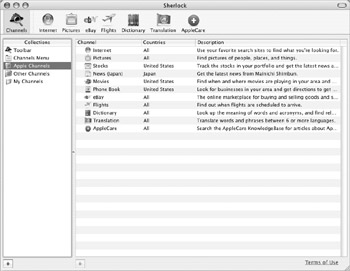
Figure 10-8:
Sherlock’s basic interface showing its list of available channels.
| Note |
If you’ve just upgraded from Mac OS 9, you’ll be a bit
|
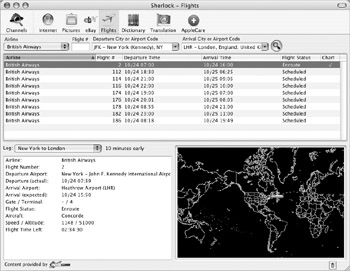
To access one of Sherlock’s channels and search for information, click a channel icon. Each channel displays its information and search fields in a different way. Figure 10-9 shows the airline flight channel, which you can use to search for
Figure 10-9:
The Flight channel lets you search for airline flights, and returns a list matching your criteria.
Some Sherlock channels just return text, but others return graphics and even video clips. In Figure 10-9, you can see the current location of a selected flight.
Another useful channel is the Movies channel. If you enter your town or city, your ZIP code, or the ZIP code of the area where you want to go to the movies, Sherlock returns a list of movies and theaters (Figure 10-10). Not only does it show you the movies, but when you click a movie title, it shows you a summary of the story, a poster, and, if possible, a trailer. In some areas, you can even use Sherlock to purchase movie tickets online.
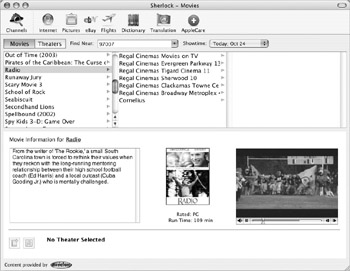
Figure 10-10:
Want to go to the movies? Let Sherlock tell you what’s playing.
The best way to get to know Sherlock is to try out its different channels and see what they offer.
There are lots of ways to keep in touch with
iChat AV offers three types of chats: text, audio, and video. You can use text chats with anyone, as long as they have a compatible account (either a .Mac account or an AIM, or AOL Instant Messenger, account). You can use audio chats with
You can also use iChat across a local network, using Apple’s Rendezvous messaging. You can use iChat for text, audio, and video chats on your local network, as long as you have a fast enough Mac and the required hardware.
| Note |
iChat is compatible with AIM, but not with another popular instant messaging tool, ICQ (though compatibility with ICQ may be added to a future version of iChat). If you have friends who use ICQ, you can download a Mac OS X version of the program at www.icq.com. The same is the case with other instant messaging services, such as Yahoo Messenger, MSN, and so on. |
To use iChat, you need to have either a .Mac or AIM screen name. This is because iChat stores your Buddy List (your contacts) on its servers, and you need to identify yourself individually; no two people can have the same
If you’ve already got a .Mac account, and either entered this information when installing Mac OS X, or done so in the .Mac preference pane (see Chapter 11), you won’t need to do anything special to use iChat. If not, you’ll need to enter your account information when starting up iChat.
When you
If you have either a .Mac or AIM account, enter your information in the
If you don’t have an account, click Get An iChat Account. This takes you to a web page where you can sign up for a free 60-day trial .Mac account. (This is not a permanent .Mac account, but if you don’t pay for it after the 60-day period, you’ll keep your screen name.)
If you have an AIM screen name, select the Account Type pop-up menu, and then select AIM Account. You can get a free AIM account by going to http://my.screenname.aol.com.
After you’ve entered your account information, click Continue. The next screen asks you if you want to
Rendezvous messaging lets you communicate with other users on a local network. If you use a local network, you should turn this on. If not, check Do Not Use Rendezvous Messaging. Click Continue.
The next screen lets you set up your video camera, if your Mac supports videoconferencing and if you have an appropriate camera. All it does is show if your camera is indeed functioning, and shows the image your camera displays. Move your camera until the image is correct, and then click Continue.
The final screen
The Rendezvous window shows all available users on your local network. The Buddy List window shows all the users you have added to your Buddy List. If you have just started using iChat, your Buddy List will be empty; if you have used it in the past, you may have several users already in your Buddy List.
|
|
My family and friends are very
Thanks to the release of Apple's iChat AV and iSight camera, communication among
my family has improved greatly. Although not all of them are enlightened enough to use a Mac, they all have AIM user IDs, which means we can at least have text chats regularly. But the real joy comes in talking to those friends and relatives who do use a Mac. With iChat AV and a video camera on both machines, it's possible to have very high quality audio and/or video conversations with a couple of mouse clicks. I have been able to have face-to-face conversations with people
One feature we use
As is typically the case with Apple's consumer products, iChat AV
Rob Griffiths is the founder and editor-in-chief of
|
|
To add a user to your Buddy List, click the + button at the bottom of the Buddy List window. This displays a sheet showing all the contacts in your Address Book. (See Chapter 15 for more on using Address Book.) Select one of these contacts, and then click Select Buddy. If their e-mail address is a mac.com address, they’ll be added to your Buddy List. If not, enter their .Mac account name or AIM screen name.
If you want to add a new person to your Buddy List, someone who is not in your Address Book, click New Person. Select the type of account they have (.Mac or AIM) from the Account Type pop-up menu, and then enter their Account Name.
You can also add their first name, last name, and e-mail address, which is recorded in your Address Book. Click Add to add them to your Buddy List. You’ll see the user’s name in your Buddy List window, followed by one or two icons:
If the user has audio or video capabilities, you’ll see a telephone icon (for audio) or a video camera icon (for video);
Before the user’s name, you’ll see one of three icons showing their availability: green means they are available, yellow means they are idle, and red means they are not available. If the user is offline, their name appears dimmed, and there is no colored icon in front of it.
|
|
While you may want your
There are two ways to do this: the first is by using the Buddy List window. Beneath your user name is a small pop-up menu that displays your status. Click this menu to choose from Available, Away, Offline, or Custom status for both Available and Away. If you select one of the Custom menu items, you can type your own custom status in the text field. Select Edit Status Menu to add or delete any custom status messages you create.
You can also change your status by using the iChat status icon in your menu bar. To display this icon, select iChat Preferences, click General, and check Show Status In Menu Bar.
Click this icon to change your status, to initiate a chat with any of your available buddies, or to display your Buddy List if it is not visible.
|
|
When you want to start chatting with one of your buddies, check to see if they are online and available. There are then two ways to start a chat: if you have the iChat icon displayed in your menu bar, just select the name of one of your buddies. In this case, a window displays (see Figure 10-11) asking how you want to chat.
Figure 10-11:
Click the left button to start a text chat, the middle button to start an audio chat, and the right button to start a video chat. If your buddy doesn’t have audio or video capabilities, these
You can also select your buddy’s name in your Buddy List window and click one of the icons at the bottom of the window; these three icons are the same as those shown in Figure 10-11.
When someone wants to start a chat with you, a window will display showing their message, along with three buttons at the bottom of the window: Block, Decline, and Accept. To accept the chat, click Accept. You can block the user by clicking Block, or turn down their chat by clicking Decline.
If you start a text chat, you can type your first message in the chat window. Your buddy will get a message on their computer and can start chatting with you.
| Tip |
You can change the way chat messages display by selecting iChat Preferences, and then clicking Messages. You can change text balloon colors, as well as fonts, and you can
|
If you want to start an audio chat, select your buddy and click the audio chat button. When the chat begins, you’ll see a window like this:
This window displays your microphone volume at the top and allows you to set your speaker volume by moving the slider at the bottom.
Just speak into your microphone (either built into the screen of your Mac if you have an iMac, eMac, PowerBook, or iBook, or an external mike plugged into your Mac), and you can have a conversation with your buddy.
| Tip |
If you’re planning to use audio chats often, you might find it useful to get a headset with headphones and a microphone. Since I live in France, and the technical reviewer for this book, Joe Kissell, is in California, we often talk using iChat audio chats. It was much easier to work with a headset, and the sound is much better. Using iChat, we were able to save a lot of money on international phone calls, and the quality is almost as good as that on the telephone. |
If you want to start a video chat, you need to have an appropriate FireWire video camera, such as Apple’s iSight. You just plug this into one of your Mac’s FireWire ports, set it up so it’s trained on you (by mounting it on your screen or desk), and start a new chat as described earlier in this section. Click the Video Chat button, and if the other user has a video camera, you’ll be able to talk to each other and see each other.
As you can tell from this illustration, you see yourself in a small image at the bottom right of the iChat window, while your buddy appears in a larger image.
You can do lots more with iChat AV: you can set up