6.2 Evolution
| Ximian's Evolution is an email client and personal scheduler. Previously, Evolution was available from Ximian as an add-on to Red Hat Linux. However, conflicts between Ximian's RPM packages and those distributed by Red Hat sometimes made life complicated for Ximian users. Evolution is now part of Red Hat Enterprise Linux and Fedora Core, so Ximian users can expect more trouble-free operation and fewer problems when upgrading to new Linux versions. You can learn more about Evolution at http://www.ximian.com. Evolution has four main functions:
Evolution is available via the Internet Figure 6-7. The Welcome panel of the Evolution setup wizard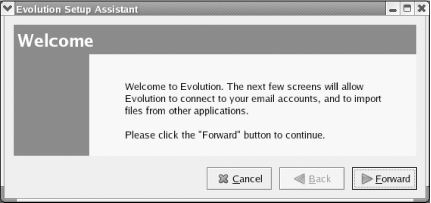 Click Forward to move on to the Identity panel. There, you specify your full name and email address. Optionally, you can specify the name of your organization, a plain text email signature file, and an HTML email signature file. Click Forward to move on to the Receiving Email panel. There, you specify the type of server you use to receive email, the hostname of the server, your username, and information on the security and authentication characteristics of the server. You can obtain this information from your email provider or determine the correct values by experimentation. Click Forward to move on to a second Receiving Email panel. This panel lets you specify options about checking for new email and using folders and filters. You can specify the values according to your preferences. Click Forward to move on to the Sending Email panel. There, you specify the type of server you use to send mail, its hostname, and security and authentication options. You can obtain this information from your email provider or determine the correct values by experimentation. Clicking Forward takes you to the Account Management panel. This panel lets you associate a name with the account, so that you can distinguish from accounts you may add later. You can also specify whether the account is the default account. If you have only one account, you should specify that it is the default account. Clicking Forward takes you to the Timezone panel. Click the map or use the drop-down list to specify your time zone. Finally, clicking Forward takes you to the Done panel. From there, click Apply to save your configuration. At last, Evolution appears as shown in Figure 6-8. Figure 6-8. Evolution's main window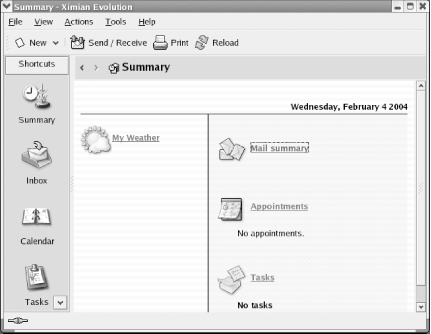 The left pane of Evolution's window is a menu that lets you choose the contents of the right pane. The Summary pane, which appears initially, presents weather, news, and a status summary of Evolution. Clicking Inbox, Calendar, Tasks, or Contacts selects the corresponding Evolution function. |
 Email submenu of the GNOME and KDE menus. It also has a convenient panel icon, which resembles a postage stamp superimposed on an envelope. When launched for the first time, Evolution provides a wizard to help you configure its operation, as shown in Figure 6-7.
EAN: 2147483647
Pages: 115