Flylib.com

Books Software


Using Bulletins


Using Bulletins

Bulletins are an easy way to contact or send news to several MySpace friends all at once.

To post a bulletin, follow these steps:

1.

In My Mail (on your home page), click Post Bulletin. The Post Bulletin page appears.

2.

Enter a Subject line, and write your message in the Body text box.

3.

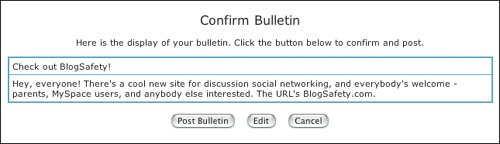
Click the Post button at the bottom of the page. A confirmation screen appears.

4.

Verify the posting, edit it, or cancel it ( Figure 4.11 ).

Figure 4.11. Confirm that you want to send this message to all your friends.


Key Parenting Point

Mass bulletin posts are fairly common in MySpace culture. What MySpace users should rememberparticularly those with numerous friendsis that these posts go out to everyone. For privacy and self-protection, remind kids not to reveal personal information, such as their email address, phone number, street address, or where they plan to hang out that night. It's also thoughtful to avoid spamming friends with too many messages.


Reading Bulletins

Because of the frequency of bulletin posts, MySpace doesn't notify users when a new one has been posted, unlike mail messages, comments, and new invites.

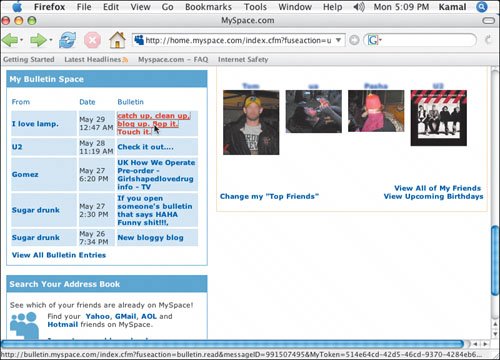
To check the latest bulletin posts, go to the My Bulletin Space on your MySpace home page. Bulletins are listed sequentially, starting with the most current posting.

To open and read a message, click the subject link in the Bulletin column ( Figure 4.12 ).

Figure 4.12. Click the subject link in the Bulletin column to read that message.

Blocking Bulletins

Bulletins are great communication tools, but they can easily become annoying and spamlike. If you are receiving unwanted or excessive bulletins, the only way to block them is to delete the sender as a friend. To do this, open the bulletin, and click the Delete from Friends button on the bottom-right side of the screen.


Modifying Your Top 8

On MySpace, "Your Top 8" refers to the featured friends in your My Friend Space on your profile page. When you first join MySpace and start building your network, the first eight friends will automatically populate this window. As you make more friends , you can opt to prioritize who is in your Top 8.

What this means varies from user to user . Some MySpace fans might feature all their top MySpace friendsthose who actively socialize and participate online. Others might prioritize, based on their real-world friends, regardless of whether they are big MySpace users. Others try to balance all the key people in their life and evenly cover friends, family, and colleaguesor be really safe and top the list with their girlfriend, boyfriend, and siblings, and then be diplomatic and fill the rest of the slots with bands representing their favorite music. A workaround some MySpace users employ is to hack their profile to feature their "Top 20" or "Top 30" instead, or even to hide this section altogether. (For details about how to do this, see Chapter 7.)

In any case, the Top 8 list is very visible and can be a social minefield if not given much thought. Teens are usually very mindful of this, but the question of how they rank people on this list or how much they think about it could be an interesting parent-child talking point or even a teachable moment.


Deleting Friends

You can delete existing friends at any time by following these steps:

1.

In the Friend area of your home page, click the Edit Friends link in the top-right corner ( Figure 4.13 ).

Figure 4.13. Click Change My Top Friends under the photo. (It does help to have more than one friend!)


2.

On the Edit Friends page, check the box beside the photo of the friend you want to delete.

3.

Click Delete Selected to delete that friend.

Friends whom you delete will not be notified about the deletion, though they will probably figure it out when you no longer appear as their friend.