Flylib.com

Books Software


Adjusting Tint and Saturation


Adjusting Tint and Saturation

The color values of skin tones vary by subject. In addition, ideal skin tone values are affected by the environment where the image was shot and by any overall aesthetic color considerations that the photographer prefers (such as, for example, going for a sepia-toned image). Our particular model's fair skin should have a blue value just below the midtone value of 128, a green value 10 percent or so above midtone, and a relatively high red value that is closer to three-quarter tone than midtone. This will give her a nice healthy skin tone that is imbued with the warm light of the Florida sun.

1.

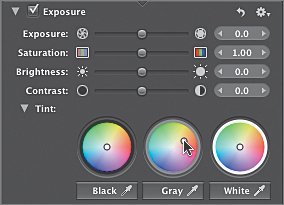
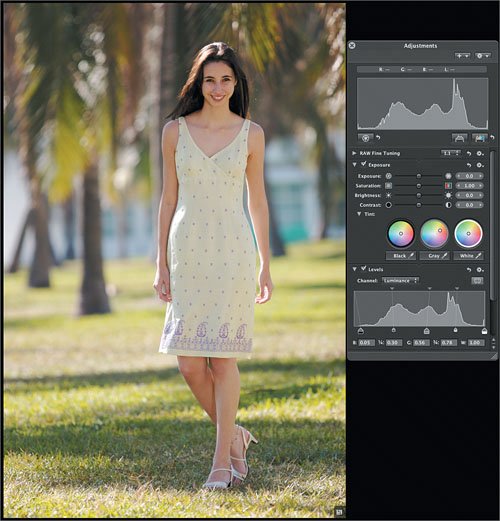
In the Tint controls of the Exposure controls group , drag the circle in the center of the Gray color wheel up and to the right until it is at about the 2 o'clock position and about three- quarters of the way to the outer edge.

The image color warms up considerably.

Note

Dragging the midtone toward the orange/amber area of the color wheel is similar to using a glass or gelatin warming filter on a camera lens.

2.

Select and deselect the Exposure checkbox a few times to turn the effect off and on. When you're done, make sure the box is selected.

Sometimes it helps to see a subtle effect by toggling it off and on. Not only can you see the effect on the image as you do so, but the main histogram also updates as you select and deselect the checkbox. This image is almost done; we just need to pump up the saturation a bit to finish it.

3.

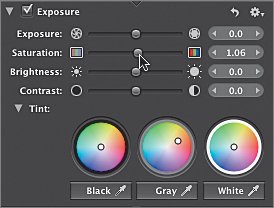
Drag the Saturation slider to 1.06.

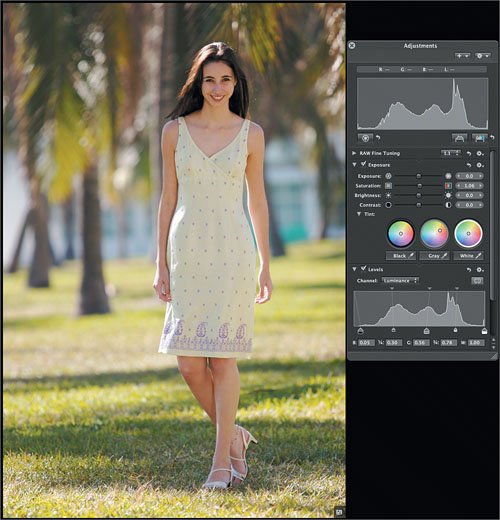
The Saturation adjustment adds a little extra color to the entire image.

It looks greatthe image is finished. The Grande Agency may make other adjustments, but your job is done.
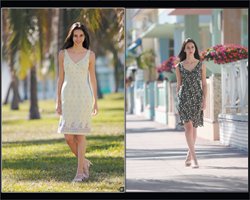
Comparing Images

Before we adjust the sidewalk image, let's quickly see how our adjusted tropical image compares .

1.

Press H to hide the Adjustments HUD.

2.

Press Option-U to switch the Viewer to Multi mode.

Viewed side by side, the images look as though they were shot in completely different locations many hours apart. In fact, they were shot within an hour of each other. Our next task will be to adjust the sidewalk image to match the changes you've made to the tropical image so that the two are consistent.


Matching Color Between Images

There are many differences between the tropical image and the sidewalk imagelocation and outfit, to name two obvious ones. However, the model is a consistent element in both images. When matching color between images, the best aid is a known color. That color, in this case, is skin tone. We will use the model's skin tones from the adjusted tropical image as our guide.

1.

Press the C key to select the Crop tool and crop the tropical image so only the model's head and shoulders are in view. (Make sure the "Constrain cropping tool to" checkbox is deselected.) Press Return to accept the crop.

This isn't a permanent change. Temporarily cropping out the background will help us focus on the similar characteristics within the two images.

2.

Crop the sidewalk image so that only the model's head and shoulders appear in that image.

3.

Press H to open the Adjustments HUD and drag it so that it's between the two images.

You are now ready to adjust the sidewalk image, using the tropical image next to it for comparison.

4.

With the sidewalk image selected, drag the black-point control under the Levels histogram to the right until its value is 0.06.

The luminance for two images becomes closer. The idea isn't to match the values exactly, but to get the values of the two images in close range of each other.

5.

Drag the control in the center of the Gray color wheel toward 2 o'clock as you did for the tropical image, stopping when it is about halfway between the center and the edge of the wheel.

6.

Drag the Saturation slider to 1.12.

The color, contrast, and brightness of the images now seem much closer.

7.

Deselect the Crop checkbox in the Adjustments HUD to turn off the crop on the sidewalk image. Resize the Adjustments HUD if the Crop HUD is hidden.

8.

Click the tropical image to select it and then repeat step 7 to remove the crop.

9.

Press H to hide the Adjustments HUD.

The two images now have similar contrast and coloring. The images could definitely be placed next to each other for an ad or in a store display. Since you don't know where or how the image will be printed, this is as far as you take the image processing. The agency can tweak the image a bit further depending on the intended use. And since other adjustments may be made down the line, it's not appropriate to perform, say, sharpening.

Tip

If you know how the images will be printed, you can use Aperture's soft-proofing feature. For more on soft proofing, see Lesson 10, "Advanced Output."