| Up to this point, our application overviews have been project-oriented. With the report_projectsummary page, you can get a bird's-eye view of all the available projects. The report_hoursbreakdown page offers a more detailed view of the time cards for a specified project. In this recipe, we'll build a page that shows all the time cards logged for all the projects, grouped by employee and displayed in daily, weekly, and monthly views. Because we are using three different views of the same basic data, the construction of this page will be a bit repetitive. We'll need three recordsets to bind data into three different content tables. When that is done, we'll have to apply three Repeat Region server behaviors. It's important to realize that the calculations needed for these three different summariesdaily, weekly, and monthlyare all handled through their corresponding SQL queries executed in the data source. Each of the queries is, as noted at the start of this chapter, based on another SQL query, HoursBreakdown. Step 1: Implement View Time Cards Design Each of the time-based views of data requires its own content area in the layout for this recipe. Although they all have essentially the same information (employee, project, date, amount of time, and billable cost), they need to be contained in separate structures to use the Repeat Region server behavior. 1. | In the server model of your choice, create a dynamic page.
 In the TimeCards folder, locate the folder for your server model and open the view_timecards page from there. In the TimeCards folder, locate the folder for your server model and open the view_timecards page from there.
| 2. | Add a table to the content region of your page to hold the content tables and data for the application.
From the Snippets panel, drag the Recipes > TimeCards > Wireframes > View Time Cards - Wireframe snippet into the Content editable region.
| 3. | Add a table structure to allow for separation between the three separate sections.
From the Snippets panel, drag the Recipes > TimeCards > ContentTables > View Time Cards - Shell snippet into the row beneath the words VIEW TIME CARDS.
| 4. | Insert three tables, each consisting of three rows and five columns. The first row is used to designate the focus of the table (Daily, Weekly, or Monthly), and the cells in the second row act as headers for the data: Employee Name, Project, Date, Hours, and Cost. The final row will hold the data itself.
| Place your cursor in the top row of the shell table and insert the Recipes > TimeCards > ContentTables > View Time Cards - Daily snippet. | | | Place your cursor in the middle row of the shell table and insert the Recipes > TimeCards > ContentTables > View Time Cards - Weekly snippet. | | | Place your cursor in the bottom row of the shell table and insert the Recipes > TimeCards > ContentTables > View Time Cards - Monthly snippet [r5-14]. |
| 5. | Save the file.
|
r5-14. 
Step 2: Add Database Components The three recordsets used in this recipe are very straightforward to implement. All the hard calculation work has been done within the data source itself. Each recordset relies on a different SQL view of summarized information created in the data source. The three viewsDailyHours, WeeklyHours, and MonthlyHoursare all similarly structured. Here's the DailyHours SQL statement: [View full width] SELECT HoursBreakdown.CardEmployee, Sum(HoursBreakdown.CardHours) AS Hours, Format  ([HoursBreakdown].[CardDate],'ddd mmm dd') AS [Day], Sum(HoursBreakdown.BillableAmount) AS BillableAmount, HoursBreakdown.ProjectName FROM HoursBreakdown WHERE (((HoursBreakdown.CardDate)>Date()-30)) GROUP BY HoursBreakdown.CardEmployee, Format([HoursBreakdown].[CardDate],'ddd mmm dd'), HoursBreakdown.ProjectName, DatePart ('yyyy',[CardDate]), DatePart('m',[CardDate]), DatePart('d',[CardDate]) ORDER BY DatePart('yyyy',[CardDate]), DatePart('m',[CardDate]), DatePart('d',[CardDate]), HoursBreakdown.CardEmployee; ([HoursBreakdown].[CardDate],'ddd mmm dd') AS [Day], Sum(HoursBreakdown.BillableAmount) AS BillableAmount, HoursBreakdown.ProjectName FROM HoursBreakdown WHERE (((HoursBreakdown.CardDate)>Date()-30)) GROUP BY HoursBreakdown.CardEmployee, Format([HoursBreakdown].[CardDate],'ddd mmm dd'), HoursBreakdown.ProjectName, DatePart ('yyyy',[CardDate]), DatePart('m',[CardDate]), DatePart('d',[CardDate]) ORDER BY DatePart('yyyy',[CardDate]), DatePart('m',[CardDate]), DatePart('d',[CardDate]), HoursBreakdown.CardEmployee;
The MySQL version is similar: SELECT hoursbreakdown.CardEmployee, Sum(hoursbreakdown.CardHours) AS Hours, DATE_FORMAT(hoursbreakdown.CardDate,"%a %b %d") AS TheDay, Sum(hoursbreakdown.BillableAmount) AS BillableAmount, hoursbreakdown.ProjectName FROM hoursbreakdown WHERE (((hoursbreakdown.CardDate)>DATE_SUB(CURDATE(), INTERVAL 30 DAY))) GROUP BY hoursbreakdown.CardEmployee, TheDay, hoursbreakdown.ProjectName, DATE_FORMAT(hoursbreakdown.CardDate,"%Y"), DATE_FORMAT(hoursbreakdown.CardDate,"%m"), DATE_FORMAT(hoursbreakdown.CardDate,"%d") ORDER BY DATE_FORMAT(hoursbreakdown.CardDate,"%Y"), DATE_FORMAT(hoursbreakdown.CardDate,"%m"), DATE_FORMAT(hoursbreakdown.CardDate,"%d"), hoursbreakdown.CardEmployee
All three SQL views are based on the HoursBreakdown query; PHP will again require some custom code to simulate the queries. Dreamweaver displays recordsets in the order in which they are defined, so let's start with the daily view. 1. | From the Bindings panel, choose Add (+) and select Recordset (Query).
| 2. | In the simple Recordset dialog, enter an appropriate name.
Enter DailyHours in the Name field.
| 3. | Select the data source connection.
Choose Recipes from the Connection (Data Source) list.
| 4. | Choose the needed table.
From the Tables list, select DailyHours.
| 5. | Leave the Columns option set to All.
| 6. | Make sure the Filter is set to None.
| 7. | Keep the Sort option set to None and click OK to close the dialog.
| 8. | Save the page after the recordset is inserted.
|
Next we'll create the recordset to hold the weekly data. 1. | From the Bindings panel, choose Add (+) and select Recordset (Query).
| 2. | In the simple Recordset dialog, enter an appropriate name.
Enter WeeklyHours in the Name field.
| 3. | Select the data source connection.
Choose Recipes from the Connection (Data Source) list.
| 4. | Choose the needed table.
From the Tables list, select WeeklyHours.
| 5. | Leave the Columns option set to All.
| 6. | Make sure the Filter is set to None.
| 7. | Keep the Sort option set to None and click OK to close the dialog.
| 8. | Save the page after the recordset is inserted.
|
Finally, let's build the monthly hours recordset. 1. | From the Bindings panel, choose Add (+) and select Recordset (Query).
| 2. | In the simple Recordset dialog, enter an appropriate name.
Enter MonthlyHours in the Name field.
| 3. | Select the data source connection.
Choose Recipes from the Connection (Data Source) list.
| 4. | Choose the needed table.
From the Tables list, select MonthlyHours.
| 5. | Leave the Columns option set to All.
| 6. | Make sure the Filter is set to None.
| 7. | Keep the Sort option set to None and click OK to close the dialog.
| 8. | Save the page after the recordset is inserted.
|
For PHP As with several other pages in this recipe, additional code is required for PHP: 1. | In Code view, place your cursor near the top of the page, after the line that begins <?php require_once, and insert the following code.
From the Snippets panel, insert the Recipes > TimeCards > CustomCode_PHP > View TimeCards - Temporary Tables snippet.

| [View full width] <?php // ProjectTimeCards Temporary Table mysql_select_db($database_Recipes, $Recipes); $sql = "DELETE FROM projecttimecards"; @mysql_query($sql,$Recipes); $sql = "INSERT INTO projecttimecards SELECT projects.*, timecard.*,jobtypes.JobCode FROM projects, jobtypes LEFT JOIN timecard ON projects .ProjectID=timecard.CardProject GROUP BY ProjectID ORDER BY ProjectID"; @mysql_query($sql,$Recipes); // Hours Breakdown Temporary Table $sql = "DELETE FROM hoursbreakdown"; @mysql_query($sql,$Recipes); $sql = "INSERT INTO hoursbreakdown SELECT projecttimecards. ProjectID, projecttimecards .ProjectName, projecttimecards. ProjectManager, projecttimecards.ProjectHours, jobtypes. JobRate*projecttimecards.CardHours AS BillableAmount, ROUND((TO_DAYS(projecttimecards .ProjectDate) - TO_DAYS (projecttimecards .CardDate))/7) AS WeeksIn, projecttimecards. CardID ,projecttimecards.CardDate, projecttimecards .CardDescription, projecttimecards.CardEmployee, projecttimecards.CardLogged, projecttimecards .CardJobTypeID, jobtypes.JobCode, SUM(timecard .CardHours) AS TotalHoursIn, projecttimecards. CardHours, projecttimecards.CardHours AS HoursIn, projecttimecards.CardProject, CONCAT('$',FORMAT (jobtypes.JobRate,2)) AS JobRate FROM projecttimecards,jobtypes,timecard WHERE (projecttimecards.CardJobTypeID = jobtypes .JobTypeID AND timecard.CardProject = projecttimecards.ProjectID) OR (projecttimecards .CardJobTypeID = 0) GROUP BY projecttimecards. ProjectID ORDER BY projecttimecards.CardID DESC"; @mysql_query($sql,$Recipes); // Daily Hours Temporary Table $sql = "DELETE FROM dailyhours"; @mysql_query($sql,$Recipes); $sql = 'INSERT INTO dailyhours SELECT hoursbreakdown.CardEmployee, Sum(hoursbreakdown .CardHours) AS Hours, DATE_FORMAT(hoursbreakdown. CardDate,"%a %b %d") AS TheDay, Sum(hoursbreakdown .BillableAmount) AS BillableAmount, hoursbreakdown .ProjectName FROM hoursbreakdown WHERE (( (hoursbreakdown.CardDate)>DATE_SUB(CURDATE(), INTERVAL 30 DAY))) GROUP BY hoursbreakdown .CardEmployee, TheDay, hoursbreakdown. ProjectName, DATE_FORMAT(hoursbreakdown.CardDate,"%Y"), DATE_FORMAT(hoursbreakdown.CardDate,"%m"), DATE_FORMAT (hoursbreakdown.CardDate,"%d") ORDER BY DATE_FORMAT (hoursbreakdown.CardDate,"%Y"), DATE_FORMAT(hoursbreakdown. CardDate,"%m"), DATE_FORMAT(hoursbreakdown.CardDate,"%d"), hoursbreakdown.CardEmployee'; // Weekly Hours Temporary Table $sql = "DELETE FROM weeklyhours"; @mysql_query($sql,$Recipes); $sql = 'INSERT INTO weeklyhours SELECT hoursbreakdown.CardEmployee, Sum(hoursbreakdown .CardHours) AS Hours, CONCAT(DATE_FORMAT (DATE_ADD (hoursbreakdown.CardDate, INTERVAL (-1 * WEEKDAY (NOW())) DAY),"%m/%d-"), DATE_FORMAT(DATE_ADD (hoursbreakdown.CardDate, INTERVAL (7 - WEEKDAY(NOW ())) DAY),"%m/%d "), DATE_FORMAT (DATE_ADD (hoursbreakdown.CardDate, INTERVAL (7 - WEEKDAY(NOW ())) DAY),"%Y")) AS Week, Sum(hoursbreakdown .BillableAmount) AS BillableAmount, hoursbreakdown .ProjectName FROM hoursbreakdown WHERE (hoursbreakdown.CardDate > DATE_SUB(NOW(),INTERVAL 6 MONTH) &&hoursbreakdown.CardDate < DATE_ADD(NOW (),INTERVAL 6 MONTH)) GROUP BY hoursbreakdown .CardEmployee, Week, hoursbreakdown.ProjectName, DATE_FORMAT(hoursbreakdown.CardDate,"%Y"), DATE_FORMAT (hoursbreakdown.CardDate,"%u") ORDER BY Week, hoursbreakdown. CardEmployee'; @mysql_query($sql,$Recipes); // Monthly Hours Temporary Table $sql = "DELETE FROM monthlyhours"; @mysql_query($sql,$Recipes); $sql = 'INSERT INTO monthlyhours SELECT hoursbreakdown.CardEmployee, SUM(hoursbreakdown .CardHours) AS Hours, DATE_FORMAT(hoursbreakdown. CardDate,"%M %Y") AS Month, SUM(hoursbreakdown .BillableAmount) AS BillableAmount, hoursbreakdown .ProjectName FROM hoursbreakdown WHERE (hoursbreakdown.CardDate > DATE_SUB(NOW(),INTERVAL 6 MONTH) &&hoursbreakdown.CardDate < DATE_ADD(NOW (),INTERVAL 6 MONTH)) GROUP BY hoursbreakdown .CardEmployee, Month, hoursbreakdown.ProjectName, DATE_FORMAT(hoursbreakdown.CardDate,"%Y"), DATE_FORMAT (hoursbreakdown.CardDate,"%m") ORDER BY DATE_FORMAT (hoursbreakdown.CardDate,"%Y"), DATE_FORMAT(hoursbreakdown. CardDate,"%m"), hoursbreakdown.CardEmployee'; @mysql_query($sql,$Recipes); ?>
|
| 2. | After the code is inserted, save your page.
|
Step 3: Data Binding Process Applying the dynamic data to the content tables is purely a drag-and-drop affair for this recipe. However, because there are three recordsets, it's important that you be careful to drag the data elements from the proper recordset. 1. | From the Bindings panel, expand the DailyHours recordset.
| 2. | Place the data fields on the page in their proper places.
| Drag CardEmployee into the cell under the Employee Name label. | | | Drag ProjectName into the cell under the Project label. | | | Drag Day into the cell next to the Date label. | | | Drag Hours into the cell next to the Hours label. | | | Drag BillableAmount into the cell next to the Cost label. |
| 3. | From the Bindings panel, expand the WeeklyHours recordset.
| 4. | Place the data fields on the page in their proper places.
| Drag CardEmployee into the cell under the Employee Name label. | | | Drag ProjectName into the cell under the Project label. | | | Drag Week into the cell next to the Date label. | | | Drag Hours into the cell next to the Hours label. | | | Drag BillableAmount into the cell next to the Cost label. |
| 5. | From the Bindings panel, expand the MonthlyHours recordset.
| 6. | Place the data fields on the page in their proper places.
| Drag CardEmployee into the cell under the Employee Name label. | | | Drag ProjectName into the cell under the Project label. | | | Drag Month into the cell next to the Date label. | | | Drag Hours into the cell next to the Hours label. | | | Drag BillableAmount into the cell next to the Cost label. |
| 7. | When you're done, save the page [r5-15].
r5-15. 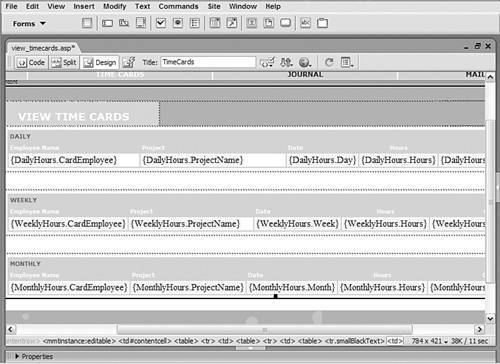
|
Step 4: Add the Repeat Regions The final step for the View Time Cards recipe is to apply a Repeat Region server behavior to a row in each of the content tables. The three separate server behaviors will allow all the relevant data to be displayed. We'll work our way down the page, starting with the Daily view. 1. | Select any of the dynamic data fields in the Daily content table.
| 2. | From the Tag Selector, choose the appropriate table row tag.
Select the <tr> tag to the left of the selected tag in the Tag Selector.
| 3. | From the Server Behaviors panel, choose Add (+) and select Repeat Region.
| 4. | In the Repeat Region dialog, choose the recordset.
Choose DailyHours from the Recordset list.
| 5. | Set the Show option to display however many records you'd like.
Choose Show All Records.
| 6. | Click OK when you're done to close the dialog.
|
Next, let's apply the server behavior to the Weekly content table. 1. | Select any of the dynamic data fields in the Weekly content table.
| 2. | From the Tag Selector, choose the appropriate table row tag.
Select the <tr> tag to the left of the selected tag in the Tag Selector.
| 3. | From the Server Behaviors panel, choose Add (+) and select Repeat Region.
| 4. | In the Repeat Region dialog, choose the recordset.
Choose WeeklyHours from the Recordset list.
| 5. | Set the Show option to display however many records you'd like.
Choose Show All Records.
| 6. | Click OK when you're done to close the dialog.
|
Finally, we'll add the server behavior to the Monthly table. 1. | Select any of the dynamic data fields in the Monthly content table.
| 2. | From the Tag Selector, choose the appropriate table row tag.
Select the <tr> tag to the left of the selected tag in the Tag Selector.
| 3. | From the Server Behaviors panel, choose Add (+) and select Repeat Region.
| 4. | In the Repeat Region dialog, choose the recordset.
Choose MonthlyHours from the Recordset list.
| 5. | Set the Show option to display however many records you'd like.
Choose Show All Records.
| 6. | Click OK when you're done to close the dialog.
| 7. | Save the page when you're done [r5-16].
r5-16. 
|
Try out the entire application by entering different time cards for various projects. |
