Change Menu Colors
Task #3
Difficulty Level 2
There are two colorful decisions that you have to make when customizing the look of your Panther desktop: You can set the Appearance color, which determines the coloring used in controls such as drop-down list boxes and buttons, and the Highlight color, which governs the color used when you highlight text in applications such as Word and Safari.
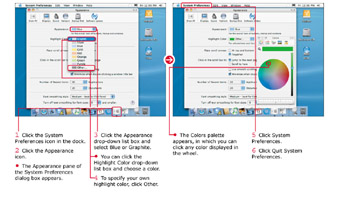
Besides the aesthetic improvement to your desktop, customizing these colors may help some visually impaired Mac users recognize highlighted text and application or operating system controls more easily than they would with the default colors.
If you have switched to Panther’s reversed White on Black text option — using the settings in the Universal Access pane in System Preferences — these menu colors will naturally be disabled. The White on Black option is provided for those Mac users who have connected assistive devices, or Mac users who have trouble seeing the standard black on a white screen.

EAN: 2147483647
Pages: 136
- ERP System Acquisition: A Process Model and Results From an Austrian Survey
- Context Management of ERP Processes in Virtual Communities
- Intrinsic and Contextual Data Quality: The Effect of Media and Personal Involvement
- Healthcare Information: From Administrative to Practice Databases
- Relevance and Micro-Relevance for the Professional as Determinants of IT-Diffusion and IT-Use in Healthcare