Navigating the Home Page and the SharePoint Site
A home page is the main page of a SharePoint Web site; it provides a navigational structure that links the site components together. Typically, a home page of a SharePoint site has two main navigation areas: the top navigation area, which is a strip at the top of the page, and the left navigation area, which is a panel at the left of the page. The top navigation area typically provides links between sites, while the left navigation panel typically provides links within a site.
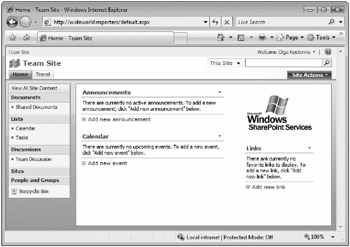
The top navigation area contains the top link bar which consists of the tabs displayed on all pages within the SharePoint site. The top link bar typically includes tabs with the following links.
-
 Home The Home link is usually displayed on the first tab on the left. It opens the home page for a site.
 - Links to the subsites On a well organized site, the top link bar contains tabs with links to the subsites of the current site, such as the Travel link on the second tab in our example.
On the right side of the top link bar, you can see the Site Actions link. Clicking this link opens the Site Actions menu, which enables you to create a new list, library, discussion board, survey, Web page or site; edit site pages; and change the settings for your site. The menu options displayed in the Site Actions menu depend on the permissions that are set on the site: only options applicable to you are displayed.
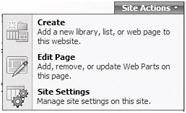
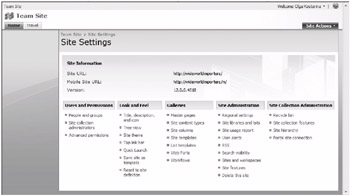
For example, the Site Settings link on the Site Action menu opens the Site Settings page that enables you to administer and customize your site.
The left navigation panel typically contains the View All Site Content link, a set of Quick Launch links, and a Recycle Bin.
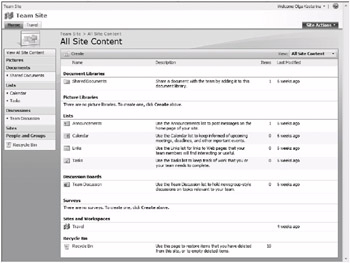
The first link in the left navigation panel is View All Site Content. The View All Site Content link opens the All Site Content page, which lists all of the libraries, lists, discussion boards, and surveys on your site. The All Site Content page also provides links to the child sites and workspaces, as well as the site’s Recycle Bin. This page is your main navigational aid for the site and contains links to all major parts of the site’s infrastrcuture.
Depending on the site, the Quick Launch contains one or more links to the subsets of information contained in the All Site Content page. These subsets, referred to as views, are created by filtering the information contained within the All Site Content page. In addition to links to the the All Site Content page views, the Quick Launch contains a link to People and Groups that allows you to manage your site’s permissions.
The Quick Launch can also contain links to site components created by you and your team members, such as document libraries or lists.
Typically, the Quick Launch contains the following links.
- Documents The Documents link opens a view of an All Site Content page displaying all document and form libraries in your site. On a typical team site, the Quick Launch also provides a second-level link to a Shared Documents library.
- Lists The Lists link opens a view of an All Site Content page displaying all lists in your site. On a typical team site, the Quick Launch also provides two second-level links to Calendar and Tasks lists.
- Discussions The Discussions link opens a view of an All Site Content page displaying all discussion boards in your site. On a typical team site, the Quick Launch also provides a second-level link to a Team Discussion board.
- Sites The Sites link opens a view of an All Site Content page displaying subsites to your site.
- People and Groups The People and Groups link opens a page that allows you to manage groups and individual users of your site.
Finally, the left navigation panel contains the link to the Recycle Bin, which opens the site’s Recycle Bin.
In addition to the top and left navigation areas, the home page of a typical SharePoint team site includes views of the following lists.
- Announcements
- Calendar
- Links
- Tasks
Each of these lists is presented within its own page component called a Web Part. You can add items to these lists by clicking Add item within the list’s Web Part.
In this exercise, you will navigate to the All Site Content page, explore its components and views, and then return to the site home page.
OPEN your SharePoint site (for example, http://wideworldimporters). If prompted, type your user name and password, and then click OK.
1. On the Quick Launch, click View All Site Content.
2. Explore the page.
Notice that the top link bar and the Quick Launch have not changed. However, just below the top link bar and above the page title, you can see a content navigation breadcrumb trail showing the path to the current page from the site’s home page.

The content navigation breadcrumb helps you keep track of where the current page is located within a SharePoint site. Components on the breadcrumb trail are links that you can click to open the corresponding pages. The last item on the breadcrumb shows the page title of the current page and is not a link.
3. Scroll down to the bottom of the page and notice all parts of the site that are listed on the All Site Content page including Document Libraries, Picture Libraries, Lists, Discussion Boards, Surveys, Sites and Workspaces, and Recycle Bin.
You will now display this page in the Document Libraries view.
4. Scroll up to the top of the page. Open the View menu located on the right side of the page, and choose Document Libraries.
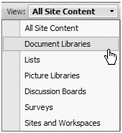
The Document Libraries view of the All Site Content page is displayed. The main part of the page lists the document libraries available on the site, including the Shared Documents library, which is present on the site by default.
You will now display the All Site Content page in the Surveys view.
5. From the View menu, choose Surveys.
The Surveys view is displayed. The main part of the page lists the surveys created on the site. The Wide World Importers site has not added a survey yet, so this page doesn’t display any surveys.
6. Return to the site’s home page by clicking its link on the content navigation breadcrumb that is located immediately above the All Site Content title.
CLOSE the browser.

EAN: N/A
Pages: 201