Programming ASP. NET
Authors: Liberty J. Hurwitz D.
Published year: 2003
Pages: 18-19/156
Buy this book on amazon.com >>

2.1 Start Page

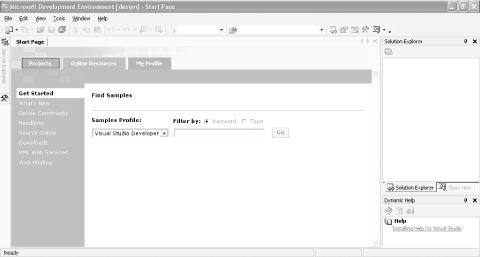
When you open Visual Studio .NET for the first time (unless you configure it otherwise ), you'll find yourself looking at the Visual Studio .NET application window, as shown in Figure 2-1.

Figure 2-1. Visual Studio .NET Start Page with Online Resource tab displayed
figs/pan2_0201.gif

Along the top of the application window is a fairly typical collection of Windows menu items and buttons , plus several that are specific to the Visual Studio .NET integrated development environment. Specialized tabs that provide access to tools and controls, and to other servers and databases in the development environment, appear to the left of the application window, labeled Toolbox and Server Explorer, respectively. Additional windows for exploring the files and classes associated with a particular project and for accessing help, appear on the righthand side. More windows are available through the Visual Studio .NET menu bar (see Section 2.3).

At the center of the application window is the Start Page, which contain three tabs, one for creating new projects or opening existing ones (the Projects tab), another for locating online resources, such as code samples, community sites or available web services (the Online Resources tab), and a third for creating a profile to personalize your development environment (the My Profile tab).

As shown in Figure 2-1, the lefthand side of the Online Resource tab contains links to a variety of MSDN and other resources available over the Internet. These include:

Get Started

Allows you to search for code samples related to your project.

What's New

Links to new developments in the .NET world, training and events, and tips.

Online Community

Links to the .NET community, including web sites, newsgroups, tech support resources, code examples, and component sources.

Headlines

Links to news stories about .NET in general, and specific topics such as XML Web Services.

Search Online

Provides a form for searching the MSDN online library.

Downloads

Links to free and subscriber downloads, including sample applications.

XML Web Services

Provides forms to search for or register web services.

Web Hosting

Links to hosting providers.

2.2 Projects and Solutions

A typical .NET application is comprised of many items: source files, assembly information files, references, icons, as well as miscellaneous other files and folders. Visual Studio .NET organizes these items into a container called a project . One or more projects are contained within a solution . When you create a new project, Visual Studio .NET automatically creates the containing solution.

2.2.1 Solutions

Solutions typically contain one or more projects. They may contain other, independent items as well. These independent solution items are not specific to any particular project, but apply, or scope , to the entire solution. The solution items are not an integral part of the application, because they can be removed without changing the compiled output. They can be managed with source control.

Miscellaneous files are independent of the solution or project, but they may be useful to have handy. They are not included in any build or compile, but will display in the Solution Explorer (described in the section "View Menu," later in this chapter), and may be edited there. Typical miscellaneous files include project notes, database schemas, or sample code files.

It is also possible to have a solution that does not contain any projects—just solution or miscellaneous files, which can be edited using Visual Studio .NET.

Solutions are defined within a file named for the solution with a .sln extension. The .sln file contains a list of the projects that comprise the solution, the location of any solution-scoped items, and any solution-scoped build configurations. Visual Studio .NET also creates a .suo file with the same name as the .sln file (e.g., mySolution.sln and mySolution.suo ). The .suo file contains data used to customize the IDE on a per- user and per-solution basis.

You can open a solution by double-clicking the .sln file in Windows Explorer. If the .sln file is missing, then that solution must be created again from scratch by adding projects into the solution. On the other hand, if the .suo file is missing, it will automatically be recreated the next time the solution is opened.

2.2.2 Projects

A project contains source files and other content. Typically, the contents of a project are compiled into an assembly, e.g., an executable file ( .exe ) or a dynamic link library file (DLL), which can be identified by its .dll extension.

The data describing the project is contained in a project file named after the project name with a language-specific extension. For VB .NET and C#, the extensions are .vbproj and .csproj , respectively. The project file contains version information, build settings, references to other assemblies (typically members of the CLR, but also custom developed and third-party components ), and source files to include as part of the project.

2.2.3 Templates

When you create a new project by clicking the New Project button on the Project tab of the Start Page (shown in Figure 1-5), you get the New Project dialog box, as shown in Figure 2-2.

Figure 2-2. New Project dialog box
figs/pan2_0202.gif

To create a new project, you select a project type and a template. There are a variety of templates for each project type. For example, the templates for Visual C# Projects , shown in Figure 2-2 are different from the templates available to Setup and Deployment Projects . By selecting a Visual Studio Solutions project type, you can create an empty solution, ready to receive whatever items you want to add.

The template controls what items will be created automatically and included in the project, as well as default project settings. For example, if your project is a C# Web application, such as the Hello World programs created in Chapter 1, then language-specific .csproj , .csproj.webinfo , .aspx , and .cs files will be created as part of the project. If the project is a VB .NET project, then the corresponding .vbproj , .vbproj.webinfo , and .vb files will be created instead. If a different template is selected, then an entirely different set of files would be created.

2.2.4 Project Names

Project names may consist of any standard ASCII characters except for the following:

  • Pound (#)

  • Percent (%)

  • Ampersand (&)

  • Asterisk (*)

  • Vertical bar ()

  • Backslash (\)

  • Colon (:)

  • Double quotation mark (")

  • Less than (<)

  • Greater than (>)

  • Question mark (?)

  • Forward slash (/)

  • Leading or trailing spaces ( )

  • Windows or DOS keywords, such as "nul," "aux," "con," "com1," and "lpt1"

Programming ASP. NET
Authors: Liberty J. Hurwitz D.
Published year: 2003
Pages: 18-19/156
Buy this book on amazon.com >>

Similar books on Amazon