Compositing
| Professional animators often set up complex shots as composites. That means the shot is rendered in several different passes. They do this for several reasons:
For example, consider a shot that's going to be a first-person view from behind the windshield of an out-of-control car as it careens down a city street. The shot might consist of the following layers:
First, you need to determine the camera's motions. The trick of compositing 3D animation works because the camera sees the same 3D world in any given frame. Unlike a real-world camera positioned by hand, the computer's virtual camera always points exactly the same way in any animation frame. Therefore, if you render a background and then a foreground from the same animated camera, the two sequences could be combined and would appear to perfectly match in camera perspective, position, and direction. For model shots, effects houses have used expensive computer-controlled cameras on rigs to get the same result, but they must be careful about the motors' tolerances; even a slight difference can cause shots in which separately filmed objects appear to slip and slide against the background they're supposed to be sitting on. For the out-of-control car, because these shots are inside a moving car, all the car and camera motions must be decided on early because changes in the camera change the position of every object in the rendered frame and require rendering every layer again. To expedite work for the animator, proxy objects can be used if the final scene models are not finished. The buildings could be simple box objects, and the car the camera is riding in and the passing cars would also be simple shapes. A rendered test of camera and car motion is generally good enough to get approval, and then the layers can be rendered. Already there are several production-accelerating factors:
If the client sees the test composite and doesn't like how clear or bright or colorful the sky appears, you can usually fix these factors immediately in the compositor by simply adding 2D effects, such as blur, contrast, and desaturate. The same applies to all the other layers. You can even add seemingly 3D effects, such as fog and distance blur, via the Z-depth channel (as a mask for an overlay or blur effect so that the effect is keyed by distance). Figure 16.16 shows a sample Z-depth channel. Figure 16.16. The source image on the left yields the alpha channel (in the center) and the Z-depth channel (on the right).
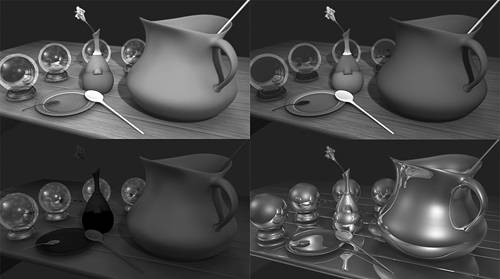
Using CompositorsMost compositors use a timeline that progresses from left to right. The elements of a shot appear in layers on the timeline and can stop or start at different points in time. Some elements might be a fixed image, but most are image sequences; a 60-frame sequence is usually set to overlay during a 60-frame period of the timeline. The top layer in the timeline overlays the second layer, and so on. The bottom layer is the background plate. Popular compositors include Adobe's After Effects, Discreet's Combustion, Nothing Real's Shake, In-Sync's Speed Razor, Puffin Design's Commotion, and Eyeon's Digital Fusion. Using the Use Background Material and Alpha ChannelsFor any layer of a composite to overlay the layers beneath it, a mask is required. Instead of cutting out each object in each frame manually with a photo editor, you can have Maya render objects with mask (known as alpha) channels included. The alpha channel is a grayscale mask image, with black signifying transparent, white signifying opaque, and the 254 gray levels in between defining levels of semitransparency. Besides cutting out the object, the mask supports soft masking, handling problems such as transparency (for non-opaque materials such as glass), and the antialiased edges of objects (refer to Figure 16.16 to see the alpha channel). Alpha channels are critical for getting believable results from your composite. Sometimes, objects aren't easy to overlay. For example, you might have a scene with a car pulling out from behind a building, turning into the camera, driving in front of the building, and then turning out of range, disappearing behind another building. In this case, you would not render the car object by itself. You would include the objects that obscure the car and give them a Use Background material type. This special material renders as though there's a hole in the image directly to the background, and these areas of the image don't appear in the rendered image's alpha (mask) channel. Objects with this material are "chameleon" objects that make anything they're applied to and all the objects behind them invisible. However, they can still receive shadows and reflections. In the car example, you would bring in the outer geometry of the buildings' first floors and assign a Use Background material to them. The car would then automatically disappear as it drove behind the Use Background buildings. Use Background materials can also be used to create a surface that does not appear in renderings except for where it receives shadows. In the car example, there's no easy way to get the shadows under the car to appear on any layer. Instead, you would create a special "car shadow" layer. To do this, you would apply a Use Background material to the streets, set so that the streets appear only in the alpha channel in the areas with shadows. You would also apply a Use Background material to the entire car so that the car casts shadows but renders as transparent. This rendering pass would produce just the shadows for you to composite behind the car. Thinking in LayersAs you can see, it takes thought and planning to pull off a complex composited shot. It's unlikely that you could create a large shot, such as a cityscape fly-through, without resorting to compositing, however. As you become familiar with your compositing software's capabilities, you'll know which slower 3D functions are best handled by the fast 2D compositor. The best approach is to try some challenging test projects and experiment with methods that combine the most flexibility with the fastest revision time (edit the scene, then render and/or composite again). In production, your main challenge is to meet clients' requests for edits without missing deadlines. Magazines such as Cinefex and 3D World offer advice from real-world film and television projects, and often include articles with battle-proven compositing solutions from experienced users. Maya's Render LayersAn additional level of flexibility is built into Maya 5 in the form of render layers. If you open the Render Globals window, you see the Render Layer/Pass Control option, which enables you to render parts of the image to separate images. Rendered attributes, such as shadows and specularity, can be brought into your compositor separately, so that you can quickly handle changes such as blurring or colorizing shadows to simulate light changes, or blurring and brightening specular highlights for a dreamier look. Figure 16.17 illustrates the contents of the various passes. Figure 16.17. Maya's render layers, clockwise from top left: beauty pass (normal render), diffuse, specular, and reflection.
|


EAN: 2147483647
Pages: 198