Flylib.com

Books Software


Using a Monospaced Font


Using a Monospaced Font

Every visitor to your page has two fonts specified in their browser's preferences: one regular, proportionally spaced one, and the other monospaced, like a typewriter's text. These are usually Times and Courier, respectively. If you are displaying computer codes, URLs, or other information that you wish to offset from the main text, you might want to format the text with the monospaced font.

Use code for formatting computer code in languages like C or Perl. The tt element (it stands for typewriter text) is for general monospaced text. Use kbd for formatting keyboard instructions. And samp is for displaying sample text. None of these tags is used very often. The truth is that monospaced text is kind of ugly.

To format text with a monospaced font:

1.

Type <code> , <tt> , <kbd> , or <samp> .

2.

Type the text that you want to display in a monospaced font.

3.

Type </code> , </tt> , </kbd> , or </samp> . Use the tag that matches the one you chose in step 1.

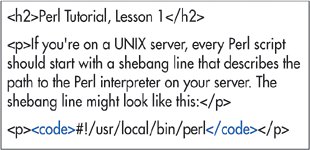
Figure 4.6. The code element not only formats its contents with a monospaced font but also indicates that the contents are computer code. It's a logical g tag.


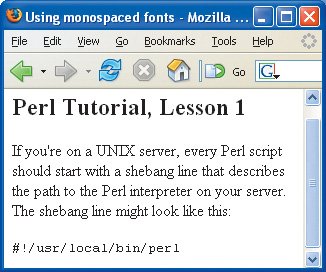
Figure 4.7. Monospaced text is perfect for URLs and computer code.


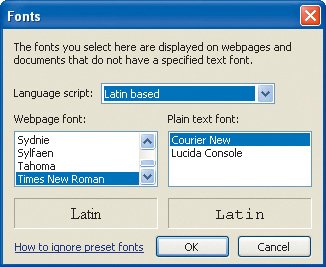
Figure 4.8. Text tagged with code , kbd , samp , or tt will be displayed in the font that your visitors have chosen for monospaced text in their browser. The Fonts box from IE 7 (shown) comes up when you choose Tools > Internet Options and then click the Fonts button in the General tab.


Tips

  • Remember that the monospaced font tags will not have a very dramatic effect in browsers that display all their text in monospaced fonts (like Lynx: http://www.delorie.com/web/lynxview.html ).

  • You can also format several lines of monospaced text with the pre tag (see page 73) .

  • You can apply any font (that your visitor has installed) to your text with styles (see page 152) .


Using Preformatted Text

Usually, browsers collapse all extra returns and spaces and automatically break lines according to the size of the window. Preformatted text lets you maintain the original line breaks and spacing that you've inserted in the text. It is ideal for computer code examples.

To use preformatted text:

1.

Type <pre> .

2.

Type or copy the text that you wish to display as is, with all the necessary spaces, returns, and line breaks.

3.

Type </pre> .

Figure 4.9. The pre element is ideal for text that contains important spaces and line breaks, like the chunk of Perl CGI code shown above.


Figure 4.10. Notice how the line breaks, including the extra return between the third and fourth lines of code, are maintained .


Tips

  • Preformatted text is generally displayed with a monospaced font like Courier. You can use styles to change the font, if you like (see page 152) .

  • If what you want to display contains (X)HTML elements, you'll have to substitute the appropriate character entities for the greater than and less than signs (namely &gt; and &lt; , respectively). Otherwise the browser will try to display those elements; the pre tag works no magic on them. For more information, consult Adding Characters from Outside the Encoding on page 336.

  • You can also use styles to maintain line breaks and spaces (see page 164) .

  • Note that pre is block-level while the tags on page 72 are all inline.