Section 3.4. The Finder Toolbar
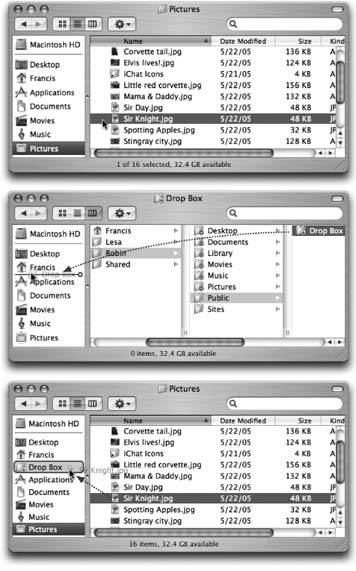
At the top of every Finder window is a small set of function icons, all in a brushed-aluminum row (Figure 3-8). The first time you run Mac OS X, you'll find only these icons on the toolbar:
|
-
Back, Forward . As in Windows, the Mac OS X Finder works something like a Web browser. Only a single window remains open as you navigate the various folders on your hard drive.
The Back button returns you to whichever folder you were just looking at. (Instead of clicking Back, you can also press
 -[, or choose Go
  Backparticularly handy if the toolbar is hidden .)
 The Forward button springs to life only after you've used the Back button. Clicking it (or pressing
-]) returns you to the window you just backed out of. -
View controls . The three tiny buttons next to the Forward button switch the current window into icon, list, or column view, respectively.
-
Action . This pop-up menu shows the same commands as the Finder's shortcut menu, which you summon by Control-clicking inside a folder (or on the desktop).
-
Search bar . This little round-ended text box is yet another entry point for the Spotlight feature described in Chapter 2. As you type into it, the window turns into a search-results window showing only matches within the currently open window . Once you've typed a couple of letters , you'll see the proof: The location bar (at the top of the window, where it says Servers, Computer, Home, and so on) identifies "Folder 'Pictures,'" or whatever the open window's name is.
|
3.4.1. Removing or Shrinking the Toolbar
Between the toolbar, the Dock, the Sidebar, and the unusually large icons of Mac OS X, it almost seems like there's an Apple conspiracy to sell big screens.
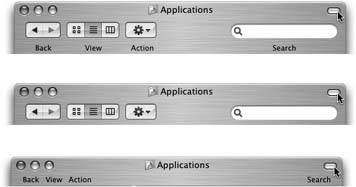
Fortunately, the toolbar doesn't have to contribute to that impression . You can hide it with one clickon the white, oval "minimalist Finder window" button (Figure 3-8). You can also hide the toolbar by choosing View Hide Toolbar or pressing Option- -T. (The same keystroke, or choosing View Show Toolbar, brings it back.)
But you don't have to do without the toolbar altogether. If its consumption of screen space is your main concern, you may prefer to simply collapse itto delete the pictures but preserve the text buttons.
The trick is to -click the Old Finder Mode button. With each click, you make the toolbar take up less vertical space, cycling through six variations of shrinking icons, shrinking text labels, and finally labels without any icons at all (see Figure 3-8).
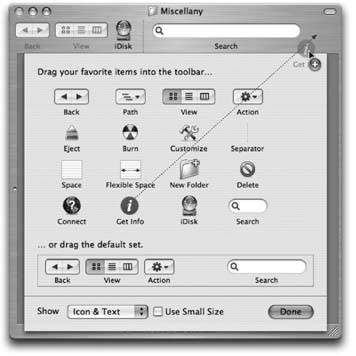
There's a long way to adjust the icon and label sizes, too: Choose View Customize Toolbar (or Option- click the Old Finder Mode button). As shown in Figure 3-9, the dialog box that appears offers a Show pop-up menu at the bottom. It lets you choose picture-buttons with Icon Only, or, for the greatest space conservation, Text Only. You can see the results without even closing the dialog box. Click Done or press Enter to make your changes stick.
Note: In Text Only mode, the three View buttons become a little pop-up menu. Furthermore, the Search bar (Section 2.14) turns into a one-word button called Search. Clicking it brings up the Finder-window version of the Spotlight dialog box (Section 2.14).
|
3.4.2. Adding New Icons to the Toolbar
Mac OS X not only offers a collection of beautifully designed icons for alternate (or additional) toolbar buttons, makes it easy for you to add anything to the toolbar, turning the toolbar into a supplementary Dock or Sidebar.
3.4.2.1. Apple's toolbar icon collection
To see the optional toolbar icons that Apple has prepared for you, choose View Customize Toolbar. The window shown in Figure 3-9 appears.
This is your chance to rearrange the existing toolbar icons or delete the ones you don't use. You can also add any of Apple's buttons to the toolbar simply by dragging them from the "gallery" upward onto the toolbar itself. The existing icons scoot out of your cursor's way, if necessary.
Most of the options listed in the gallery duplicate the functions of menu commands. Here are a few of the options that don't appear on the standard toolbar:
-
Path . Most of the gallery elements are buttons, but this one creates a pop-up menu on the toolbar. When clicked, it reveals (and lets you navigate) the hierarchythe path of folders that you navigate to reach whichever window is open. ( Equivalent :
-clicking a window's title bar, as described on Section 1.11.3.) -
Customize . This option opens the toolbar-customizing window that you're already examining. ( Equivalent : The View
Customize Toolbar command.) -
Separator . This is the only gallery icon that doesn't actually do anything when clicked. It's designed to set apart groups of toolbar icons.
-
Space . By dragging this mysterious -looking item into the toolbar, you add a gap between the icons to its sides. A space is about as wide as one icon. (The rectangular outline that appears when you drag it won't actually show up once you click Done.)
-
Flexible Space . This icon, too, creates a gap between the toolbar buttons. The difference is that this time, the gap will expand as you make the window wider. Now you know how Apple got the Search box, for example, to appear off to the right of the standard toolbar, a long way from its clustered comrades to the left.
-
New Folder . Clicking this button creates a new folder in whichever window you're viewing. ( Equivalent : The File
New Folder command, or the Shift- -N keystroke). -
Delete . This option puts the highlighted file or folder icons into the Trash. ( Equivalent : The File
Move to Trash command, or the -Delete keystroke.)
Tip: The New Folder and Delete icons are among the most valuable ones to put on your toolbar. They represent functions you'll probably use often.
-
Connect . If you're on an office network, opens the Connect to Server dialog box so that you can tap into another computer. ( Equivalent : The Go
Connect to Server command, or the -K keystroke.) -
Default set . If you've made a mess of your toolbar, you can reinstate its original, factory-installed arrangement just by dragging this rectangular strip directly upward onto your toolbar.
Note: If a window is too narrow to show all the icons on the toolbar, you will see, at the right end of the toolbar, a >> symbol. Click it for a pop-up menu that names whichever icons don't fit at the moment. (You'll find this toolbar behavior in many Mac OS X programs, not just the Finder: Preview, Mail, Activity Monitor, and so on.)
3.4.2.2. Adding your own stuff
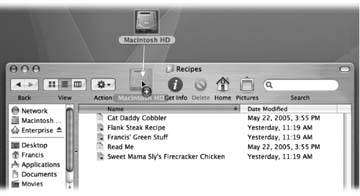
You can drag any icons at all onto the toolbarfiles, folders, disks, programs, or whateverto turn them into one-click buttons. Figure 3-10 shows you how.
|
3.4.3. Rearranging or Removing Toolbar Icons
You can drag toolbar icons around, rearranging them horizontally, by pressing as you drag. Taking an icon off the toolbar is equally easy: While pressing the key, just drag the icon clear away from the toolbar. It vanishes in a puff of cartoon smoke.
![Switching to the Mac[c] The Missing Manual](/icons/blank_book.jpg "Switching to the Mac[c] The Missing Manual")
EAN: N/A
Pages: 371