Lesson 4: Troubleshooting Outlook
Most problems that occur with Outlook have to do with incorrect user names, passwords, and e-mail addresses, and these issues result in problems with sending and receiving e-mail. Other problems occur when end users make their own changes to the application, which can cause problems with the interface or the ability to connect to the ISP or e-mail server. In this section, you learn how to resolve common problems such as these.
After this lesson, you will be able to
-
Resolve problems resulting from an incorrect name or e-mail address.
-
Resolve common interface problems.
Estimated lesson time: 10 minutes
Resolving an Incorrect Name or E-Mail Address
If any typographical errors were made during the creation of the user’s e-mail account, if the user changed departments and needs his or her e-mail name or address altered, if the user wants replies to go to a different e-mail address than the one configured, or if the user has independently made changes to his or her e-mail settings, he or she might encounter problems in sending or receiving e-mail, or he or she might report that the name or organization is not correct on e-mails sent to others. Users who change positions, get promoted, earn degrees or certifications, or get married might want a new title (or name) in their e-mail as well. If a user reports errors or needs changes along these lines, make the changes from the E-Mail Accounts Wizard as follows:
-
Open Outlook, click Tools, and click E-Mail Accounts.
-
In the E-Mail Accounts Wizard, under E-Mail, click View Or Change Existing E-Mail Accounts. Click Next.
-
In the E-Mail Accounts dialog box, select the e-mail account to configure. Click Change.
-
Verify the values for User Information, Server Information, and Logon Information, and make changes as needed. Click Test Settings to verify that the information is correct.
-
Click More Settings, and in the Internet E-Mail Settings dialog box, view the tabs and make changes as needed. Click OK when finished. Click Next and Finish to close the E-Mail Accounts Wizard.
Almost all problems relating to typographical errors or changing a user’s name or e-mail address can be solved by using this utility.
Common Interface Problems
The Outlook interface can be changed to reflect the needs and preferences of any user. For the most part, changes made to the interface are achieved by using the View menu options, using the Go menu options, and by customizing the toolbars using the Customize dialog box. Although interface changes are generally easy to configure, when new users make changes on their own they sometimes encounter problems later in locating items they need. Table 4-2 details some items that a user might report as missing and the procedure for getting those particular components back. Figure 4-13 shows Outlook 2003 and the available panes and toolbars.
| End-User Issue | Procedure for Resolution |
|---|---|
| Navigation pane is missing. | Click View, and check Navigation Pane. |
| Reading Pane is missing or in the wrong area of the interface. | Click View, point to Reading Pane, and click Right or Bottom. |
| E-mails are arranged in the wrong order. | Click View; point to Arrange By; and choose Date, Conversation, From, To, Folder, Size, Subject, Type, Flag, Attachments, E-Mail Account, Importance, Categories, or Custom. |
| Cannot preview e-mail messages in Inbox. | Click View, and click AutoPreview. |
| Missing Task pane, Standard toolbar, Advanced toolbar, or Web toolbar. | Right-click the Menu bar, and select the missing item. |
| Missing Status Bar. | Click View, and check Status Bar. |
| Cannot view items in the Navigation pane, or the Navigation pane has changed. | Click Go, and click the item to display in the Navigation pane. |
| Needed commands are missing from the toolbars and menus. | Right-click an empty area of the Menu bar, click Customize, and from the Commands tab, choose the items to add. Drag the item to the correct area of the toolbar or menu. Click the Options tab to reset menus and toolbars and perform other customizations. |
| Items in the Navigation pane are not needed. | Click Tools, click Options, and click the Other tab. Click Navigation Pane Options, and in the Navigation Pane Options dialog box, clear unwanted items. |
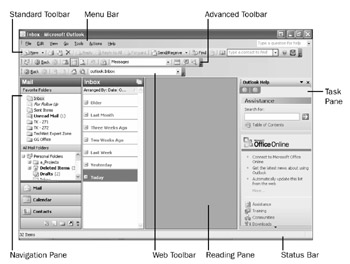
Figure 4-13: Default panes and toolbars in Outlook.
Many other settings are available for end users, all of which can be configured through the available menus and dialog boxes. Familiarize yourself with all aspects of both Outlook and Outlook Express.
Practice: Test Outlook 2003 Account Settings
In this practice, you will test account settings in Outlook 2003.
-
Log on to Windows XP.
-
Open Outlook, select the Tools menu, and select E-Mail Accounts.
-
In the E-Mail Accounts Wizard, under E-Mail, click View Or Change Existing E-Mail Accounts. Click Next.
-
In the E-Mail Accounts dialog box, select the e-mail account to configure. Click Change.
-
Verify the values for User Information, Server Information, and Logon Information, and make changes as needed.
-
Click Test Settings to verify that the information is correct.
-
Click More Settings, and in the Internet E-Mail Settings dialog box, view the tabs and make changes as needed. Click OK when finished. Click Next and Finish to close the E-Mail Accounts Wizard.
Lesson Review
The following questions are intended to reinforce key information presented in this lesson. If you are unable to answer a question, review the lesson materials and try the question again. You can find answers to the questions in the “Questions and Answers” section at the end of this chapter.
-
A user has recently set up an e-mail account in Outlook and is having trouble accessing his e-mail server. When he tries to send and receive in Outlook, he gets a dialog box that asks for his user name and password. No matter what he types in the box, it does not work. Why might Outlook be showing the user this dialog box? What can you do to help the user?
-
Match the interface problem on the left with the solution on the right.
1. Navigation pane is missing.
a. Click Go, and click the item to display in the Navigation pane.
2. Reading Pane is missing or in the wrong area of the interface.
b. Click View, and check Navigation Pane.
3. E-mails are arranged in the wrong order.
c. Right-click the Menu bar, and select the missing item.
4. Missing Task pane, Standard toolbar, Advanced toolbar, or Web toolbar.
d. Click Tools, click Options, and click the Other tab. Click Navigation Pane Options, and in the Navigation Pane Options dialog box, clear unwanted items.
5. Cannot view items in the Navigation pane, or the Navigation pane has changed.
e. Click View; point to Arrange By; and choose Date, Conversation, From, To, Folder, Size, Subject, Type, Flag, Attachments, E-Mail Account, Importance, Categories, or Custom.
6. Items in the Navigation pane are not needed.
f. Click View, point to Reading Pane, and click Right or Bottom.
Lesson Summary
-
Errors made while entering user names and passwords lead to errors retrieving messages. To resolve such problems, always double-check server names, user names, and passwords against what has been entered. Use Outlook’s automatic testing features to make sure account information is entered correctly.
-
The Outlook interface can be changed to reflect the needs and preferences of any user. For the most part, changes made to the interface are achieved by using the View menu options, by using the Go menu options, and by customizing the toolbars by using the Customize dialog box.
![McDst Self-Paced Training Kit (Exam 70-272(c) Supporting Users and Troubleshooting Desktop Applications on a[... ]ystem)](/icons/blank_book.jpg "McDst Self-Paced Training Kit (Exam 70-272(c) Supporting Users and Troubleshooting Desktop Applications on a[... ]ystem)")
EAN: N/A
Pages: 237