Lesson 4: Overview of Basic Troubleshooting
This lesson discusses the techniques involved with resolving service calls. The most important part of troubleshooting is asking pertinent questions and listening to and making notes of the answers. After you have asked the proper questions and made notes of the answers, you will need to formulate a plan of action for researching and isolating the problem and then for resolving the call.
After this lesson, you will be able to
-
Describe the questions that you should ask to help determine the problem.
-
Explain what the answers to those questions can tell you.
-
Explain general troubleshooting procedures.
-
Describe places you can turn to for help locating answers.
-
Explain how to attempt solutions without making the problem worse.
Estimated lesson time: 50 minutes
Asking Who, When, What, Why, and How
A reporter or police officer asks these questions to obtain the required information to perform his or her job, and you will ask the same questions in your role as a DST. The information that you acquire helps you determine why the problem occurred. Then, with that knowledge, you can often resolve the problem on your own. The following sections list some common questions and possible answers.
Who?
The following questions will help you identify the person affected by a problem.
-
Who was using the computer when the problem first occurred?
-
Who else has been using the computer, and have they experienced similar problems?
-
Who has worked on this problem previously (if it has happened before)?
-
Who has the same problem on another computer (that you know of)?
The answers to these questions tell you who has firsthand knowledge of the problem and whether other users who access the same computer (under a different account) also encounter the problem. If multiple users have access, but only one user encounters the problem, you have already narrowed the issue. You will also learn from these questions who has worked on the problem before (you might find out that the user has) and whether other users on the network are having the same problem on their computers. If the latter is true, the problem could be a network-wide problem, such as a security policy issue, a virus, or some other glitch in the entire system.
When?
The following questions will help you determine when a problem occurred and establish a timeline of activities that might relate to the problem.
-
When did this problem occur the first time, and has it occurred since?
-
When was the last time you downloaded or installed an application?
-
When was the last time you installed new hardware?
-
When did you last clean your hard drive with Disk Cleanup or Disk Defragmenter, delete temporary files or cookies, or perform similar deletions of data?
-
When was the last time you uninstalled any applications?
The answers to these questions tell you how long the user has had this problem, whether the problem occurred after the user installed a new piece of hardware or a new application, and whether the user routinely maintains the computer. If the problem occurred after installing or uninstalling hardware or software, you have a good lead. Asking pointed questions about maintenance can also be helpful for finding out whether the user has recently cleaned out program or system folders, or has deleted any necessary files.
What?
The following questions will help you find information about what the user thinks may be the cause of the problem and any solutions the user has already attempted.
-
What are your thoughts on what caused the problem?
-
What have you tried doing to troubleshoot the problem yourself?
-
What do you think can be done to solve the problem?
The answers to these questions tell you what the user believes happened and give you an opportunity to involve him or her in the solution. Asking the user what he or she thinks can be done to solve the problem could also reveal a very simple solution. If the user recently reconfigured settings for a program or uninstalled a necessary file or program, you know where to begin. If the user has already tried to troubleshoot the problem, you need to know what changes he or she has made. Finally, if the user thinks that reconfiguring the e-mail account will solve the problem, he or she might have been doing something to that account earlier, but does not want to admit it.
Why and How?
The following questions can often summon up a solution quickly.
-
Why do you think the problem occurred?
-
How do you think the problem occurred?
If the user says, “The problem occurred because I spilled coffee on the keyboard,” or “The problem occurred because I opened an attachment in an e-mail,” you know exactly where to start. Keep in mind, however, that these answers will not always be useful; they might sometimes even be misleading. (A user might have opened an attachment, but might tell you he or she did not, for instance.) Remember, you are the expert.
As you work through these questions with an end user, document the answers carefully, listen to everything he or she has to say, be polite and professional, and make notes of possible solutions as you think of them. If you need to, leave the situation for a few minutes to digest the information and then check company documentation, online support, or other resources for answers.
 |
When you begin working at a telephone call center, a company, a home business, or an ISP as a tier 1 DST, you should expect to ask your end users specific questions that are already written for you in the form of a script. However, as you move up the ladder and work through the natural progression of gaining expertise and experience, you will move from following a script to building your own repertoire of queries. As you internalize your knowledge, you will start to learn and understand how to resolve problems on your own. Keeping in mind that you will probably start your first tier 1 position reading questions already written for you, in this section you will learn what types of questions to ask when you are required to work through the resolution process on your own.
|
Reproducing the Problem
If you or the end user can reproduce the problem, you will have quite a bit of additional information to work with. Problems that cannot be reproduced, such as applications that shut down for no apparent reason, are much more difficult to diagnose than those that can be reproduced, such as being unable to send or receive e-mail. If the end user can reproduce the problem, make a note of which applications were open and which components were being used, and then troubleshoot those applications and their configurations.
| Caution | Do not try to reproduce any problem that has previously caused loss of data or is a known network problem, such as a virus or worm. Doing so can cause additional problems and further damage. |
Understanding General Troubleshooting Procedures
If you work for an ISP or a telephone call center, your plan of action might involve only reading a set of directions from a script and escalating the call up a tier, but it is still a course of action. If you have already determined a solution and solved the problem, you need to only document your solution.
If you own your own business or are otherwise on your own when fielding a service call, solving the problem might involve more groundwork. When physically assisting users in their homes or at their desks, it is not quite so easy to turn the call over to someone else. If you own your own business, conferring with someone else can cost you time and money, as well as clients. If you walk across the corporate campus to field a call, calling in someone else means waiting for them to arrive and then explaining the problem again. In either instance, when you are given more responsibility for servicing calls, you must have a plan of action for uncovering, documenting, and resolving the call without another DST. In this section, you will learn the steps involved in resolving a service call on your own, instead of calling in another DST or escalating the call. In general, a specific procedure should be followed, and a common technique is listed here.
To locate answers and to determine a solution after speaking with the end user, follow these general steps. (Each step is detailed in the following sections.)
-
Locate a solution by searching the computer’s Help And Support Center. If you find a solution, attempt to solve the problem and document the solution. If the solution does not work, document that as well, and undo any changes made to the computer.
-
Locate a solution by searching the company’s support files. If you find a solution, attempt to solve the problem and document the solution. If the solution does not work, document that as well, and undo any changes made to the computer.
-
Search manufacturers’ websites. If you find a solution, attempt to solve the problem and document the solution. If the solution does not work, document that as well, and undo any changes made to the computer.
-
Search technical sites. If you find a solution, attempt to solve the problem and document the solution. If the solution does not work, document that as well, and undo any changes made to the computer.
-
Search newsgroups. If you find a solution, attempt to solve the problem and document the solution. If the solution does not work, document that as well, and undo any changes made to the computer.
-
If you do not find a solution, document the information and attempted solutions, and undo any changes made to the computer during the troubleshooting process.
-
Escalate the call.
-
When the problem is solved, document the solution.
The troubleshooting process covered in the preceding steps is shown in further detail in the flowchart in Figure 1-3.
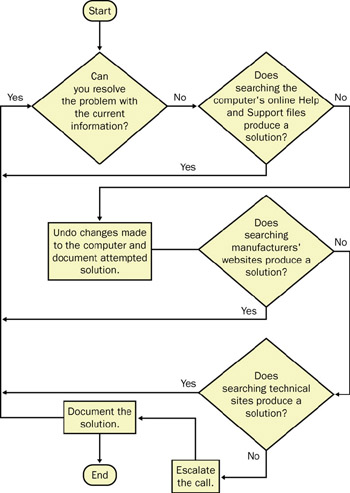
Figure 1-3: Troubleshooting a problem is best done systematically.
Locating the Answers
There are several places to look for help in troubleshooting a computer problem, and if you have good research skills, you will most likely be able to locate a solution without escalating the call. Because escalations require more work, more downtime, and more expense for both you and the end user, you should do all you can to resolve calls without having to call in someone else to help. As for finding a solution, chances are quite good that this is not the first time an end user has encountered this problem, and the answer will probably be easy to find either in company documents or on the Internet.
| Tip | The ability to research and find answers is not an innate skill; a good researcher learns where to look for answers. |
Help And Support Center
The Help And Support Center should be the first place you look for information about common operating system problems. Window’s Help And Support Center offers information ranging from performing basic tasks such as logging on and off to complex ones such as working remotely. It also offers tools to help you access advanced system information, check network diagnostics, and run software and hardware troubleshooting wizards. Figure 1-4 shows the default Help And Support Center for Microsoft Windows XP Professional. It is easy to use—simply browse the categories or type in a few keywords.
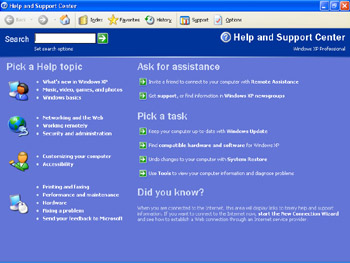
Figure 1-4: The Windows XP Professional default Help And Support Center page offers an abundance of information.
Company Documentation
As time passes, more and more businesses customize the help files in the Help And Support Center so that the files offer resources to end users that are specific to their department, job role, company, or domain. This localized help information is useful— not only to the end user, but also to DSTs who do not work for the company and are instead hired as vendors or contract employees. Computer manufacturers already personalize help files for home users and include help files directly related to the user’s specific computer configuration.
| Exam Tip | Always determine the manufacturer and model of a computer first. Some manufacturers change default Windows settings, include modified help files, and install custom diagnostics software. Often, you can take advantage of these inclusions. At a minimum, you should be aware of their presence when proposing solutions. |
Targeted help such as this enables users to locate answers to their own problems easily, and it allows you to access information quickly as well. Figure 1-5 shows an example of a customized Help And Support Center interface, created by Sony Corporation for the home user. Notice that there are additional help topics, including “VAIO User Guide,” “VAIO Multimedia,” and “VAIO Support Agent Help.” These topics are specific to the machine, and they can be quite helpful for troubleshooting computer problems.
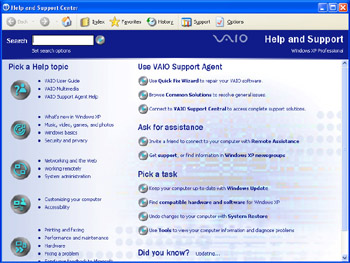
Figure 1-5: Help And Support Center pages can be customized.
Depending on your work environment, this type of customized documentation might be available. At the very least, almost every company offers some access to a database that contains answers to commonly asked questions. If you cannot find the answer to your troubleshooting query using the Windows Help And Support Center, try the manufacturer’s website.
Manufacturers’ Websites
Many times, a problem occurs because a piece of hardware has failed, a device driver is corrupt, new software is incompatible with Windows XP or other installed software, or a computer’s basic input/output system (BIOS) needs updating. You can research these problems and others through a manufacturer’s website. Websites are an especially appropriate tool when troubleshooting a home user’s computer or a computer that has recently been upgraded from one operating system to another. If you have yet to find the problem and a troubleshooting wizard has listed hardware, software, or BIOS problems as the culprit, visit the manufacturer’s website for help and updates.
| Tip | Home users are more likely to install new drivers, applications, and third-party utilities than office users—mainly because companies place more limitations on office users. Office users are often not allowed to install devices and applications because of network policies. When troubleshooting a home user’s computer, make sure that you know what has been installed recently; a new hardware device might be causing the problem. When troubleshooting for an office user, make sure that the user is (or you are) allowed to implement the proposed solutions. |
The Microsoft Knowledge Base
The Microsoft Knowledge Base (available at http://support.microsoft.com/default.aspx) offers answers to known issues and can be of significant help when you are trying to solve seemingly unresolvable issues. Figure 1-6 shows the Microsoft Help And Support website, in which Knowledge Base and other resources can be accessed. Notice that you can also access announcements, link to visitors’ top links, acquire downloads and updates, get product support, and locate other support centers (for Microsoft Outlook, Windows 2000, and so on).
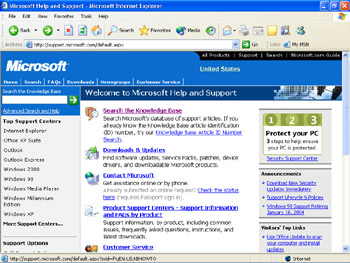
Figure 1-6: The Microsoft Knowledge Base offers solutions to known issues.
The Knowledge Base contains support articles that are identified by an ID number, and you can search for information using that number or using keywords. These articles address known issues with the operating system, third-party software, and hardware; and they provide workarounds and solutions. The Knowledge Base also offers how-to articles, such as KB 291252, “HOW TO: Publish Pictures to the Internet in Windows XP,” and KB 813938, “How to Set Up a Small Network with Windows Home Edition” (the first part of a series of articles on the subject).
Search the Knowledge Base after you have tried the previous options and when you need to know the following:
-
Why a specific piece of hardware such as a camera, scanner, printer, or other device does not work as expected and the problem can be reproduced easily
-
Why a specific third-party application does not install, does not start, does not work as expected, or produces error messages
-
How to resolve operating system errors, including boot errors, problems during installation, access violation errors, and standby problems; and how to resolve other known issues
-
How to create boot disks, view system requirements, configure file associations, or perform other common tasks
-
How to resolve errors that occur when accessing operating system components, such as when configuring system properties or using System Restore
-
What a stop error message means and how to resolve it
-
How to resolve errors that occur after installing updates
Note Search the Knowledge Base for the specific error message if a text message exists. This is an especially helpful resource when the error is caused by third-party software or hardware. Information about third-party tools is not available in the Windows XP help files.
TechNet
Microsoft TechNet (http://www.microsoft.com/technet/default.mspx/) offers comprehensive help on applications; operating systems; and components such as Active Directory, Microsoft Internet Explorer, and Windows XP Professional—including planning, deployment, maintenance, and support. You can also access information about security, get downloads, read how-to articles, read columns, and access troubleshooting and support pages. Because your job will revolve around troubleshooting and resolving end user requests, you will likely spend most of your time accessing the troubleshooting pages. A sample TechNet page is shown in Figure 1-7.
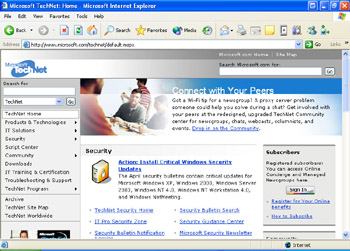
Figure 1-7: A TechNet page provides a wealth of information that is written for IT professionals.
Much of the information available from TechNet, including the Knowledge Base, is also available through the Microsoft Help And Support website, but TechNet is more geared toward information technology (IT) professionals. You will find that the articles from TechNet are often more technical and sometimes more slanted toward large organizations and networks. Both the TechNet and the Microsoft Help And Support websites are useful sites, and you will develop a feel for which is the most useful in different situations.
Search the TechNet support pages after you have tried the Microsoft Help And Support website and when you need to do any of the following:
-
Locate product documentation
-
View the latest security bulletins
-
Get information about service packs, Windows updates, and drivers
-
Get help with dynamic-link library (DLL) errors
-
Subscribe to TechNet
-
Locate highly technical information about technologies
Note TechNet offers two types of annual subscriptions for a single user or a single server: TechNet Standard and TechNet Plus. Prices for subscriptions range from around $350 to $1,000 (U.S.). A one-year subscription delivers up-to-date technical information every month, including the complete Knowledge Base and the latest resource kits, service packs, drivers and patches, deployment guides, white papers, evaluation guides, and much more. This information is on a set of CDs or DVDs that can be accessed anywhere and at any time—even when you cannot get online. Installing service packs from a disc is much faster than downloading them, which is another reason to consider the subscription. Finally, TechNet Plus offers beta and evaluation software, allowing you to gain experience with software before it is released to the public.
Newsgroups
Newsgroups are a valuable resource for locating answers that you are unable to resolve using any other method. Members of newsgroups are your peers in IT, computer enthusiasts, beginners, and advanced business or home users, and they have various abilities. Some are looking for answers, and some frequent the newsgroup to provide answers to issues they have resolved and to share their expertise. You can join a newsgroup that addresses the application or operating system you need help with, immediately post your question, and almost as quickly receive an answer. Sometimes, answers even come from Microsoft experts, such as Microsoft Most Valuable Professionals (MVPs). Microsoft MVPs are chosen based on their practical expertise in Microsoft technologies, and these MVPs are deemed experts in their fields.
You can access newsgroups in a number of ways, including the following:
-
To access newsgroups via a newsreader (the best method because you can access all of the newsgroups, and it is easiest to stay current this way), configure your newsreader to access the msnews.microsoft.com news server.
-
To access a full list of available newsgroups via the Web (a good choice if you do not have newsreader software), visit http://communities2.microsoft.com/
communities/newsgroups/en-us/default.aspx. -
To access newsgroups via the Microsoft Help And Support website, the Windows XP Expert Zone, or the TechNet website, visit those sites and click the Newsgroups link. Some people favor this method because the newsgroups are more clearly identified and are a bit more accessible. However, the newsgroups presented on these sites are just a subset of what is available.
You will find newsgroups for a variety of applications, operating systems, components, and levels of end user. Table 1-4 lists some of the available newsgroup categories, although each category can have multiple newsgroups (such as different newsgroups on Windows XP for subjects such as hardware, customizing, and networking).
| For Help With… | Join These Knowledge Base Newsgroups |
|---|---|
| Operating systems | microsoft.public.windowsxp microsoft.public.windowsme microsoft.public.windows.server |
| Internet Explorer | microsoft.public.windows.inetexplorer |
| Connectivity and networking | microsoft.public.windowsxp.network_web microsoft.public.windows.networking microsoft.public.certification.networking |
| Security | microsoft.public.security microsoft.public.security.virus microsoft.public.windowsxp.security_admin |
Working Through Possible Solutions
Working through a solution after you have found it requires a little more know-how than simply clicking the mouse a few times and then walking away or hanging up the phone. You will have to perform some prerepair and post-repair tasks such as ordering the solutions (if there are more than one), backing up the user’s data, and attempting the solutions and documenting the results. If a solution does not work, you will have to undo it, try another, and possibly escalate the problem as required by your company.
Attempting Solutions
Most of the time, you will find a single solution to your problem after researching it, and working through that solution will resolve the problem. Solutions you will uncover in a tier 1 position generally involve running a command-line utility, reconfiguring an e-mail account, installing an update, re-creating a network connection, reseating a card on the motherboard, or even simply rebooting the computer or removing a floppy disk from the A drive. However, no matter how simple the solution seems, you should always prepare for the worst. Before attempting any solution (besides removing a floppy disk or rebooting), perform as many of the following tasks as you can within your time frame, job scope, and corporate limitations:
-
Locate and make a note of previous settings so that you can revert to those if your solution fails or causes additional problems.
-
Order the solutions by listing solutions obtained from reputable sources first. (List Help And Support Center, Knowledge Base, TechNet, the manufacturer’s website, and so on first; and then list solutions found through newsgroups or third-party sites.)
-
Back up the end user’s data to a network resource, CD-R, or external hard disk.
-
Create a System Restore point.
-
Perform any additional tasks required by your company.
-
Completely document all attempted solutions and their results.
The higher you move up the tier ladder, the more of these tasks you will need to perform or be able to perform. If you provide phone support and work from a script, you might not be able to perform any of these tasks, but if you own your own business and visit the user on-site (or if you go to a user’s desk to solve the problem), you will likely have more leeway (and responsibility) and can do more.
| Caution | Protect the end user’s data at all costs. If that means postponing an attempt at a risky or an undocumented solution until another DST can back up the data or until you can bring in a CD-R drive to back up a home user’s data, you must wait. |
While working to repair the problem, if you attempt a solution that does not work, you must undo any changed settings, configurations, uninstalled programs, or other specific alterations to a computer before you attempt another solution. This is especially critical if you need to escalate the call; the next DST needs to see the computer in its previous state. In addition, fully test the solution that you think resolves the problem. For instance, verify that e-mail can be sent and received after you have changed POP3 mail settings, or make sure that the user can access a website after you have changed Internet Explorer’s privacy settings. Attempt solutions that are within your realm of responsibility too; do not perform a repair installation if that task is not on your list of repair options.
Documenting the Problem and Attempted Solutions
Documenting the problem, attempted solutions, and solutions that work are a major part of a DST’s job. Although companies, call centers, ISPs, repair shops, and small business owners each has its own way of documenting, documentation tasks usually involve creating (or accessing) a file for a specific client, subscriber, end user, or company computer and then updating that file each time there is a service call regarding it. The documentation might be handwritten on a documentation worksheet and then transferred to a computer file later (for home or desktop technical support), or it might be immediately entered into a computer (for call center or ISP technical support).
Depending on the job you hold and your position in the tier structure, you might be required only to fill in a few fields of a documentation worksheet. However, if you own your own company and keep your own records, you will want to keep much more detailed information. Here are a few items that you should almost always document, regardless of the type of job or position that you hold:
-
The date and time the service call was initiated
-
The name, address, phone number, logon information, and any other pertinent data that identifies the end user
-
The computer ID, operating system version, connection type, and installed applications, as appropriate
-
The problem in definite terms, with as much detail as time allows
-
The attempted solutions and the results
-
The solution or escalation information
-
Whether the issue has been resolved and how long the resolution took
Keeping customer and service call documentation (with even minimal information) is crucial to being a good DST, running a successful business, acquiring experience, or advancing in your field. Keeping a separate log of problems and solutions that you have dealt with can also become quite a reference tool; you can refer to your own personal documentation when the problem arises again with another client. In the next section, you will learn how to create a personal knowledge base.
Creating a Personal Knowledge Base
There are several options for collecting and maintaining the data you will compile while performing your job as a DST. Microsoft Excel and Microsoft Access make good databases and organizational tools, and third-party software might also be appropriate, depending on how much data you want to keep. Keeping your own personal knowledge base of problems you have encountered and their solutions can make it easier for you to access the answers to those problems the next time they arise.
When creating a personal knowledge base of problems and their solutions, document the following:
-
The problem in detail, using keywords so that a search for the problem or one similar to it will produce results
-
The cause of the problem, using keywords so that a search for the problem or one similar to it will produce results
-
The resource that offered a solution to the problem, including a Uniform Resource Locator (URL)
-
The solution
-
Problems that resulted from the solution (if any)
-
How many times the problem has been encountered and solved
Lesson Review
The following questions are intended to reinforce key information presented in this lesson. If you are unable to answer a question, review the lesson materials and try the question again. You can find answers to the questions in the “Questions and Answers” section at the end of this chapter.
-
Questions asked of clients often trigger quick solutions to basic problems. Match the question on the right to the solution it triggered on the left.
-
Who is affected by this problem?
-
When was the first time you noticed the problem? Was it after a new installation of software or hardware?
-
Has the user recently deleted any files or performed any maintenance?
-
How did this problem occur?
-
The user states that she recently deleted all temporary files and cookies from her computer, explaining why she is no longer able to automatically sign in to websites she visits.
-
John cannot send or receive messages using Outlook. It is determined that the problem is related only to his configuration of Outlook because other users who log on to the same computer under a different account can use Outlook to send and receive e-mail messages without any problem.
-
The keyboard keys are sticky because coffee was spilled on the keyboard.
-
The user states that the first time the computer acted strangely was after he installed a new screen saver.
-
-
Decide where to look first for solutions to the problems that are listed here. Match each question on the left to the appropriate choice on the right.
-
After a recent upgrade to Windows XP Professional, a user’s scanner no longer functions as it should. The user remembers that the scanner was listed as incompatible during the upgrade, and you believe that it might be a driver issue. Where will you likely find the new driver?
-
A user cannot access a network application. The application was designed specifically for the company and is not a Microsoft product or any other common third-party application. Where will you likely find information about this application?
-
You have searched the Knowledge Base and TechNet for the solution to a problem, but have not had any luck. Where should you look now?
-
You need to search through the latest security bulletins to find out whether the problem you are having is related to a known security problem. Which online resource offers access to these bulletins?
-
You need to find out why a home user’s camera does not work with the Windows Picture And Fax Viewer. Specifically, the Rotate tool causes the computer to freeze up each time it is used. Where should you look first?
-
You want to access the Hardware Troubleshooter to resolve a problem with a user’s sound card. Where can this troubleshooter be found?
-
Newsgroup
-
TechNet
-
Knowledge Base
-
Manufacturer’s website
-
Company documentation
-
Help And Support Center
-
-
Create three simple questions you could ask an end user who is having a problem accessing data on the network server, which would in turn provide answers to common connectivity problems. Explain what each solution might uncover. For instance, a yes answer to the question, “Has the computer been moved or bumped recently?” could indicate that a network card is loose inside the computer.
Lesson Summary
-
To resolve a service call, you must gather information, determine a solution, find and attempt solutions or escalate the call, test any solutions that you implement, and inform the end user of your findings.
-
To solve a problem, first get answers to the questions who, when, what, why, and how. The answers often point to a solution quickly.
-
To find a solution, search these resources in the following order: Help And Support Center, Help And Support website, company documentation, manufacturers’ websites, technical sites, and newsgroups. Apply possible solutions in the same order.
-
Before attempting any solution, back up the user’s data, create a System Restore point, and document previous settings and configurations if doing so is within your job role.
-
Always document the service call fully, including the user’s name, the computer ID, the problem, the attempted solution, the result, and how long it took to resolve the call.
![MCDST Self-Paced Training Exam 70-271(c) Supporting Users and Troubleshooting a Micro[... ]ystem](/icons/blank_book.jpg "MCDST Self-Paced Training Exam 70-271(c) Supporting Users and Troubleshooting a Micro[... ]ystem")
EAN: N/A
Pages: 195