Working with the ActionsPane Control
| A first step in understanding how VSTO's ActionsPane control works is delving a little into the architecture of VSTO's ActionsPane support. The ActionsPane ArchitectureThe Document Actions task pane is a window provided by Office that can host ActiveX controls, as shown in Figure 15.4. VSTO places a special invisible ActiveX control in the Document Actions task pane that in turn hosts a single Windows Forms UserControl. This UserControl is represented in the VSTO programming model by the ActionsPane controlaccessible in Word via Document.ActionsPane and accessible in Excel via Globals. This Workbook.ActionsPane. Figure 15.4. The four layers of the ActionsPane architecture.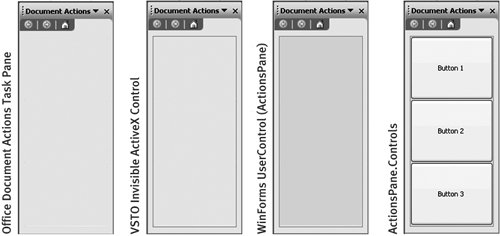 Although the Document Actions task pane can host multiple ActiveX controls, VSTO needs to put only a single ActiveX control and a single UserControl in the Document Actions task pane window, because the UserControl can host multiple Windows Forms controls via its Controls collection (ActionsPane.Controls). You can add Windows Forms controls to the ActionsPane by using the ActionsPane.Controls.Add method. The UserControl placed in the ActionsPane window is set to expand to fit the area provided by the ActionsPane window. If the area of the Document Actions task pane is not big enough to display all the controls hosted by the UserControl, it is possible to scroll the UserControl by setting the AutoScroll property of ActionsPane to true. The ActionsPane control is a wrapper around System.Windows .Forms.UserControl with most of the properties, methods, and events of a UserControl. It also adds some properties, events, and methods specific to ActionsPane. When you understand the architecture in Figure 15.4, you will not be too surprised to know that some properties from UserControl that are exposed by ActionsPanesuch as position-related properties, methods, and eventsdo not do anything. Because the position of the ActionsPane UserControl is forced to fill the space provided by the ActionsPane window, for example, you cannot reposition the UserControl to arbitrary positions within the Document Actions task pane window. Adding Windows Forms Controls to the Actions PaneThe basic way you add your custom UI to the actions pane is to add Windows Forms controls to the actions pane's Controls collection. Listing 15.1 illustrates this approach. First, it declares and creates an instance of a System.Windows.Forms.Button control. Then this control is added to the actions pane by calling the Add method of the Controls collection associated with the actions pane and passing the button instance as a parameter to the Add method. The actions pane is smart about arranging controls within the ActionsPane. If multiple controls are added to the Controls collection, the actions pane can automatically stack and arrange the controls. The stacking order is controlled by the ActionsPane.StackOrder property, which is of type Microsoft.Office.Tools.StackStyle. It can be set to None for no automatic positioning, or it can be set to FromTop, FromBottom, FromLeft, or FromRight. Figure 15.5 shows the effects of the various StackOrder settings. Figure 15.5. The results of changing the ActionsPane StackOrder setting, from top left:None, FromLeft, FromBottom, FromTop, and FromRight.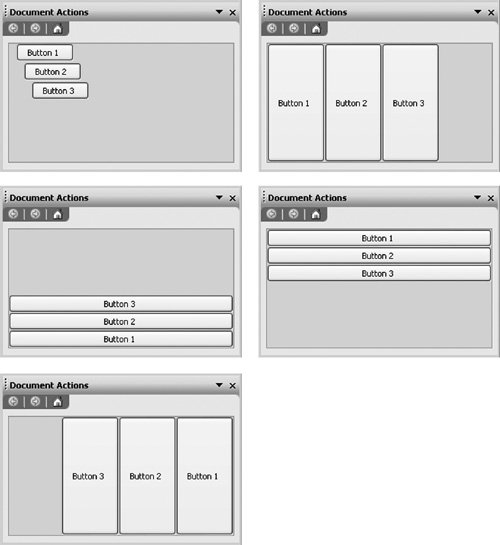 Listing 15.3 shows some code that adds and positions controls in the actions pane when StackOrder is set to StackStyle.FromBottom and automatically positioned or set to StackStyle.None and manually positioned. Listing 15.3. A VSTO Excel Customization That Adds and Positions Controls with Either StackStyle.None or StackStyle.FromBottom
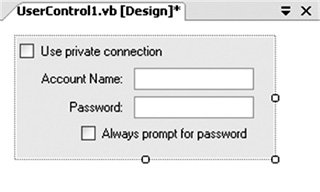
Adding a Custom User Control to the Actions PaneA more visual way of designing your application's actions pane user interface is to create a user control and add that user control to the ActionsPane's control collection. Visual Studio provides a rich design-time experience for creating a user control. To add a user control to your application, click the project node in Solution Explorer, and choose Add User Control from Visual Studio's Project menu. Visual Studio will prompt you to give the User Control a filename, such as UserControl1.vb. Then Visual Studio will display the design view shown in Figure 15.6. Figure 15.6. The design view for creating a custom user control.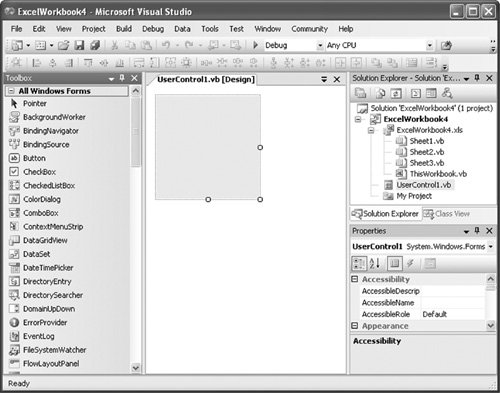 The design area for the user control has a drag handle in the bottom-right corner that you can drag to change the size of the user control. Controls from the toolbox can be dragged onto the user control design surface and positioned as desired. Figure 15.7 shows a completed user control that uses check boxes, text boxes, and labels. Figure 15.7. A custom user control. Listing 15.4 shows a VSTO Excel customization that adds this custom user control to the Document Actions task pane. The user control created in Figure 15.7 is a class named UserControl1. Listing 15.4 creates an instance of UserControl1 and adds it to ActionPane's Controls collection using the Add method. Listing 15.4. A VSTO Excel Customization That Adds a Custom User Control to the Task Pane
Figure 15.8 shows the Document Actions task pane that results when Listing 15.4 is run. Figure 15.8. The result of running Listing 15.4.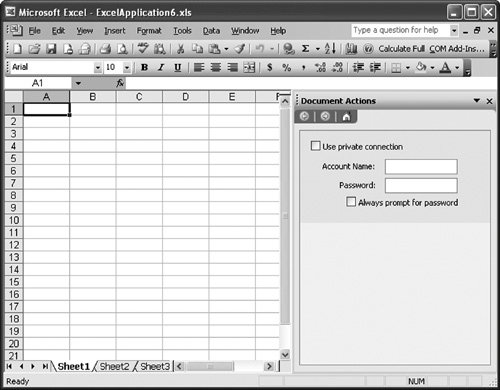 Contextually Changing the Actions PaneA common application of the ActionsPane is providing commands in the Document Actions task pane that are appropriate to the context of the document. In an order-form application, for example, the Document Actions task pane might display a button for selecting a known customer when filling out the customer information section of the document. When the user is filling out the order part of the document, the Document Actions task pane might display a button for examining available inventory. Listing 15.5 shows a VSTO Excel customization in which two named ranges have been defined. One, called orderInfo, is a range of cells where the contents of an order are placed. The other, called customerInfo, is a range of cells specifying the customer information for the customer placing the order. Listing 15.5 contextually adds and removes an inventoryButton when the orderInfo range is selected and a customerButton when the customerInfo range is selected or deselected. It does this by handling NamedRange.Selected and NamedRange.Deselected events. When the Selected event indicating the customerInfo range of cells is selected, Listing 15.5 adds a customerButton that, when clicked, would allow the user to pick an existing customer. Listing 15.5 removes the customerButton when the customerInfo.Deselected event is raised. It calls ActionsPane.Controls.Remove to remove the customerButton from the actions pane. Listing 15.5 is written in such a way that if the customerInfo range and the orderInfo range are selected at the same time, both the customerButton and the inventoryButton would be visible in the Document Actions task pane. Listing 15.5. A VSTO Excel Customization That Changes the Actions Pane Based on the Selection
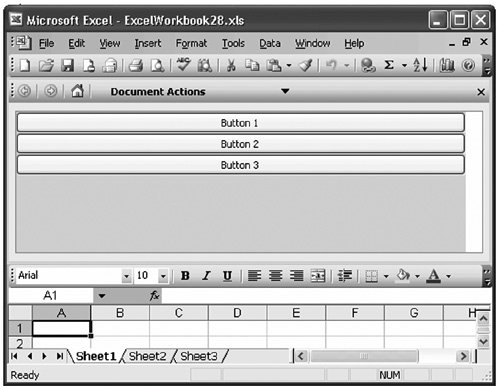
You can also change the contents of the Document Actions task pane as the selection changes in a Word document. One approach is to use bookmarks and change the contents of the Document Actions task pane when a particular bookmark is selected. A second approach is to use the XML mapping features of Word and VSTO's XMLNode and XMLNodes controls (described in Chapter 22, "Working with XML in Word") and to change the contents of the Document Actions task pane when a particular XMLNode or XMLNodes is selected in the document. Detecting the Orientation of the Actions PaneActionsPane has all the UserControl events documented in the .NET class libraries documentation and one additional event: OrientationChanged. This event is raised when the orientation of the actions pane is changed. The actions pane can be in either a horizontal or a vertical orientation. Figure 15.3 earlier in this chapter shows an actions pane in a vertical orientation. Figure 15.9 shows a horizontal orientation. Figure 15.9. The actions pane in a horizontal orientation. Listing 15.6 shows a VSTO Excel customization that adds several buttons to the ActionsPane's Controls collection. Listing 15.6 also handles the OrientationChanged event and displays the orientation of the ActionsPane in a dialog box. It determines the orientation of the actions pane by checking the ActionsPane.Orientation property. The Orientation property returns a member of the System.Windows.Forms.Orientation enumeration: either Orientation.Horizontal or Orientation.Vertical. Listing 15.6. A VSTO Excel Customization That Handles ActionsPane's OrientationChanged Event
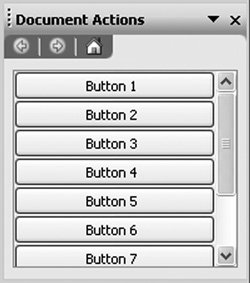
Scrolling the Actions PaneThe AutoScroll property of the ActionsPane gets or sets a Boolean value indicating whether the actions pane should display a scroll bar when the size of the Document Actions task pane is such that not all the controls can be shown. The default value of AutoScroll is true. Figure 15.10 shows a Document Actions task pane with ten buttons added to it. Because AutoScroll is set to TRue, a scroll bar is shown when not all ten buttons can be displayed, given the size of the Document Actions task pane. Figure 15.10. The actions pane when AutoScroll is set to true. Showing and Hiding the Actions PaneThe actions pane is shown automatically when you add controls to ActionsPane's Controls collection using the Add method. To show and hide the actions pane programmatically, you need to use the Excel or Word object model. In Excel, set the Application.DisplayDocumentActionTaskPane property to true or False. In Word, set the property Application.TaskPanes[WdTaskPanes.wdTaskPaneDocumentActions].Visible property to true or False. You might be tempted to call ActionsPane.Hide or set ActionsPane.Visible to False to hide the ActionsPane. These approaches do not work, because you are actually hiding the UserControl shown in Figure 15.4 that is hosted by the Document Actions task pane, rather than just the Document Actions task pane. You should use the object model of Excel and Word to show and hide the actions pane. Listing 15.7 shows a VSTO Excel customization that shows and hides the actions pane on the BeforeDoubleClick event of the Worksheet by toggling the state of the Application.DisplayDocumentActionTaskPane property. Note that the DisplayDocumentActionTaskPane property is an application-level property that is applicable only when the active document has a Document Actions task pane associated with it. If the active document does not have a Document Actions task pane associated with it, accessing the DisplayDocumentActionTaskPane property will raise an exception. Listing 15.7. A VSTO Excel Customization That Shows and Hides the Actions Pane When Handling the BeforeDoubleClick Event
Listing 15.8 shows a VSTO Word application that shows and hides the actions pane on the BeforeDoubleClick event of the Document by toggling the state of the Application.TaskPanes[WdTaskPanes.wdTaskPaneDocumentActions].Visible property. Listing 15.8. VSTO Word Customization That Shows and Hides the Actions Pane in the BeforeDoubleClick Event Handler
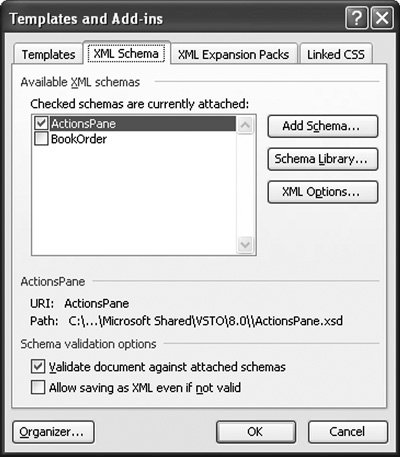
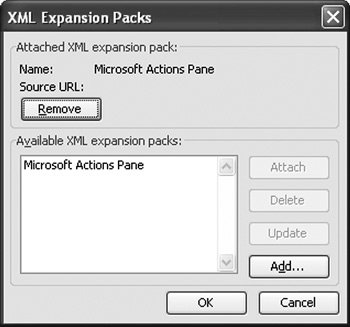
Attaching and Detaching the Actions PaneSometimes you will want to go beyond just hiding the actions pane and actually detach the actions pane from the document or workbook. You might also want to control whether the user of your document is allowed to detach the actions pane from the document or workbook. Recall from earlier in this chapter that the actions pane is actually a Smart Document solution, and as such, it can be attached or detached from the document or workbook via Excel and Word's built-in dialog boxes for managing attached Smart Document solutions. When the actions pane is detached from the document, this means that the Document Actions task pane will not be in the list of available task panes when the user drops down the list of available task panes, as shown in Figure 15.2 earlier in this chapter. To detach the actions pane from the document programmatically, call the ActionsPane.Clear method. Doing so detaches the actions pane solution from the document and hides the Document Actions pane. Calling ActionsPane.Show reattaches the actions pane and makes it available again in the list of available task panes. Note that in Word, when you call ActionsPane.Clear, you must follow the call with a second call to the Word object model: Document.XMLReferences["ActionsPane"].Delete. If you want to allow the user of your document to detach the actions pane solution by using the Templates and Add-ins dialog box in Word, shown in Figure 15.11, or the XML Expansion Packs dialog box in Excel, shown in Figure 15.12, you must set the ActionsPane.AutoRecover property to False. By default, this property is set to TRue, which means that even when the user tries to detach the actions pane solution by deselecting it in these dialog boxes, VSTO will recover and automatically reattach the actions pane solution. Figure 15.11. The ActionsPane solution attached to a Word document is visible in Word's Templates and Add-Ins dialog box and can be removed if ActionsPane.AutoRecover is not set to TRue. Figure 15.12. The ActionsPane solution attached to an Excel workbook is visible in Excel's XML Expansion Packs dialog box and can be removed if ActionsPane.AutoRecover is not set to TRue. After an actions pane solution is attached to the document, and the user saves the document, the next time the user opens the document, the actions pane will be available and can be selected at any time during the session. If your code does not add controls to the actions pane until some time after startup, you might want to call the ActionsPane.Clear method in the Startup handler of your VSTO customization to prevent the user from showing the actions pane before your VSTO customization has added controls to the ActionsPane control. Some Methods and Properties to AvoidAs mentioned earlier, the ActionsPane is a user control that has a fixed location and size that are controlled by VSTO. As such, you should avoid using a number of position-related properties and methods on the ActionsPane control, as listed in Table 15.1.
|

EAN: 2147483647
Pages: 221