Noatun
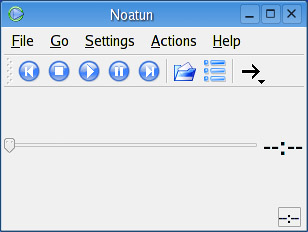
| Sounds a bit like know a tune, doesn't it? You can access the program by looking under the big K, choosing Multimedia, and then clicking on the KDE Media Player, or you can type noatun & at the command line. The problem is that when you fire it up for the first time, it tends to look a little boring, as in Figure 18-7. Figure 18-7. Noatun's default look.
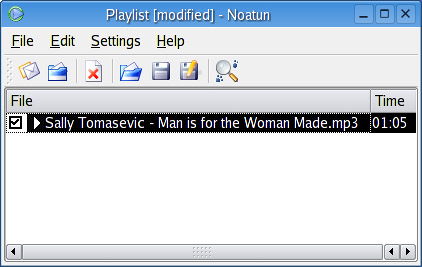
Don't let that disappoint you. That is the default skin, named Excellent. As with XMMS, you can skin Noatun in fact, some of Noatun's skins are downright wild. Before we get into that, however, let's talk about playing songs with Noatun. Click File on Noatun's menu bar and select Open. Navigate your directories until you get to a song you want to play. Select it, and click OK. In all likelihood, nothing will happen at this point. That's because you are loading songs into a playlist. To get to that playlist, click Settings and select Show Playlist. You can also click the Playlist icon just under the menu bar, the second icon from the right. (The final icon lets you select between single play and playlist looping.) At this point, you can just keep adding songs to the playlist (you can also add directories if you have collections you want to add). Eventually, you'll have your list. Click the diskette icon on the playlist (see Figure 18-8) to save your list. You are all set. Select a starting song in the playlist, and click the Play button on Noatun's main screen (or click the starting song in the playlist). Figure 18-8. Noatun's playlist.
Noatun's slider is positional within the playing song. You can control volume using your KMix applet in the system tray as well as through Noatun. To see the volume control, click Settings on the menu bar and select Show Volume Control.
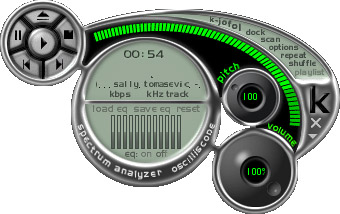
Skinning NoatunLet's get back to the subject of skinning Noatun. Click on Settings, followed by Configure Noatun. From the pop-up menu that appears, choose Plugins, which will then give you a tabbed menu. Under Interfaces, you'll see four options for player styles. The skinable styles are K-Jofol (Figure 18-9) and Kaiman (although there is also a Winamp skin loader). In both cases, you can find additional skins on the KDE-Look Web site at http://www.kde-look.org. Figure 18-9. Noatun with a K-Jofol skin.
Start by unselecting the Excellent interface and selecting the K-Jofol interface. You'll see the menu bar at the left change. It now shows a K-Jofol Skins option. The same would happen with the Kaiman interface but, obviously, with Kaiman skins. If you click on this menu option, you'll see a drop-down list on the right with a preview of the various installed skins.
Noatun Lightshows!When I told you about XMMS, I mentioned the variety of cool plugins you could use for visualization. KDE's media player, Noatun, has these as well. In the Configure Noatun Interfaces menu, select Plugins (from the left-hand sidebar), and then click Visualizations. |


EAN: 2147483647
Pages: 247