| Being able to drag the ball movie clip instance around the screen is critical to our project's interactivity. The ball's position onscreen will determine the volume and panning of the bouncing sound. If we were to allow users to freely drag the basketball_mc movie clip instance onscreen, however, our scene would not be realistic because the user could drag and bounce the ball over the crowd, the backboard, and so forth. Obviously, we need to restrict dragging to the area denoted by the court. 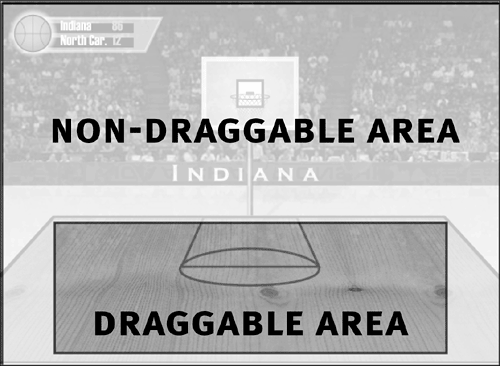
There are several ways of scripting so that an object can be dragged only within a certain area. In this exercise, you'll learn how to control the draggable area by tracking the mouse's movement and allowing dragging to occur only when the mouse pointer is within a certain area onscreen. Open basketball2.fla. Continue using the file you were working with at the end of the preceding exercise. Before you continue, it's important to think through the problem at hand; that is, how to drag the ball movie clip instance in sync with the mouse movement, and how to constrain that dragging to a specific area onscreen. The first objective is to establish the draggable area, or boundary, of our screen. In Flash, you define a boundary by determining four coordinates: top, bottom, left, and right. Our script will use these coordinates to restrict movement within that area. For this exercise, the coordinates that represent the four sides of our boundary will be as follows: Top boundary = 220 Bottom boundary = 360 Left boundary = 60 Right boundary = 490 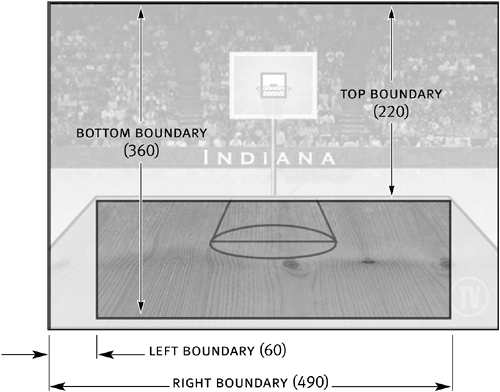
As shown by the arrows, all coordinates are based on the distance of that side from the top and left sides of the stage. TIP An easy and visual method of determining boundary coordinates is to draw a simple box on the stage. Resize it and position it in the area that will serve as the boundary in the scene. Select the box and then open the Info panel. Using the information in the X, Y, W, and H boxes, you can determine the four coordinates of your boundary: Y is the top boundary, X is the left boundary, Y + H is the bottom boundary, and X + W is the right boundary. After you've determined the four coordinates of your boundary, delete the box. There are other, more dynamic ways of setting a border, but this technique is the most straightforward. Because we want the basketball to move only when the mouse pointer is within the boundary, in scripting terms we need to check for a condition before the ball can be dragged. Logically, this might be translated as follows: If the mouse pointer's position is within the coordinates of the boundary, drag the basketball_mc movie clip instance; otherwise, stop dragging. We'll need to instruct the script to check for this condition on a regular basis because the mouse is in frequent motion. Using the onMouseMove event handler, we can check for this condition each time the mouse is moved. This will allow our script to act instantly to enable or prevent the basketball_mc movie clip instance from being dragged. We now have all the information necessary to proceed.
With the Actions panel open, select Frame 1 of the Actions layer. After the line of script from the preceding exercise creating the bounce Sound object, add the following lines of script: var leftBoundary:Number = 60; var rightBoundary:Number = 490; var topBoundary:Number = 220; var bottomBoundary:Number = 360;
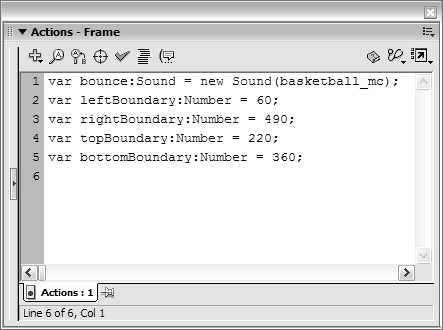
These variables contain the x and y coordinates of our boundary. Next, we'll add an if statement that constantly checks the position of the mouse and allows the ball to be dragged only if the mouse pointer is within the boundary we just defined.
Add the following lines at the end of the current script: this.onMouseMove = function() { if (_xmouse > leftBoundary && _ymouse > topBoundary && _xmouse < rightBoundary &&  _ymouse < bottomBoundary) { basketball_mc.startDrag(true); } else { stopDrag(); } } _ymouse < bottomBoundary) { basketball_mc.startDrag(true); } else { stopDrag(); } }
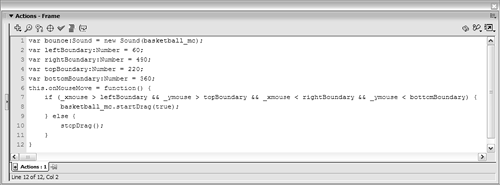
Using an onMouseMove event handler, the if statement is analyzed each time the mouse is moved. With this if statement, we're checking to determine that four conditions are true. If they are, dragging will commence; if not, dragging will cease. We're checking the current horizontal and vertical positions of the mouse pointer (_xmouse and _ymouse, respectively) to see how they compare to the boundaries we defined earlier. Let's look at a couple of possible scenarios to understand the logic behind this if statement. Suppose that during playback of the movie, the mouse pointer is moved to where its horizontal position (_xmouse) is 347 and its vertical position (_ymouse) is 285. By plugging in these values as well as the values that define our boundaries, the if statement would look similar to the following: if (347 > 60 and 347 < 490 and 285 > 220 and 285 < 390)
In this circumstance, the if statement would evaluate to true because all the conditions are true 347 is greater than 60 and less than 490, and 285 is greater than 220 and less than 390. In this scenario, dragging is allowed. Let's look at one more scenario. Suppose that during playback of the movie, the mouse pointer is moved to a horizontal position of 42 and a vertical position of 370. If we plug in these values, the if statement looks like this: if (42 > 60 and 42 < 490 and 370 > 220 and 370 < 390)
In this circumstance, the if statement evaluates to false because not all the conditions are true 42 is not greater than 60 (the first condition in the statement). When the if statement evaluates to true, the startDrag() action is triggered and the basketball_mc instance becomes draggable. The true parameter value used in this action causes the center of the basketball_mc movie clip instance to be locked to the vertical and horizontal positions of the mouse pointer. TIP The startDrag() action is not the only way to drag a movie clip instance. In our script, we could replace this action with the following: basketball_mc._x = ._xmouse; basketball_mc._y = ._ymouse;
These two lines would cause the x and y coordinates of the basketball_mc movie clip instance to mimic the x and y coordinates of the mouse pointer, so it appears to be dragged. The advantage of this technique is that it allows you to drag multiple movie clip instances simultaneously. In contrast, the startDrag() action allows only one movie clip instance at a time to be dragged. In our script, this is sufficient because the basketball is the only item that needs to be draggable. When the if statement evaluates to false, the stopDrag() action is triggered, causing the ball to stop being dragged. Because this if statement is evaluated with each movement of the mouse, the dragging process can be stopped and started frequently, depending on the current position of the mouse pointer.
Choose Control > Test Movie to see how the movie operates. In the testing environment, move your mouse around the court. When the mouse pointer is moved within the boundary we defined, dragging will occur, causing the ball to appear as if it's bouncing around the court. Move the mouse pointer outside this boundary, and dragging stops.
- Close the testing environment to return to the authoring environment. Save the current file as basketball3.fla.
|
