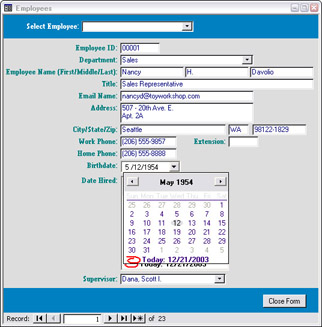
If you have the Developer Edition of Office, or if you have other programs (such as Visual Basic) that include a set of ActiveX controls, you can also place several other controls on Access forms. The two most useful ones for Access forms are the DateTimePicker and the MonthView control, which are discussed in the
| Important |
Caveat: If you place one of these controls on an Access form, and then send the database to someone who doesn’t have these controls available (say because she has Office Pro instead of the Developer Edition), the controls won’t be displayed, and
|
The DateTimePicker control lets you select a date from a small pop-up calendar. When the calendar is closed, it takes up little space on a form. However, this control lacks the year navigation control of the regular calendar control, so it may be quite
Figure 3.14
The MonthView control resembles the pop-up calendar used for the DateTimePicker control, but it is always visible. It also lacks the year navigation control, so if you need a calendar that is always visible, the regular calendar control is preferable. Figure 3.15 shows a MonthView control used to select the hire date on the same form as is used for the DateTimePicker control.
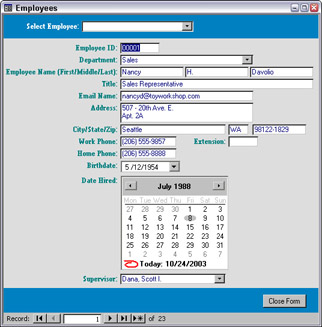
Figure 3.15
The
While you can base forms and
Select queries let you filter and
First, a digression. You don’t need a select query to just sort or filter data for display on a form or report; you can do that by using the appropriate expression in the Order By or Filter property of the form or report. The expression listed below filters frmCustomers (in the sample Toy Workshop database) for customers whose title is Marketing Director:
ContactTitle=”Marketing Director”
To sort frmCustomers by CompanyName, just enter CompanyName in the form’s Order By property.
| Important |
Although Access Help says that you can use two (or more) field
|
Additionally, you can use the Sort
However, if you need to filter or sort by two or more fields, you’ll need to create a query. Apart from filtering and sorting, though, there is an
The
Sometimes you have a table (possibly imported from a flat-file database or a text file) that has a whole name in a single field (either last name first, or first name first), and you need to separate the first name, middle name (if any), and last name into individual fields. Similarly, you may have a whole address of one to three lines in a single field, or the city, state, and zip in a single field, and need to create separate fields for each address component.
At other times, you may need to do the reverse, usually when exporting to a nonrelational database, or to another Office application, such as Word. For example, you may want to put a person’s complete address into a variable for export to a Word doc property, to use as an address block in a Word letter, or you may need to put a person’s whole name into one field, last name first, to export to a comma-delimited text file for import into a mainframe database.
The QueryExpressions sample database has two tables of sample data. tblContactsWhole has the following fields:
ContactID
LastNameFirst
FirstNameFirst
Address
CityStateZip
All the fields except ContactID contain data that you might need to split into separate fields to make it possible to sort and filter by data such as the person’s last name or the city or state. This table is shown in Figure 4.1.
Figure 4.1
The tblContactsSeparate table illustrates the
ContactID
FirstName
MiddleName
LastName
Address1
Address2
Address3
City
StateOrProvince
PostalCode
This table has three separate address fields, which is
Figure 4.2
The Query Expressions sample database contains two empty target tables: tblTargetSeparate and tblTargetWhole, and four select queries with expressions that split or concatenate data from the raw data tables.
The target tables are cleared by a function run from the AutoExec macro every time the database is opened—one of the few remaining uses for macros in Access.
Two append queries
qrySplitAddressComponents and qrySplitNameComponents are select queries that split the address and name components into separate fields; these queries can be used as is or converted into make-table or append queries as needed. qryConcatenateAddressComponents and qryConcatenateNameComponents do the opposite: they concatenate data in separate fields into one field, for export to flat-file databases or other applications.
In the select queries qrySplitAddressComponents and qrySplitNameComponents, there are intermediate fields (the ones ending with a “Plus” and the CityStateZip field), which are used to break out a portion of a name or address that in turn needs to be further broken down. These expression names are used in
The name in a whole name field might be arranged either last name first or first name first, so I made different expressions to extract name components from each type of field; the sample append query uses the last name first version.
Here are the query column expressions used in the select queries:
CityStateZip: IIf([City],[City] & “, “,””) & [StateOrProvince] & “ “ & [PostalCode] Address: IIf(Nz([Address2])<>””,[Address1] & Chr(13) & Chr(10) & [Address2],[Address1]) & IIf(Nz([Address3])<>””,Chr(13) & Chr(10) & [Address3]) WholeAddress: [Address] & Chr(13) & Chr(10) & [CityStateZip]
LastNameFirst: [LastName] & IIf([FirstName],”, “ & [FirstName],””) & IIf([MiddleName],” “ & [MiddleName]) FirstNameFirst: IIf([MiddleName],[FirstName] & “ “ & [MiddleName],[FirstName]) & IIf([LastName],” “ & [LastName])
City: IIf(InStr([CityStateZip],Chr$(44))>0,Mid([CityStateZip],1,InStr([CityStateZip],Chr$( 44))-1),[CityStateZip]) StatePlus: Mid([CityStateZip],InStr([CityStateZip],Chr$(44))+2) State: IIf(InStr([StatePlus],Chr$(32))>0,Mid([StatePlus],1,InStr([StatePlus], Chr$(32))-1),[StatePlus]) Zip: IIf(InStr([StatePlus],Chr$(32))>0,Mid([StatePlus],InStr([StatePlus],Chr$(32))+1),””) Address1: IIf(InStr([Address],Chr(13)),Left([Address],InStr([Address], Chr(13))-1),[Address]) Address2: IIf(InStr([AddressPlus],Chr(13)),Left([AddressPlus],InStr([AddressPlus], Chr(13))-1),[AddressPlus]) Address3: IIf(InStr([AddressPlus],Chr(10)),Mid([AddressPlus],InStr([AddressPlus],Chr(10))+1)) AddressPlus: IIf(InStr([Address],Chr(10)),Mid([Address],InStr([Address],Chr(10))+1))
FirstNameL: IIf(InStr([FirstNamePlusL],Chr$(32))>0,Mid([FirstNamePlusL],1,InStr([FirstNamePlusL] ,Chr$(32))-1),[FirstNamePlusL]) FirstNamePlusL: Mid([LastNameFirst],InStr([LastNameFirst],Chr$(44))+2) MiddleNameL: IIf(InStr([FirstNamePlusL],Chr$(32))>0,Mid([FirstNamePlusL],InStr([FirstNamePlusL], Chr$(32))+1),"") LastNameL: IIf(InStr([LastNameFirst],Chr$(32))>0,Mid([LastNameFirst],1,InStr([LastNameFirst], Chr$(32))-2),[LastNameFirst]) FirstNameF: IIf(InStr([FirstNameFirst],Chr$(32))>0,Mid([FirstNameFirst],1,InStr( [FirstNameFirst],Chr$(32))-1),[FirstNameFirst]) MiddleNamePlusF: IIf(InStr([FirstNameFirst],Chr$(32))>0,Mid([FirstNameFirst],InStr([FirstNameFirst], Chr$(32))+1),"") MiddleNameF: IIf(InStr([MiddleNamePlusF],Chr$(32))>0,Mid([MiddleNamePlusF],1,InStr([MiddleName PlusF],Chr$(32))-1),"") LastNameF: IIf(InStr([MiddleNamePlusF],Chr$(32))>0,Mid([MiddleNamePlusF],InStr([MiddleName PlusF],Chr$(32))+1),[MiddleNamePlusF])
After you run qappConcatenateNameAndAddressComponents, tblTargetWhole’s fields are filled with data concatenated from separate fields in the original table (tblContactsSeparate), as shown in Figure 4.3.
Figure 4.3
Running qappSplitNameAndAddressComponents does the reverse: it
Figure 4.4
The expressions used to split or concatenate data depend on commas and spaces to parse out name and address components. If the fields in your source table don’t have commas after city names, or have a comma but no space after a last name in a LastNameFirst name field, you’ll need to modify the query expressions to work with the data in the source table. If (worst case) the source table data uses commas and spaces inconsistently in names and addresses, some fields will need to be cleaned up manually after appending.
You can adapt the query expressions for use in VBA code; in that case you can replace
Chr(13)
&
Chr(10)
with the
Totals queries are not a separate query type—they have the same icon as regular select queries in the database window. They are simply select queries with the Total line in the query grid turned on by clicking the Totals button on the toolbar (it’s the one with the big sigma). The Total line offers a choice of a set of predefined calculations using aggregate functions. The most familiar (and widely used) are Sum, Count, and Avg, but you can also use a number of other more advanced aggregate functions, as listed in the table below.
|
Aggregate Function |
Usage |
Use with Field Data Types |
|---|---|---|
|
Sum |
Totals the numeric values in a field |
Number, Date/Time, Currency, AutoNumber |
|
Avg |
Averages the numeric values in a field |
Number, Date/Time, Currency, AutoNumber |
|
Min |
Returns the
|
Number, Date/Time, Currency, AutoNumber |
|
Max |
Returns the highest value in a field |
Number, Date/Time, Currency, AutoNumber |
|
Count |
Counts the number of values in a field, excluding Nulls |
Text, Memo, Number, Date/Time, Currency, AutoNumber, Yes/No, OLE Object |
|
StDev |
Returns the standard deviation of the values in a field |
Number, Date/Time, Currency, AutoNumber |
|
Var |
Returns the variance of the values in a field |
Number, Date/Time, Currency, AutoNumber |
| Important |
Access Help says you can do a sum on a Date/Time field. Well, you can, but it’s hard to see what use there is for the return value. To test this, I made a totals query with a sum on the Birthdate field in tblEmployees, and got a value of 19856. I would avoid using the sum function on Date/Time fields. |
If you want to count customers in tblCustomers, all you need is the CustomerID field, with Count selected in the Total row of that field. Since CustomerID is a key field, and thus can’t be blank, the count will be the same as the number of records in the table. If you do a count on the ContactTitle field, the result will be the number of records that have a value in the ContactTitle field. See Figures 4.5 and 4.6 for this query in design and Datasheet view.
Figure 4.5
Figure 4.6
A totals query can give you different counts or totals depending on which fields are selected in the query grid. When creating a totals query, it’s important to trim down the field list to remove any unnecessary fields, so the selected aggregate function will return the correct value. For example, if you base a totals query on tblOrders, and place ToyID and an ExtendedPrice calculated field on the query grid, with the Sum function selected for ExtendedPrice, you will get a sum of ExtendedPrice for each toy—that is, the total price of toys (ToyPrice * ToyQuantity) for all the orders for that toy. This query is shown in Datasheet view in Figure 4.7.
Figure 4.7
If you then remove ToyID from the query grid and replace it with CustomerID, you will get different sums, adding up the extended toy price by customer, as shown in Figure 4.8 (I added tblCustomers to the query too, so I could show the customer name and not just the CustomerID).
Figure 4.8
If you find that a totals query isn’t returning the correct values, remove any extraneous fields from the query grid, so you get the totals you intended.
tblToys contains several currency fields that you might want to add up, using the Sum function. You can also create a sum on a calculated field, for example a TotalCost field that
Figure 4.9
Figure 4.10
You can use the qtot tag to identify all totals queries, or use separate tags corresponding to the different functions, such as qsum , qmin , or qmax .
When you select an aggregate function for a field, the aggregate field name in Datasheet view will be SumOfFieldName, CountOfFieldName, and so forth. If you want a less cumbersome name, you can alias the field name with another name, such as CustomerCount.
If you want to count the number of customers who have a specific job title, you can use a criterion on the JobTitle field plus a Count function to count just the customers with the title Marketing Director. However, you can’t do this in one field—if you do, you’ll get a “Data type mismatch in criteria expression” error message. Instead, drag the ContactTitle field to the query grid twice. Place the criterion on one of the
Figure 4.11
Figure 4.12 shows the same query in Datasheet view.
Figure 4.12
The Min and Max functions are useful for determining the lowest and highest values in a field. I use the Max function in a totals query that determines the highest value used so far in the EmployeeID field, which is not an AutoNumber field, but a text numeric field whose value is filled in by VBA code that adds 1 to the highest value. This query is shown in Design view in Figure 4.13.
Figure 4.13
You won’t see the Max function on the Total row of this query; Access sometimes converts a calculated expression that has an aggregate function selected on the Total row into a more complex expression that includes the selection function. When I created this query, the field was NumericID: CLng_([EmployeeID]). with the Max aggregate function; it was converted by Access into NumericID: Max(CLng([EmployeeID])) with Expression selected in the Total row.
Apart from the aggregate functions (Sum, Count, and so forth), you also have a choice of Group By (the default selection) and Expression in the Total row of each field in a totals query. The default selection, Group By, should be selected for the fields referenced in the aggregate function, and Expression is what you get if you use another function in a field together with an aggregate function. You can create the expression yourself, or Access may create it for you.
To prevent problems with Nulls in totals queries, use the Nz function to convert numeric values to zeroes.

Access 2007 VBA Bible: For Data-Centric Microsoft Office Applications

Microsoft Access Small Business Solutions: State-of-the-Art Database Models for Sales, Marketing, Customer Management, and More Key Business Activities

Access Solutions: Tips, Tricks, and Secrets from Microsoft Access MVPs

Building Microsoftu00ae Access Applications (Bpg Other)