Arrangements and Intelligent Grouping
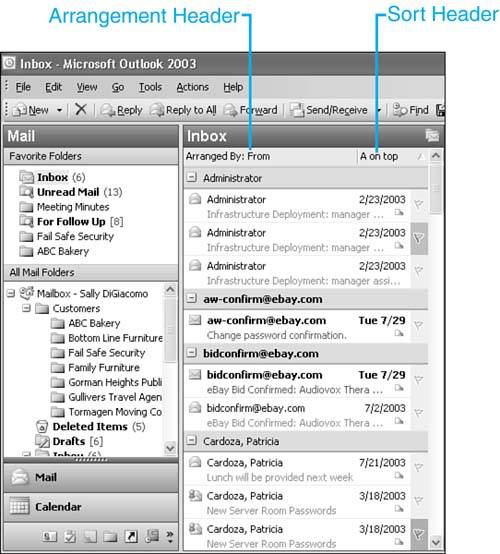
ArrangementsAn arrangement is a predefined combination of a grouping and sort order. Thirteen standard arrangements ship with Outlook and are available only when viewing a folder in a Table view. Every arrangement employs grouping and all groups within an arrangement (with the exception of the By Conversation arrangement) are expanded by default. To view the available arrangements for a particular folder, you first must be viewing a Table view of the folder. All default views in the Inbox and other mail folders are Table views. For other folders, such as the Calendar folder, you'll have to switch to a Table view such as Active Appointments or By Category. For mail folders, after you're viewing your items in a Table view, click on the beige column heading directly under the folder name with the words Arranged By:. For other folders, such as Calendar, Contacts, Tasks, Journal, and Notes, the arrangement header isn't shown. You'll have to select View, Arrange By to display the list of arrangements. You can choose any of the default arrangements. After you've selected an arrangement, your folder view changes based on that arrangement. You can also choose the sort order within the arrangement. Depending on the arrangement you've chosen, Outlook displays text that describes the sort order of the current arrangement. For example, if you choose to arrange by From (see Figure 4.6), Outlook automatically sorts the view with A on top. To reverse this order, click the header marked A on top and it will change to Z on top. If you choose to arrange by date, the sort order is displayed with newest on top. Click the sort header to change it to oldest on top. Figure 4.6. Arranging your Inbox by From can show you all the messages from specific individuals in groups.
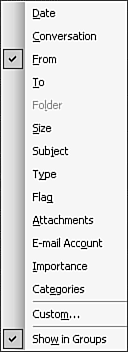
The arrangement menu, shown in Figure 4.7, enables you to choose any of the default arrangements. You can also choose whether you want your arrangements grouped. By default, all arrangements are grouped automatically. However, for all arrangements except for By Conversation, you can disable grouping. Simply uncheck the Show in Groups check box. Figure 4.7. You can choose any of the default arrangements or customize your current view from this menu.
The arrangements context menu also has a Custom option. This option displays the Customize Current View dialog box. This menu option is a bit misleading because you can't create custom arrangements. However, you can create customized views with sorting and grouping. NOTE You might be asking yourself how creating a customized sorted and grouped view is any different than an arrangement. The simple answer is that it isn't. An arrangement is simply the name for the built-in pairing of a grouping and a sort order. You can use arrangements in any Outlook folder, including the Notes folder. However, in folders other than mail folders, you won't see the arrangement header and sort header. You can still pick your arrangement from the View menu by selecting Arrange By and then selecting one of the default arrangements. Intelligent GroupingThe other new view concept introduced in Outlook 2003 is intelligent grouping. All arrangements in Outlook are grouped by default. In previous versions of Outlook, grouping was very strict. For example, if you wanted to group a folder of messages by date received, you'd end up with a group for messages received at 9:03:45 a.m. and another group for messages received at 9:03:58 a.m. Very few people care the exact second a message was received. Chances are that if you ever tried this grouping in previous versions of Outlook, you were really looking for a grouping of all messages received today, another grouping for messages received yesterday, and so on. Outlook 2003 provides that capability with intelligent grouping. All predefined groups in Outlook are now grouped in logical groups, rather than strictly by value. For example, if you choose to sort your Inbox messages by date received, you'll see those messages grouped into several categories:
These levels enable you to view items in logical groups. Viewing messages by size produces similar intelligent grouping levels. In previous versions of Outlook, you would see a group for every possible different size of message. Most users don't care which messages were 49KB and which were 50KB they want to have a general idea of the number of messages received in each size group. Outlook 2003 groups messages into categories such as Enormous (>5MB), Huge (1 5MB), Very Large (500KB 1MB), Large (100 500KB), Medium (25 100KB), Small (10 25KB) and Tiny (<10KB). Grouping by Attachment provides only two groups: Attachments and No Attachment. Intelligent grouping can help you quickly find messages by a particular type of attribute rather than sorting through an entire folder list of messages looking for the right one. Manipulating GroupsWhether you're creating a new grouped view or choosing from one of Outlook's built-in arrangements, you can manipulate the view by expanding, collapsing, and sorting the groups. You can also group by additional fields or change the grouping order. By default, when applying a grouping level, all groups are expanded. To collapse a group, click the minus sign next to the group header. To expand a collapsed group, click the plus sign next to the group header. You can also accomplish this by using the View menu. Select View, Expand/Collapse Groups and select from Collapse This Group, Expand This Group, Collapse All, and Expand All. Not all of these menu options are available all the time. If no group header is selected, you can choose only Expand All or Collapse All. If a collapsed group header is selected, you cannot use Collapse This Group. |


EAN: 2147483647
Pages: 426