Chapter 7: How to Work a Workbook
In early versions of Microsoft Excel, worksheets, charts, and macro sheets were stored as separate documents. Since Microsoft Excel 5, however, all these types of data, and more, peacefully coexist in workbooks. You can keep as many worksheets containing as many different types of data as you want in a workbook, you can have more than one workbook open at the same time, and you can have more than one window open for the same workbook. The only limitations to these capabilities are those imposed by your computer's memory and system resources.
Managing Multiple Workbooks
This chapter describes how to protect workbooks, how to use more than one workbook at a time, and how and why to split your view of a workbook into multiple windows. Generally when you start Microsoft Office Excel 2007, a blank workbook appears with the provisional title Book1. The only exceptions occur when you start Office Excel 2007 by opening an existing workbook or when you have one or more Excel files stored in the XLStart folder so that they open automatically.
If you start Excel with Book1 visible and then open an existing Excel file, Book1 disappears unless you have edited it. You can open as many workbooks as you like until your computer runs out of memory.
For more about working with multiple windows, see "Opening Multiple Windows for the Same Workbook" on page 171. For more information about the XLStart folder, see "Opening Files When You Start Excel" on page 65.
Navigating Between Open Workbooks
If you have more than one workbook open, you can activate a particular workbook in any of the following three ways:
-
Click its window, if you can see it.
-
If you have all your workbook windows maximized, you can shuffle through the open workbooks by pressing Ctrl+Tab to activate each workbook in the order you opened them. Press Shift+Ctrl+Tab to activate them in reverse order.
-
On the View tab on the Ribbon, click a window name on the Switch Windows menu, which lists as many as nine open workbooks or, if you have more than nine, displays a More Workbooks command that presents a dialog box that lists all the open workbooks.
Inside Out-Closing the Last Open Excel Window
 |
Over the past few releases of Office, there has been some debate about the relative merits of the multiple document interface (MDI) and the single document interface (SDI). What are we talking about here? It's a difference in how documents are handled in the user interface. Users of previous versions of Excel have grown used to the MDI-where you can have multiple workbooks open but only one icon appears in the Windows system tray. Excel 2007 has switched to the SDI paradigm: Each open workbook creates a new icon in the system tray. A new workbook that appears when you first start Excel (or when you click the Microsoft Office Button and then click New) disappears when you open another workbook unless you have actually edited it. Then, when you click the Close button in the Excel title bar, Excel exits even though you may have thought you had another workbook open to prevent Excel from exiting.
The way to change this default SDI behavior is to click the Microsoft Office Button, click Excel Options, select the Advanced category, and in the Display group clear the Show All Windows In The Taskbar check box. If you still prefer the SDI approach, you can work around this issue by avoiding clicking the Close button and instead clicking the Microsoft Office Button, Close, which closes the active workbook but keeps the program open; by making sure you click the Close button in the workbook window instead of the Close button in the Excel window; or by developing the habit of typing a space character (or any character) in cell A1 as soon as you start Excel just to keep Book1 alive.
|
Arranging Workbook Windows
To make all open workbooks visible at the same time, click the View tab, and click Arrange All. Excel displays the Arrange Windows dialog box, shown in Figure 7-1, which also shows the workbooks arranged in the Tiled configuration with the screen divided into a patchwork of open documents. Figure 7-2 shows the same workbooks in the Horizontal configuration.
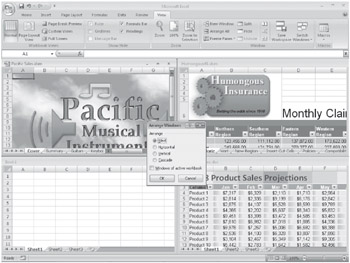
Figure 7-1: Clicking View, Arrange All opens the Arrange Windows dialog box, which gives you a choice of configurations.
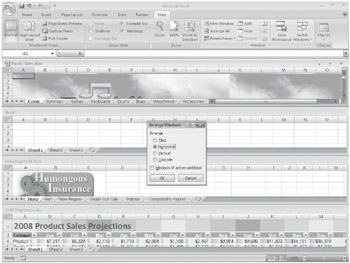
Figure 7-2: These windows are arranged in the Horizontal configuration.
On the CD You'll find the  2008 Projections.xlsx, Humongous08.xlsm, and Pacific Sales.xlsm files in the Sample Files section of the companion CD.
If you select the Windows Of Active Workbook check box in the Arrange Windows dialog box, only the active workbook is affected by the configuration setting, and then only if more than one window is open for the active workbook. Excel arranges those windows according to the option you select under Arrange in the Arrange Windows dialog box. This is handy if you have several workbooks open but you have multiple windows open for one of them and you want only to arrange these windows without closing the other workbooks.
For more information about working with multiple worksheets from one workbook, see "Opening Multiple Windows for the Same Workbook" on page 171.
| Note | If you're working with several workbooks in a particular arrangement that is often useful, click the View tab, and click Save Workspace in the Window group. This preserves the current settings so you can re-create the window arrangement by opening one file. For more information, see "Saving the Entire Workspace" on page 60. |
Getting the Most Out of Your Screen
 You can maximize the workbook window if you need to see more of the active worksheet, but if that still isn't enough, you can click the Full Screen button on the View tab. When you do so, Excel removes the formula bar, status bar, Quick Access Toolbar, and Ribbon from your screen-everything except the maximized workbook-as shown in Figure 7-3.
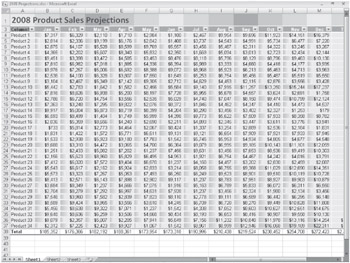
Figure 7-3: Clicking View, Full Screen hides the formula bar, status bar, Quick Access Toolbar, and Ribbon to maximize the screen space available for viewing your data.
To return the screen to its former configuration, press Esc.
For more about maximizing and minimizing windows, see "Resizing the Window" on page 29.
The Full Screen button provides a convenient way to display the most information on the screen without changing the magnification of the data using the Zoom controls. For more information, see "Zooming Worksheets" on page 154.
| Note | When you save a workbook, Excel also saves its characteristics, such as the window's size, position on the screen, and display settings. The next time you open the workbook, the window looks the same as it did the last time you saved it. When you open it, Excel even selects the same cells you selected when you saved the file. |
Comparing Worksheets Side by Side
 The Arrange All button on the View tab is extremely helpful if you need to compare the contents of two similar workbooks, but another feature makes this task even easier. The View Side By Side button essentially packages the Horizontal window arrangement option with a couple of useful features to make comparison chores a lot easier. The View Side By Side button lives in the Window group on the View tab; it is the top button located to the left of the Save Workspace command, as shown in Figure 7-4.
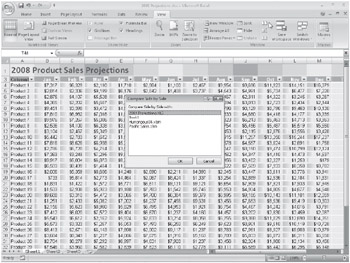
Figure 7-4: If more than two windows are open, select one in the Compare Side By Side dialog box.
| Note | The Ribbon on your screen may look different from what you see in this book. The Ribbon display adjusts to the size of your screen, its resolution, and the size of the Excel window. For example, the six buttons in the middle of the Window group on the View tab may not display adjacent text labels if you have a smaller display or if Excel is not maximized. |
You can click the View Side By Side button to arrange any two open windows, even if they are windows for the same workbook (as described in the next section). But unlike the Arrange button, View Side By Side performs its trick on no more or less than two windows. After you click the button, you will see a Compare Side By Side dialog box like the one shown in Figure 7-5 if you have more than two windows open. If so, select the window you want to compare, and click OK; this opens and arranges it along with the window that was active when you clicked View Side By Side. (The button name is a little bit misleading, because the windows are actually arranged horizontally-not really "side by side" but one above the other.)
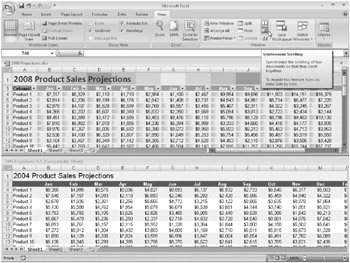
Figure 7-5: The Synchronous Scrolling button locks side-by-side window scrolling.

 After you activate "side-by-side mode, " the two buttons below the View Side By Side button become active, as shown in Figure 7-5. The Synchronous Scrolling button locks the two windows together wherever they happen to be so when you scroll in any direction, the inactive window scrolls in an identical fashion. The Reset Window Position button puts the active window on top, which is handy. The window that is active when you click the View Side By Side button is the one that appears on top. If you want the other window on top, click the other window, and then click the Reset Window Position button to place it in the top position.
The View Side By Side button is a toggle-to turn off side-by-side mode and return to Normal view, click the View Side By Side button again.

EAN: 2147483647
Pages: 260